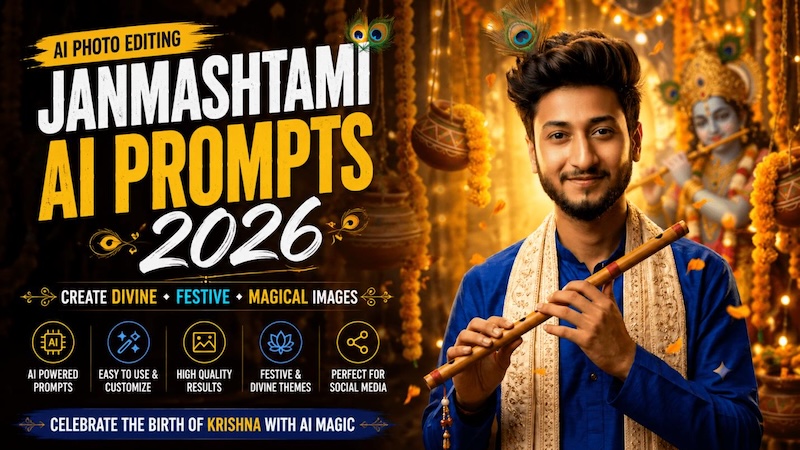
Midnight strikes, and the temple bells ring out across India. Homes glow with lamps, devotional songs fill the air, and families gather in prayer to welcome the birth of Lord Krishna. Janmashtami, also known as Krishna Janmashtami or Gokulashtami, is the festival that marks the earthly appearance of Lord Krishna, who is revered as the eighth avatar of Lord Vishnu. In 2026, AI photo editing prompts offer a creative way to capture the beauty and spirituality of this special occasion. This guide provides the top 7 Krishna AI photo editing prompts that will help you create stunning Janmashtami posts on social media platforms like Instagram and TikTok.
Part 1: Top 7 Krishna AI Photo Prompts You Should Try
If you want to create beautiful and eye-catching Janmashtami content, these Krishna AI photo editing prompts are a great place to start. You can use them to transform ordinary photos into festive images. Here are the top 7 Krishna AI photo editing prompts:
1. Krishna Blessing The Devotee

“Transform the uploaded photo into a divine Janmashtami scene while preserving the person’s facial identity, natural features, pose, and realistic appearance. Place Lord Krishna standing gracefully in the background, wearing a beautiful yellow dhoti, peacock-feather crown, floral garlands, and traditional jewelry. Krishna should gently raise one hand in blessing while holding a flute in the other. Add a softly illuminated temple, diyas, flowers, and subtle golden light around him. Create a peaceful, devotional atmosphere with cinematic lighting, realistic details, and vibrant festive colors.”
2. Head Resting on Krishna’s Lap
“Turn the uploaded photo into an emotional devotional scene where the person is peacefully resting their head on Lord Krishna’s lap. Keep the person’s face, hairstyle, skin tone, and identity unchanged. Krishna should sit beneath a beautifully decorated tree, wearing a royal yellow outfit, peacock-feather crown, golden jewelry, and floral garlands. He should lovingly place one hand near the person’s head while holding his flute. Add glowing diyas, flowers, soft moonlight, and a dreamy Vrindavan-inspired background with realistic cinematic photography.”
3. Midnight Janmashtami Scene
“Turn the uploaded photo into a dramatic midnight Janmashtami celebration while keeping the subject’s face, hairstyle, and natural identity unchanged. Dress the subject in elegant traditional attire decorated with golden embroidery and Krishna-inspired accessories. Create a night-time temple courtyard filled with glowing diyas, flower garlands, lanterns, and subtle festive decorations. Add a deep blue night sky, soft moonlight, warm candlelight, gentle golden reflections, realistic shadows, cinematic contrast, and atmospheric details. The final image should feel peaceful, spiritual, festive, and visually striking for Instagram.”
4. Krishna Protecting The Devotee
“Transform the uploaded photo into a powerful spiritual scene without changing the person’s recognizable face or natural appearance. Show Lord Krishna standing protectively behind the person, gently placing one hand over their shoulder. Krishna should wear an elegant yellow dhoti, a jeweled crown with a peacock feather, floral garlands, and traditional ornaments. Create a dramatic yet peaceful background inspired by Vrindavan, with glowing clouds, temple silhouettes, flowers, and divine golden rays surrounding Krishna. Use cinematic lighting, realistic skin texture, detailed clothing, natural proportions, and an emotional devotional mood.”
5. Krishna At The Janmashtami Celebration
“Turn the uploaded image into a grand Janmashtami celebration while keeping the person’s identity completely unchanged. Place Lord Krishna prominently in the center background, surrounded by devotees celebrating with flowers, diyas, traditional decorations, and festive lights. Krishna should wear a magnificent yellow outfit, a jeweled peacock-feather crown, layered garlands, and hold his flute. Add colorful rangoli, hanging decorations, temple architecture, glowing lanterns, and flower petals in the air. Use realistic photography, cinematic depth, vibrant festive details, natural lighting, and an energetic yet devotional atmosphere.”
6. Krishna Whispering a Blessing
“Edit the uploaded photo into a divine Janmashtami portrait while preserving the person’s exact facial identity, hairstyle, skin tone, and natural appearance. Place Lord Krishna standing beside the person, gently leaning closer as if whispering a blessing. Krishna should wear a golden-yellow dhoti, intricate jewelry, floral garlands, and a beautiful peacock-feather crown. Set the scene in a moonlit Vrindavan garden with glowing diyas, jasmine flowers, lush trees, and soft mist. Use realistic photography, cinematic lighting, natural expressions, detailed textures, and a peaceful spiritual atmosphere.”
7. Krishna on a Decorated Swing
“Transform the uploaded photo into a beautiful Janmashtami celebration featuring Lord Krishna sitting gracefully on a flower-decorated swing. Keep the person’s face, hairstyle, skin tone, and identity exactly recognizable. Place the person standing beside the swing with a joyful devotional expression. Krishna should wear a yellow dhoti, jeweled crown, peacock feather, and layered floral garlands. Surround the swing with jasmine flowers, hanging lanterns, colorful fabrics, and glowing diyas. Add warm evening lighting, realistic details, cinematic depth, natural expressions, and a festive Vrindavan-inspired environment.”
Part 2: Best Tool to Create High-Quality Images Using Krishna AI Photo Prompts
Once you have the right Krishna AI photo editing prompt, the next step is choosing a reliable AI tool to bring your idea to life. HitPaw Edimakor is one of the best AI video editing tools that enables users to customize videos according to their requirements. In addition, HitPaw Edimakor also supports an image-to-image feature that enables users to transform ordinary images into engaging visuals with a simple text prompt. Users can experiment with different Krishan-inspired themes, traditional outfits, and devotional settings to create unique Janmashtami visuals. The best part of this tool is that it supports various image styles, including cinematic, 3D, realistic, oil painting, anime, cartoon, cyberpunk, neon, and more. The program also offers advanced customization features, allowing users to experiment with various styles, backgrounds, lighting effects, colors, and compositions.
Key Features of HitPaw Edimakor
- Image-to-Image: With this feature, users can transform ordinary images into engaging and high-quality visuals with a simple text prompt — no editing experience or professional help required.
- Multiple Image Styles: HitPaw Edimakor supports a wide range of image styles, such as cyberpunk, realistic, 3D, anime, cartoon, oil painting, watercolor, sketch, cinematic, fantasy, and digital art.
- Wide Range of AI Models: The program includes multiple AI models, each with unique features and capabilities. Available AI models on this program are Nano Banana, Nano Banana Pro, Flux, Midjourney, Stable Diffusion, Imagen 4, and more.
- Advanced Customization: HitPaw Edimakor offers advanced customization features, allowing users to adjust images according to their requirements. Users can modify the background, lighting, add effects, text, and background music.
- Intuitive Interface: The best part of this tool is that it offers a beginner-friendly interface, allowing users to transform simple images into various styles without professional help.


Step-by-Step Guide:
Learn how to transform simple images into high-quality visuals using Krishna AI photo editing prompts:
Step 1: Launch HitPaw Edimakor
Download the latest version of HitPaw Edimakor on your PC and launch it. Choose the “Reference Image” feature from the main interface.
Step 2: Upload Reference Image
Click on the “Import” button and select the image that you want to transform. Users can upload multiple images at once.
Step 3: Enter The AI Prompt
Scroll down and enter the Krishna AI photo editing prompt in the prompt box. Make sure to add detailed prompts to get realistic results.
Step 4: Preview and Download
Choose the output quantity and click on the “Generate” button. Within seconds, HitPaw Edimakor will transform your images. Preview the results and click on the “Download” button.
Final Thoughts
Janmashtami is just around the corner, and every indian is trying to celebrate this special occasion uniquely and memorably. Krishna AI photo editing prompts provide an easy and creative way to give your picture a festive and devotional touch. Try Krishna AI photo editing prompts with HitPaw Edimakor to get realistic results within seconds.
Leave a Comment
Create your review for HitPaw articles