The way we see ourselves online is being completely transformed by the AI avatar filter. You can experiment with different artistic styles, attitudes, and digital looks by using sophisticated AI techniques to turn your images into distinctive avatars. With a few clicks, anyone can now create an AI avatar for social media, gaming, or entertainment.
Part 1: What Is an AI Avatar Filter?
Using AI avatar generator from photo, users can create original digital avatars from their images or movies. It quickly replicates your appearance, from realistic 3D looks to anime-inspired fashions.
What Is an AI Avatar Filter | 3D and Anime Avatar Styles?
The AI avatar filter is are sophisticated technologies that generate digital representations of your face by analysing its features and expressions. These avatars give users an enjoyable and imaginative method to express themselves online. They can be anything from realistic 3D models to stylised cartoon or anime versions.
This 3d avatar filter technology makes use of computer vision and deep learning, which enables the AI to comprehend aspects like skin tone, facial shape, and haircut. AI avatar filters enable anyone to instantly become a distinctive digital version of themselves for social media, gaming, or online meetings.
Part 2: How to Use the AI Avatar Filter on Photos
AI tools make it simple to transform your ordinary selfies into eye-catching avatars. Using HitPaw Edimakor’s Reference AI Image tool , you can convert your photo into a stylised, cartoon-like or anime-inspired avatar effortlessly. Here are the steps to use the best AI avatar filter app
Step 1: Open Edimakor and Access the Reference Image Tool
Launch HitPaw Edimakor and head to Toolbox for “Reference Image” tool.



Step 2: Upload Your Photo
Select a clear, well-lit portrait or selfie for the best results. The AI uses your photo as a base to create a personalised avatar. Moreover, adjust the settings for a better result.
Step 3: Edit the Avatar Prompt for Custom Effect
Based on the descriptive prompt offered below, you can edit it to specify the avatar filter effect you want, such as anime, cartoon, or realistic. You can also describe background elements or character features to match your vision.
Avatar AI Photo Prompt Example:
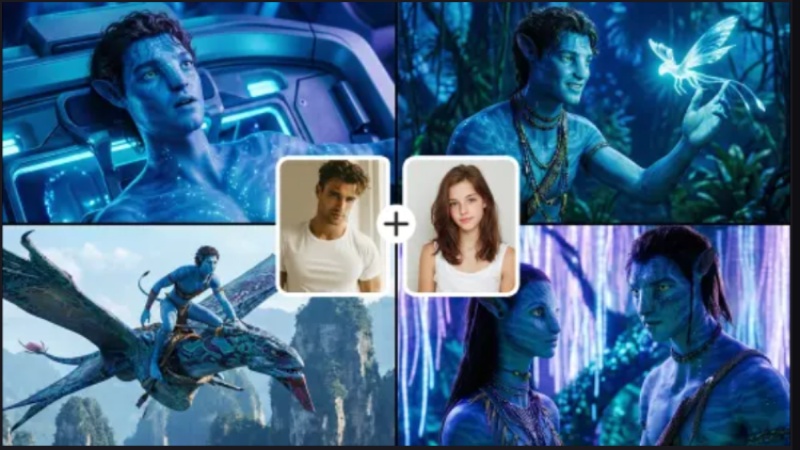
Transform the person in the photo into a Na'vi character from Avatar. Glowing blue skin with subtle bioluminescent dots, large yellow feline eyes, and pointed ears. Keep the original facial structure and hairstyle but adapt them to Pandora's aesthetic. High-quality cinematic lighting, hyper-realistic skin texture, 8k resolution, intricate tribal jewelry.
Step 5: Generate and Get the File
Click Generate and watch the AI convert your photo into an anime avatar filter. Preview the result in “My Creation”, make minor adjustments if necessary, and finally, hover on the image and click the location icon to find the file.
Part 3: How to Use the AI Avatar Filter in a Video
AI avatar filters make it simple to create visually appealing digital avatars from regular footage. With HitPaw Edimakor image to video AI , you may use intelligent AI techniques to produce a fluid avatar-style film without the need for complicated settings or editing expertise.
Step 1: Access Image to Video in HitPaw Edimakor
HitPaw Edimakor can be downloaded and installed from the official website. Open the edimakor ai avatar filter creator, then select Image to Video from the dashboard. This program is specifically made for animated avatar-style outputs and AI-based visual modifications.
Step 2: Add Your Picture
Bring in your video you wish to convert. Use a front-facing clip in well-lit areas for optimal results. The avatar creator from photo AI creates a constant avatar appearance by accurately reading facial traits.
Step 3: Add the AI Avatar Style Prompt
Now, write a detailed prompt explaining how you want to apply the AI Avatar filter on your video. Edimakor automatically applies the AI avatar filter while maintaining synchronised and natural movements. Also, adjust the resolution and duration of the video.
Avatar AI Video Prompt Example:
A smooth morphing transition video. The person in the original photo gradually transforms into a Na'vi warrior. Watch as the skin turns blue and bioluminescent patterns emerge on the face. The background shifts from a room to a lush jungle. 4k, slow motion, professional VFX transition, high fidelity.
Step 4: Preview Your Avatar Video and Download It
Allow the AI to process your video by clicking Generate. Check out the avatar animation once it is finished and downloaded in “My Creation”. You can get the file by hovering on it for the location by clicking the icon on the top-right. If you are happy, export the finished film in the format and resolution of your choice so you may use it for creative projects or social media.
Part 4: How to Use AI Avatar Effect on Instagram
Here are the steps for using the avatar filter online on Instagram:
Step 1: Open Instagram and Upload Your Photo
Launch the Instagram app and upload the photo you want to transform into an avatar. Make sure the photo is clear and well-lit for the best results.
Step 2: Tap the Restyle Button
Once your photo is uploaded, tap the Restyle button located on the top menu bar. This tool allows you to apply AI effects and filters to your image.
Step 3: Enter a Prompt to Apply Avatar Filter
In the prompt box, write a description for the AI avatar filter. The AI will process your image accordingly.
Step 4: Preview and Save the Photo
After the AI applies the filter, preview the image. Once satisfied, tap Save to store your new AI avatar image.
Part 5: How to Use Avatar AI Filter on Snapchat
Let's see how you can use the Snapchat Avatar AI filter:
Step 1: Open Snapchat and Access Filters
Launch the Snapchat app and ensure you’re logged in. Tap the Camera screen to access live filters and effects.
Step 2: Locate Avatar Filters
Swipe through the available Lens/Filters carousel or tap the Explore icon. Search for avatar filters or AI-generated avatar effects to find the one you want.
Step 3: Apply and Adjust the Filter
Once the filter is applied, adjust facial expressions, orientation, or background using Snapchat’s interactive tools. Make sure the avatar aligns well with your face or scene.
Part 6: How to Use Avatar AI Effect on TikTok
Here are he steps to use Snapchat, a perfect avatar filter app.
Step 1: Open TikTok and Access Your Profile
To access your profile page, launch the TikTok app and press the Profile icon in the lower-right corner of the screen.
Step 2: Start Making Your Avatar
Press the image on your profile. The Try Avatar option will appear; choose it to get started. To upload photos, adhere to the on-screen directions. After selecting three to ten crisp pictures of yourself, click Create to continue.
Step 3: Choose Styles and Finish Your Avatar
Wait for the AI to process your photos after you have uploaded them. Select two to five avatar styles that you like from the Select Styles screen, then click Continue. Choose the avatar that most accurately depicts you after they are created. Lastly, to make it your TikTok profile photo, select Use for Profile and then Save.
To Conclude
The AI avatar filter creation is easy and fun with HitPaw Edimakor (Video Editor) . This application guarantees that your AI avatar stands out for social media, films, or personal projects, enabling countless creative options in minutes, from choosing your style to modifying features and exporting high-quality photographs or videos.
Leave a Comment
Create your review for HitPaw articles