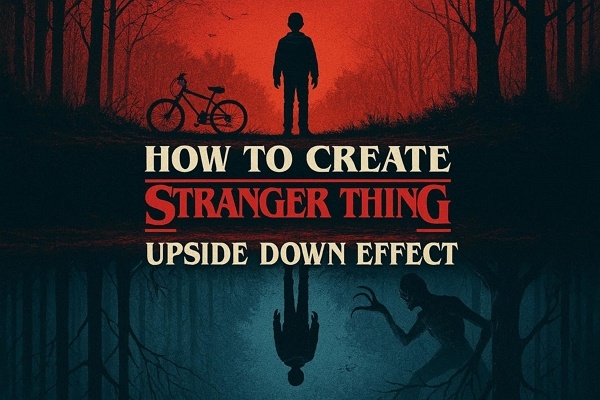
You’re editing a video late at night, wondering how creators pull off the eerie, gravity-defying look from Stranger Things that instantly hooks viewers. This article is a complete Stranger Things: Upside Down effect tutorial, breaking down the visual style, tools, and techniques needed to recreate it. From flipping environments to adding cinematic lighting, you’ll learn practical steps in this Stranger Things Upside Down effect tutorial.
Part 1. What Is the Stranger Things Upside Down Effect
To begin with, the Stranger Things Upside Down effect is a visually striking cinematic style that flips reality into a dark, eerie parallel world. Essentially, it transforms ordinary scenes with inverted visuals, moody lighting, and supernatural elements just like the original series. It creates a suspenseful, otherworldly atmosphere that instantly captivates viewers and adds dramatic impact.
1 Overview of the Stranger Things Upside Down Filter
Moving forward, understanding the key characteristics of the Stranger Things video-editing effect is essential to recreating its eerie, immersive look. The key factors of the whole environment include:
- Desaturated Blues: Cool, muted tones dominate the scene, giving it a haunting, otherworldly feel.
- Floating Organic Particles: Tiny drifting particles add depth and a sense of supernatural motion.
- Vine-Like Textures: Creeping, dark textures resemble vines, enhancing the Upside Down’s unsettling atmosphere.
- Dim Lighting with Glows: Subtle highlights and glows accentuate objects, adding mystery and focus.
- Foggy or Hazy Effects: Soft, misty overlays increase depth and suspense, emphasizing the parallel dimension vibe.
2 Key Elements of the Effect
These components mentioned below work together to create the signature dark, eerie, and immersive atmosphere that defines the Upside Down:
- Color Grading: Applying moody, desaturated blues and muted tones to establish a chilling, otherworldly look.
- Particle Overlays: Adding floating particles or sparks to give the scene a sense of motion and supernatural energy.
- Atmospheric Fog: Using haze or mist to enhance depth, mystery, and the eerie ambiance of the environment.
- Contrast & Shadows: Strengthening shadows and highlights to intensify drama and focus within the scene.
- Vignette Effects: Darkening edges subtly to draw attention to the center and heighten the cinematic feel.

Part 2. How to Make Stranger Things Upside Down Effect with Veo 3 and Sora 2
If you want to create the Stranger Things Upside Down effect, Edimakor offers a seamless workflow integrating top AI and editing tools. Using Veo 3.1 and Sora 2 (Sora 2 turned complex prompts into realistic stories, but is no longer available.), you can generate videos having cinematic color, particle overlays, and atmospheric fog with precision.
Additionally, Edimakor supports complementary platforms like Seedance, Vidu, and PixVerse to enhance effects further. Combined with Veo 3.1 and Sora 2, this suite ensures your Upside Down scenes look cinematic and ready for any video project.
Turn the Photo into a Stranger Things-Style Image with Nano Banana
As discussed, Edimakor lets you create images and videos of your choice with the integration of advanced AI models. Let's have a look at the step-by-step guide on how to make the Stranger Things Upside Down effect with Nano Banana:
Step 1. Begin By Creating A Project
To begin, launch Edimakor on your device and press the New Project tab located on the homepage.


Step 2. Choose Image Generator
In the following interface, select the Image Generator feature from the left and choose Nano Banana. Now, input your prompt and select Aspect Ratio and Output Quality. Finally, hit the Generate button to execute the process.
Step 3. Edit and Save Image
Once the image is generated, drag it to the editing timeline to apply further eerie effects and filters if required. Once you are satisfied with the results, press the Export button to save the output to your device.
Make Stranger Things Upside Down Effect With Veo 3 or Sora 2
With the Veo 3 and Sora 2 integration, users get the ability to convert their static images into dynamic videos with details. Read the steps provided next to learn how to use Edimakor to turn a Stranger Things Upside Down filter image into a video:
Step 1. Access Image to Video Feature
To initiate, launch Edimakor and access the Toolbox from the left. Next, locate the Image to Video feature and click on it.
Step 2. Import Image Select Model
In the following interface, import the image that you want to convert into a video and expand the Model drop-down menu to select Sora 2 or Veo 3.
Step 3. Input Prompt and Configure Settings
Moving forward, input the text prompt to specify your generation and configure settings such as Aspect Ratio , Resolution , and Duration . Once done, hit the Generate button to execute the process.
Step 4. Edit and Export Video
Once the Stranger Things style video is generated, drag it and the original video to the editing timeline and apply a 3D transition between them. When you are satisfied with the Edimakor Stranger Things effect results, press the Export button to save the video to your device.
Part 3. How to Use TikTok/Instagram Stranger Things Filters
Amid the final season release of Stranger Things, social media platforms have introduced special filters. The following section explains how you can join the bandwagon by sharing your thoughts and excitement:
How to Use TikTok Stranger Things Filters
Follow the guide below and learn how to use Stranger Things upside down background on TikTok:
Instructions. To begin, press the + icon in the middle and look for Stranger Things filters by dragging the filters left. Upon finding the overlay, start recording by pressing the Record icon.
How to Use Instagram Stranger Things Filters
Stranger Things filters are no longer available on Instagram because Meta shut down its Spark AR platform in early 2025. This removed most third-party and fan-made filters worldwide. As a result, the upside down world effect tutorial no longer appear in the Effects Gallery , regardless of region.
The Bottom Line
To wrap it up, this article provided a detailed guide on how to create the Stranger Things Upside Down Effect. The article also provided step-by-step techniques using Veo 3.1 and Sora 2. For a smoother, more professional workflow, we highly recommend Edimakor, which integrates powerful tools to bring your Upside Down visions to life in videos with cinematic precision.
Leave a Comment
Create your review for HitPaw articles