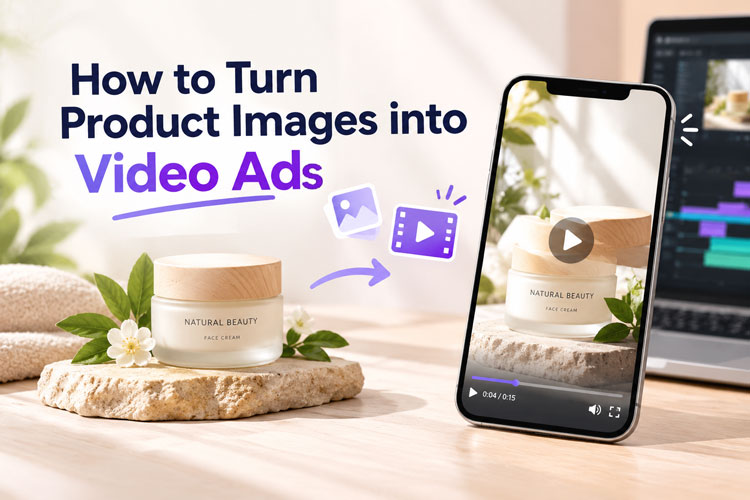
One product photo is more useful than you think. With AI, you can turn product photos into video ads in minutes, no camera or crew needed. Even better, you can turn the same photos into many different ads. Each ad can aim at a different goal and a different viewer.
Here are six types of product video ads you can make. Then we'll show you how to make them step by step with an AI product video generator.
Popular Types of Video Ads from Product Photos
Not every ad has the same job. Some build awareness. Others push a quick sale. The best format depends on your product, your audience, and the platform. Try these six types.
1 Product Showcase Ads
Video introduction: Want the product to be the star? Picture the product taking center stage. The camera moves around it, and lighting and motion highlight its shape.
Purpose: Introduce a product fast and make it look great.
Image assets: Clean photos on a simple background. Shoot a few angles.
2 UGC-Style Product Ads
Video introduction: Someone holds the product and talks about it, like a real review. It’s like a tip from a friend, not an ad.
Purpose: Get people to trust you. It works great on TikTok and Instagram.
Image assets: One clear product photo and one photo of a model.
3 Product Feature and Benefit Ads
Video introduction: Take one feature at a time. Keep each scene short and add a few simple words on screen.
Purpose: Show why it’s worth the money.
Image assets: Close-ups of the main parts, plus one clear photo from the front.
4 Promotional and Discount Ads
Video introduction: Keep it quick and loud. Put the price, the deal, and the last day right on the screen.
Purpose: Get people to buy fast during sales and holidays.
Image assets: Your main product photo, your logo, and a sale banner.
5 Lifestyle and Use-Case Ads
Video introduction: Drop the product into everyday life, like a bottle in a gym bag.
Purpose: Help people see it in their own life.
Image assets: Product photos with the background removed, plus a few scene photos or AI-made scenes.
6 Before-and-After Ads
Video introduction: Show the problem first. Then show the result.
Purpose: Prove the product works.
Image assets: One "before" photo and one "after" photo of the same subject, from the same angle and in the same light.
How to Turn Product Photos into Multiple Video Ads with AI
Want many ad formats without many shoots? HitPaw Edimakor is the best commercial video maker . It creates product videos from your existing photos with AI, no editing skills required. Here's what you get:
Key features of HitPaw Edimakor:
- Product Image to Video: Upload your product photos. Get a full video ad with voiceover and music.
- Image Editing with Ads Image: Swap backgrounds, place your product with a model, or fix small details.
- Realistic AI Avatars: Let a digital presenter talk about your product. No need to film yourself.
- Save as Templates: Found a setup you like? Save it and reuse it on your next product.
- Ad Clone: Copy the style and flow of an ad you like. Then drop in your own product photos.


Ready to make one? Follow these steps to turn a product photo into a video.
Step 1: Open AI Ads in Edimakor
Install and open Edimakor. On the home screen, click AI Ads. That's your workspace.

Step 2: Choose an Ad Video Type
Pick the mode that fits your goal. Creative Ads gives you a fully edited ad. Product Character makes a UGC-style video with a model. Product Showcase makes a short, punchy demo. Want to copy an ad you love? Choose Ad Clone.
Step 3: Upload Product Photos and References
Add your product photos. Using a model? Add a character photo too. Don’t upload photos that look the same. They make your video feel repetitive. Tell the AI what you sell, who it’s for, and what scenes you want. You can add a reference video too.
Step 4: Set Options and Generate
Choose the aspect ratio, duration, music, and voiceover language. Then click Generate. Your video lands in My Creation, so it's easy to find.
Bonus: Edit Product Images with Ads Image
Want better photos first? Try Ads Image. It can change a product background, put your product in a model's hands, or show clothes on a model. Need a small fix? Inpaint removes or replaces parts of an image.
Proven Tips for Creating Better Product Video Ads
A great tool helps, but good techniques matter even more. These six tips work with an AI product photo-to-video ad generator tool.
- Start with Product Photos: AI can only work with what you give it, so use your best shots. Sharp photo, good light, clean background. Blurry or cropped ones? Leave them out.
- Keep Product Details Accurate: Watch the color, shape, logo, and text in every clip. If the AI gets something wrong, fix it or just run it again. People stop trusting an ad fast when it doesn’t match the real product.
- Match the Ad to Your Audience: Think about who’s watching. A UGC-style ad fits younger shoppers on social media. A feature ad works better for people who like to compare options before they buy.
- Write Clear Prompts and Ad Messages: Tell the AI what your product is, who it’s for, and what makes it special. Then keep it short. One strong idea sticks rather than five.
- Optimize Videos for Each Platform: Posting on TikTok or Reels? Go vertical. Posting on YouTube? Go wider. Set the ratio and length before you hit generate. It saves you a redo.
- Create and Test Multiple Variations: Don’t stop at one version. Change the hook. Try a new voice. Test a different offer. Then keep whatever works.
FAQs
A1: It’s easier than it sounds. Upload your photo to an image-to-video AI tool, then add a short prompt about the look you want. Choose the length and ratio, hit generate, and the tool builds the clip.
A2: Yes, it can. Today’s AI tools add motion, voiceover, music, and text to your photos. You end up with an ad that’s ready to post, and you can still tweak it before you share it.
A3: Look for a tool made for ads, not just random clips. HitPaw Edimakor is a good fit. It offers several ad types, AI avatars, and image editing in one place.
A4: Start with the photos you already have. An AI image-to-video generator can turn them into showcase clips, UGC-style ads, and promos. You won’t need a camera, a studio, or any actors.
Conclusion
One set of product photos can power many video ads. You don’t need a big budget or a film crew to make great product ads. Some photos can become a showcase clip, a UGC-style review, a promo, and more. Pick the format that fits your goal, keep your product details accurate, and test a few versions to see what works.
Edimakor Commercial Video Maker makes every step easy, from first upload to final export. Try Edimakor today and turn your product photo into a video ad.
Leave a Comment
Create your review for HitPaw articles