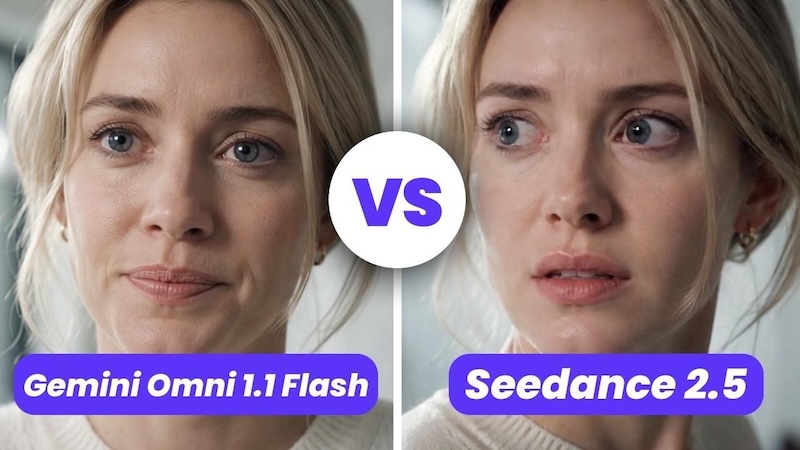
AI video generation is changing quickly, and creators now have many models to choose from. Two models getting attention are Gemini Omni 1.1 Flash from Google and Seedance 2.5 from ByteDance. Both can create videos from text and images, but they focus on different workflows. Gemini Omni 1.1 Flash focuses on fast creation, conversational editing, image-to-video generation, video extension, and repeated changes. Seedance 2.5 focuses on longer scenes, multiple reference inputs, storytelling, and audio-video generation. Google currently lists Gemini Omni 1.1 Flash output at 3 to 10 seconds per generation, while ByteDance says Seedance 2.5 can generate up to 30 seconds in one pass. Both models can also work with reference material. So, which model should you use? There is no single answer. The right choice depends on your video length, editing needs, references, audio requirements, and creative workflow.
Part 1: Gemini Omni 1.1 Flash vs Seedance 2.5 at a Glance
| Feature | Gemini Omni 1.1 Flash | Seedance 2.5 |
|---|---|---|
| Developer | ByteDance | |
| Text-to-video | Yes | Yes |
| Image-to-video | Yes | Yes |
| Video length | 3–10 seconds per generation | Up to 30 seconds |
| Audio | Native audio support | Joint audio-video generation |
| Reference inputs | Images, video, and other inputs | Multiple images, videos, and audio references |
| Editing | Conversational editing | Reference-based editing and generation |
| Video extension | Yes | Yes |
| Best suited for | Short clips and repeated editing | Longer scenes and complex storytelling |
The main difference is the workflow. Gemini Omni 1.1 Flash gives creators a way to generate a clip and then ask for changes using natural language. Seedance 2.5 puts more focus on longer single-generation scenes and larger sets of reference materials.
Part 2: What Is Gemini Omni 1.1 Flash?
Gemini Omni 1.1 Flash is Google's video generation and editing model. It accepts text, images, video, and other inputs and can create or edit video. Google also supports conversational editing, so users can describe a change instead of rebuilding the whole video from the beginning. Its current API documentation lists 3 to 10 second video output, with support for 360p, 720p, 1080p, and 4K output options. It can also extend existing videos and use first and last frames to create transitions.

Key Features of Gemini Omni 1.1 Flash
- Text-to-Video: Enter a text prompt describing your scene, and Gemini Omni 1.1 Flash can turn the idea into a video clip with the requested subjects, actions, and setting.
- Image-to-Video: Upload an image and describe the movement you want. The model can use the image as a starting point to create an animated video.
- Conversational Editing: You can ask for changes to an existing video using natural language, such as changing the camera movement, scene details, or other visual elements.
- Video Extension: Gemini Omni can extend an existing video, allowing creators to continue a scene instead of generating every part from the beginning.
- Subject References: You can provide reference material to help guide the appearance of important subjects, such as characters or products, during video creation.
- First-and-Last-Frame Interpolation: You can provide starting and ending frames to guide the transition between two points and create a more controlled video sequence.
Who Should Use Gemini Omni 1.1 Flash?
Gemini Omni 1.1 Flash can suit social media creators, marketers, product creators, concept designers, and users who often revise their videos. It can also work well for creators who like testing several ideas. You can generate a short clip, review it, ask for a change, and create another version without rebuilding the entire workflow.
Part 3: What Is Seedance 2.5?
Seedance 2.5 is ByteDance's video creation model. ByteDance introduced it in July 2026 and describes it as a model for longer storytelling, multimodal references, and editing. The model can generate up to 30 seconds of audio-video content in one pass and supports multiple rounds of video extension. Seedance 2.5 can also accept many types of reference material. ByteDance says users can provide up to 30 images, 10 video clips, and 10 audio clips in one generation. These references can help the model understand characters, scenes, props, styles, and other elements.
Key Features of Seedance 2.5
- 30-Second Video Generation: Seedance 2.5 can create videos up to 30 seconds in one generation, giving creators more time to build a complete scene.
- Audio-Video Generation: It can generate audio and video together, which can help with dialogue, sound effects, music, and timing between actions and sound.
- Multimodal References: Seedance 2.5 can use multiple images, videos, and audio references to guide the generated result and support more detailed scenes.
- Character Consistency: Reference inputs can help keep characters more consistent across a scene, which can be useful for stories, ads, and multi-character videos.
- Scene Consistency: Creators can provide references for locations, products, props, and other visual elements to keep important details consistent during generation.
- Video Extension: Seedance 2.5 supports extending generated videos, allowing creators to continue a scene and build longer content over multiple generations.
Who Should Use Seedance 2.5?
Seedance 2.5 can suit filmmakers, advertisers, storytellers, product marketers, and social media creators who need longer scenes. It may also fit projects that need several reference images, audio references, or a more complete story inside one generation.
Part 4: Gemini Omni 1.1 Flash vs Seedance 2.5: Key Differences
Gemini Omni 1.1 Flash and Seedance 2.5 offer different approaches to AI video creation. Their main differences include video length, audio, reference images, character consistency, editing, creative control, and storytelling, helping creators choose a model based on their specific video.
1 Video Length and Storytelling
Video length is one of the clearest differences between these models. Gemini Omni 1.1 Flash currently produces 3 to 10 second clips per generation through its API. It can extend videos, which allows creators to build longer content through multiple steps. Seedance 2.5 can generate up to 30 seconds in one pass. ByteDance says the model can organize multiple connected shots within that 30-second video. This difference can affect storytelling. A creator making a short product shot may not need a 30-second generation. However, a creator making a small story scene may prefer more time in one generation. Longer does not automatically mean better. Short clips can work well for TikTok, YouTube Shorts, Instagram Reels, ads, and quick visual tests.
2 Text-to-Video and Image-to-Video
Both models support text-to-video and image-to-video workflows. With text-to-video, you describe the scene in words. The model then creates a video based on the prompt. With image-to-video, you provide a still image and explain how you want it to move. This can help with product images, character artwork, photos, concept art, and marketing visuals. Google specifically documents image-to-video with Gemini Omni 1.1 Flash. Users can provide a reference image and describe the movement or result they want. Seedance 2.5 also supports reference-based generation and can work with several images and other media in one request.
3 Audio and Lip Sync
Audio can make a major difference in AI video creation. Gemini Omni 1.1 Flash supports native audio in its video generation workflow. Google's current model documentation lists Gemini Omni Flash as a video model with native audio. Seedance 2.5 also focuses on joint audio-video generation. ByteDance says the model can create 30-second audio-video clips in one pass. This can help when a scene includes dialogue, sound effects, music, or actions that need to match the audio. For creators who depend heavily on synchronized sound and visuals, Seedance 2.5's audio-video workflow can be particularly useful. Still, actual results can change with the prompt, scene, characters, and generation settings.
4 Reference Images and Character Consistency
Reference images can help an AI model understand what a character, product, object, or location should look like. Gemini Omni 1.1 Flash supports subject references and can use images as part of video generation. Google also documents first-and-last-frame interpolation, which can help control how a scene moves from one frame to another. Seedance 2.5 takes a broader reference approach. ByteDance says it can accept up to 30 images, 10 video clips, and 10 audio clips in one generation. The model can use these materials to understand characters, scenes, props, and visual styles.
5 Editing and Creative Control
The editing process is another important difference. Gemini Omni 1.1 Flash supports conversational editing. After creating a video, you can use another instruction to request a change. Google gives examples of continuing from an earlier interaction and asking for a new edit. This workflow can feel natural for users who like working through ideas with text instructions. Seedance 2.5 focuses strongly on reference-based creation and editing. Its larger reference input system gives creators more material to guide the result. So the practical question is not only, “Which model creates a good video?” It is also, “Which workflow gives me the control I need after I start?”
Part 5: Gemini Omni 1.1 Flash vs Seedance 2.5: Video Quality Comparison
Video quality can vary based on the prompt, reference images, scene complexity, motion, and generation settings. Instead of calling one model better overall, compare the areas that matter most for your project.
| Quality Factor | What to Compare |
|---|---|
| Motion | Check whether people, objects, and camera movements look smooth and natural. |
| Physics | See whether objects interact realistically during movement, collisions, or other actions. |
| Character Consistency | Check whether faces, clothing, and character details remain stable across frames and scenes. |
| Prompt Adherence | Compare how closely each model follows the instructions in your prompt. |
| Visual Detail | Look at textures, lighting, shadows, backgrounds, and fine details. |
| Camera Movement | Test pans, zooms, tracking shots, and more complex camera movements for stability. |
| Text Rendering | Check how accurately the model creates text inside signs, screens, captions, or other scenes. |
| Audio Synchronization | For videos with sound, compare how well dialogue, sound effects, and actions stay aligned. |
For a fair test, use similar prompts and the same reference image when both models support it. Test simple scenes as well as complex scenes with multiple characters, moving objects, camera changes, and audio.
The results can change depending on your prompt quality, input images, scene complexity, motion requirements, generation settings, and use case. A model that works well for a short product clip may produce different results in a dialogue-heavy story scene.
There is no single winner across every quality category. The better choice depends on the type of scene, level of control, and production workflow required.
Part 6: Gemini Omni 1.1 Flash vs Seedance 2.5: Pricing and Value
The cost of Gemini Omni 1.1 Flash and Seedance 2.5 depends on how you access each model. Some platforms use subscriptions or API billing, while third-party services may use credits. Because these pricing systems work differently, compare the actual cost of creating the video you need.
| Pricing Factor | Gemini Omni 1.1 Flash | Seedance 2.5 |
|---|---|---|
| Access Model | Available through Google's supported AI tools and API access | Available through ByteDance-supported platforms and third-party services |
| Subscription | May be included in applicable Google AI plans or services | Depends on the platform providing access |
| API Pricing | API usage may be billed based on the applicable model and output settings | API pricing depends on the access platform and current offering |
| Credit-Based Pricing | Third-party platforms may use credits | Common on third-party AI video platforms |
| Cost Per Generation | Varies by video length, resolution, and access method | Varies by video length, resolution, and access method |
Credit systems can make direct comparisons difficult. 1,000 credits on one platform do not necessarily provide the same amount of video as 1,000 credits on another platform. Check how many credits or tokens a specific generation requires before comparing costs.
When comparing AI video costs, look at the actual price per generated video or second rather than comparing credit numbers alone.
Note:
Pricing, model access, supported resolutions, and platform availability can change over time, so check the current pricing details before choosing a workflow.
Part 7: Which Is Better: Gemini Omni 1.1 Flash or Seedance 2.5?
The answer depends on what you want to create.
Choose Gemini Omni 1.1 Flash If You:
- Need short video clips.
- Frequently change your generated videos.
- Prefer conversational editing.
- Want to test several creative ideas.
- Create social media content.
- Need image-to-video generation.
- Want to extend clips step by step.
- Like working through text instructions.
Gemini Omni 1.1 Flash is especially suited to an iterative workflow where you create a clip, review it, and ask for changes.
Choose Seedance 2.5 If You:
- Need longer AI-generated scenes.
- Want up to 30 seconds in one generation.
- Need audio and video generated together.
- Use several reference images or media files.
- Create story-based videos.
- Work on advertisements with several elements.
- Need a reference-heavy workflow.
Seedance 2.5 can be a useful choice when the project needs longer scenes and many reference materials.
In simple terms, Gemini Omni 1.1 Flash focuses more on short clips, editing, and repeated interaction, while Seedance 2.5 puts more focus on longer scenes, references, and audio-video generation. Neither model fits every project in the same way.
Part 8: How to Create AI Videos Without Switching Between Multiple Tools
Edimakor AI brings AI video generation into a single browser-based workspace, so you do not need to move between different tools for every project. It supports image-to-video and text-to-video, allowing you to start with an existing image or describe a scene with a text prompt. You can also use different AI video models available on the platform to test various generation options. This makes it easier to create product videos, social media clips, promotional content, and creative scenes from one place. After generating a video, you can review the result and continue working on your content without restarting the entire process in another application. This workflow can save time when you need to create, test, and refine multiple AI videos.
Create NowKey Features of Edimakor AI
- Image-to-Video: Turn one or more images into short videos with AI-generated motion and visual effects.
- Text-to-Video: Enter a text prompt and generate a video without creating the scene manually.
- Multiple AI Models: Choose from several supported video models to test different generation styles and results.
- Reference-Based Creation: Use reference images to guide the visual style, subject, or overall direction of the generated video.
- Simple Browser Workflow: Upload your media, enter a prompt, adjust settings, and generate the video from the same online workspace.
Steps to Create an AI Video with Edimakor AI
Step 1: Open Edimakor AI and select Image to Video from the AI Video section. Upload the image you want to animate.
Step 2: Enter a prompt describing the movement or scene you want, then choose the available duration and resolution settings for your video.
Step 3: Click Generate and wait for Edimakor AI to process your request. You can then preview the generated video and check the result.
Step 4: Open My Creations to find your generated videos. Preview the result and continue working with the content as needed.
FAQs About Gemini Omni 1.1 Flash vs Seedance 2.5
A1: Neither model is better for every type of project. Gemini Omni 1.1 Flash suits short clips, conversational editing, image-to-video creation, and repeated changes. Seedance 2.5 suits longer scenes, larger reference sets, and audio-video generation. Your project requirements should decide which workflow fits you.
A2: Both can generate videos from text and images. Gemini Omni 1.1 Flash focuses on short output clips and conversational editing, while Seedance 2.5 can generate up to 30 seconds in one pass. Seedance can also use many reference inputs.
A3: Yes. Google's documentation shows image-to-video generation with Gemini Omni 1.1 Flash. You can provide an image and a text instruction that explains the movement or video you want. The model can also use subject references and first-and-last-frame inputs.
A4: Yes. ByteDance states that Seedance 2.5 can generate up to 30-second audio-video clips in one pass. It also supports multiple rounds of video extension, which can help creators continue a scene beyond the initial generation.
A5: The answer depends on the story. Seedance 2.5 can be useful when you want a longer scene in one generation and need several references. Gemini Omni 1.1 Flash can suit creators who prefer building and editing shorter clips through repeated instructions. Audio, character references, and scene length also matter.
A6: Both can work for video ads. Gemini Omni 1.1 Flash can help when you want to test several short creative versions and edit them through conversation. Seedance 2.5 can help when an advertisement needs a longer scene, several references, or audio and visuals generated together.
Conclusion
Gemini Omni 1.1 Flash and Seedance 2.5 take different approaches to AI video generation. Gemini Omni 1.1 Flash focuses on short clips, image-to-video creation, conversational editing, video extension, and creative iteration. Seedance 2.5 focuses more on longer scenes, multimodal references, and joint audio-video generation. If you want to create and revise short clips, Gemini Omni 1.1 Flash may fit your workflow. If you need longer scenes with many references and synchronized audio, Seedance 2.5 may fit your project better. For creators who also want to generate and edit videos in one place, Edimakor AI provides text-to-video, image-to-video, and access to multiple AI video models.


Leave a Comment
Create your review for HitPaw articles