Low-quality images often lose important details. Today, AI tools make the editing process easier by analyzing photos and enhancing their overall quality automatically.
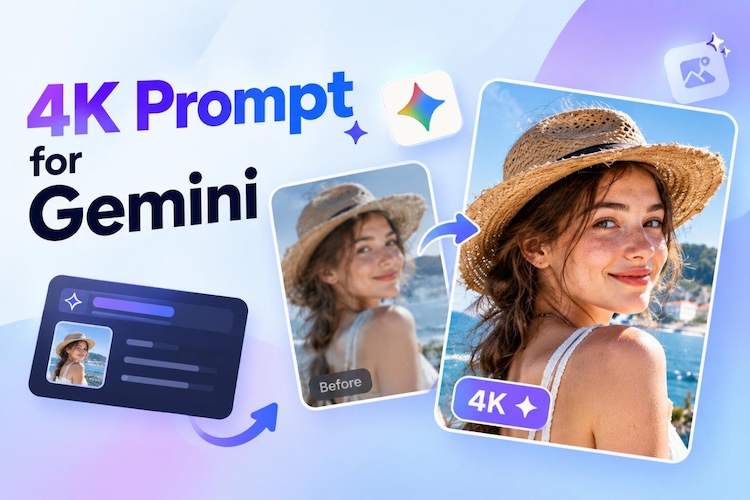
With the right Gemini AI prompts for 4K photos, users can improve photo clarity without complicated editing skills. This guide provides some effective prompts for 4K images in Gemini, and offers you a simpler solution for professional photo enhancement.
How Does Gemini 4K Image Prompt Work?
Gemini can analyze an uploaded image and identify areas that need improvement. When you provide a detailed Gemini 4K Image prompt to improve image quality, the AI understands whether you want sharper textures, clearer faces, better colors, or restored details.
A good prompt gives Gemini clear instructions about what to enhance and what to preserve. Instead of only asking for a higher resolution, describing the specific quality problem usually produces more natural results.
How to Write Better Gemini 4K Prompts
Instead of only asking for a higher resolution, describing the specific quality problem usually produces more natural results.
1Tell Gemini What to Improve
Clearly mention the problem in your image. For example, ask Gemini to improve sharpness, remove noise, restore lost details, or enhance colors.
2Tell Gemini What to Preserve
Always mention important elements that should remain unchanged, such as facial identity, natural skin texture, and background details. This prevents unwanted modifications.
3Specify What Not to Change
Add restrictions like “do not change facial features,” “do not alter the original style,” or “keep the same object placement.” This helps maintain the photo's authenticity.
4Avoid Overprocessing
Avoid requesting unrealistic effects. Instead of asking for extreme sharpening or artificial details, request natural enhancement with realistic textures and balanced colors.
Best Gemini 4K Prompts to Improve Image Quality
Explore ready-to-use Gemini AI prompts for 4K photos designed to enhance existing photos. Improve sharpness, reduce noise, fix blur, restore details, and upscale image quality while keeping the original appearance natural and realistic.
General Image Enhancement
A general enhancement prompt helps improve overall image quality by increasing clarity, balancing colors, and restoring missing details while keeping the original appearance natural.

Enhance the quality of this existing image. Improve sharpness, clarity, and fine details while keeping the original composition, colors, lighting, and realistic appearance unchanged. Reduce noise and make the image cleaner with natural 4K ultra HD quality. Do not modify objects, faces, or the original style.
Enhance Blurry Photo Clarity
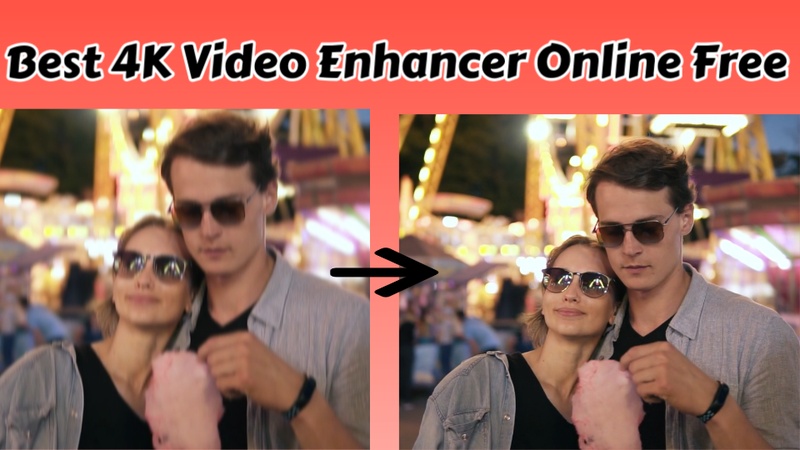
Blurry photos often lose important details. This prompt helps Gemini recover clarity and improve focus without making the image look artificial.
Improve this blurry photo by restoring sharpness and missing details. Enhance edges, textures, and overall clarity while maintaining the original face, objects, colors, and natural appearance. Remove softness and create a clean, high-resolution result.
Fix Motion Blur in Photos
Motion blur can reduce image clarity when subjects move during capture. This prompt helps Gemini recover details and create a sharper, more balanced photo.
Fix motion blur in this image and restore clear details. Improve sharpness around moving objects while preserving the original scene, colors, lighting, and realistic texture. Keep the photo natural without adding artificial effects.
Reduce Image Noise and Grain
Low-light and older photos often contain visible noise. This prompt helps remove unwanted grain while maintaining natural textures and important image details.
Remove unwanted noise and grain from this image while preserving important details and textures. Improve clarity, balance colors, and create a cleaner, high-quality photo without making it look overly smooth.
Enhance Portrait and Facial Detail
Portrait enhancement requires careful editing to maintain identity. This prompt improves facial details while keeping natural features, expressions, and skin texture unchanged.
Enhance this portrait photo by improving facial details, skin texture, eyes, and hair clarity. Keep the person's identity, facial structure, expression, and natural appearance exactly the same. Improve resolution and create realistic, professional-quality detail.
Restore Old and Damaged Photos
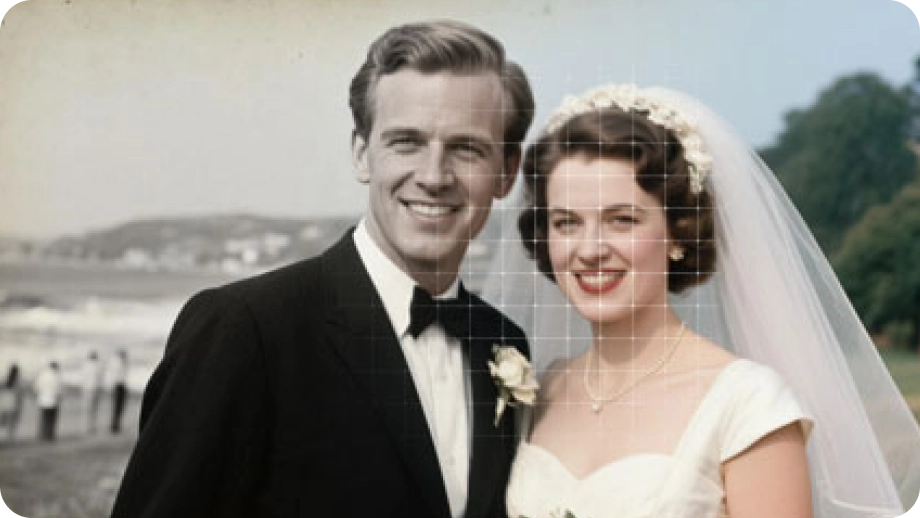
Old photos may have fading, scratches, and missing details. This Gemini prompt to enhance images helps restore image quality while preserving the original historical appearance.
Restore this old, damaged photo by repairing faded areas, improving clarity, removing scratches, and recovering lost details. Preserve the original people, composition, and historical appearance while creating a cleaner, high-quality image.
Repair Unclear Text in Images
Unreadable text can reduce the usefulness of screenshots, documents, and signs. This prompt upscales the image with Gemini and improves text clarity while preserving the original layout.
Improve the readability of text in this image. Sharpen letters, repair unclear areas, and enhance contrast while keeping the original text content, layout, and background unchanged.
Upgrade Product Photo Visual Appeal
Product images need professional clarity for marketing and online displays. This prompt enhances photo quality with Gemini details while keeping the product shape and branding unchanged.
Enhance this product photo by improving sharpness, texture details, lighting balance, and overall visual quality. Keep the product shape, colors, branding, and background unchanged while creating a professional high-resolution image.
Enhance Landscape Colors and Detail
Landscape photos can become more attractive with improved colors and textures. This prompt enhances natural scenery while keeping the original environment unchanged.
Enhance this landscape image by improving natural colors, sky details, textures, and overall clarity. Preserve the original environment and create a realistic 4K ultra HD appearance without adding unrealistic elements.
Sharpen Animal Fur Texture Clearly
Animal photos require detailed texture improvement. This prompt enhances fur, eyes, and small details while maintaining the animal’s natural appearance.
Improve this animal photo by enhancing fur texture, eyes, and fine details. Increase sharpness and clarity while keeping the animal’s natural appearance, colors, and original background unchanged.
Optimize High-Resolution Print Quality
Images prepared for printing need maximum detail and clarity. This Gemini image upscaler prompt improves resolution while maintaining accurate colors and original composition.
Enhance this image for high-resolution printing. Improve details, sharpness, and overall quality while preserving original colors, composition, and realistic textures. Create a clean high-resolutiutput suitable for professional printing.
How to Convert Images to 4K Faster Without Using Gemini AI Prompts
While Gemini 4K prompts can improve images, writing detailed instructions for every photo can take time. HitPaw Edimakor provides a simpler workflow. Its AI Image Enhancer can help users resolve different image problems.
Key Features of Edimakor AI Image Enhancer
- Upscale to 4K : Increase image resolution and improve clarity for professional use.
- Denoise : Remove unwanted grain and noise while keeping important image details clear.
- Motion Deblur : Fix motion-related blur and restore sharper details.
- Text Repair : Improve unclear text and make characters easier to read.
- Old Photo Repair : Restore faded, damaged, and low-quality old images.


Step 1: Open AI Image Enhancer
Launch HitPaw Edimakor and choose Image Enhancer from the main workspace. This tool provides an easy interface to improve image quality, enhance details, and prepare photos for further editing.
Step 2: Choose Enhance Mode
Select the appropriate enhancement mode based on your image requirements. Choose options like denoise, portrait enhancement, mosaic remover, old photo repair, or other AI-powered settings for better image improvement results.
Step 3: Upload Picture
Import the image you want to improve. Then set the Resolution as 4K. The AI enhancer will analyze the image first and generate a higher-quality result based on your needs.
Step 4: Generate and Save
Click Generate and preview the enhanced image. Check all the improvements. Once satisfied with the result, export and save the high-quality image for your preferred use.
FAQs
A1: Yes, Gemini can enhance uploaded images by improving clarity, details, and overall appearance when provided with a suitable prompt.
A2: Use a detailed prompt explaining what should improve, such as sharpness, noise reduction, and detail recovery, while telling Gemini what elements should remain unchanged.
A3: Yes, Gemini can help reduce blur and noise through image enhancement instructions, although results depend on the original image quality.
A4: Describe the exact issue, request natural enhancement, mention details to preserve, and avoid asking for unnecessary changes.
Conclusion
Using the right 4K prompt for Gemini can help to enhance existing photos. However, it requires time and multiple testing. HitPaw Edimakor offers a simpler AI-powered solution with dedicated enhancement tools for you. Try the AI Image Enhancer to improve your images with a faster and easier workflow.
Leave a Comment
Create your review for HitPaw articles