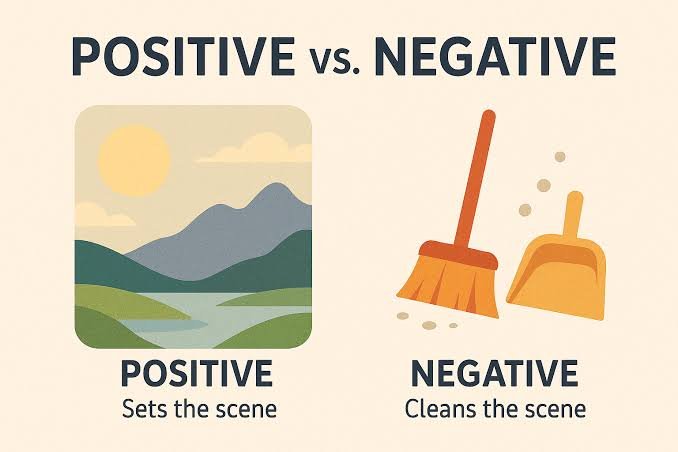
Negative prompts are the second half of every image prompt. The positive prompts tell the AI image generator what the shot is. The negative prompts tell it what the shot is not. In simple terms, they act as a filter, helping the AI avoid generating unwanted objects, visual defects, and low-quality details. Without a negative prompt, AI-generated images may contain blurry areas, distorted faces, extra fingers or limbs, poor anatomy, low resolution, and more. Today, in this guide, you’ll learn everything you need to know about negative prompts, including how they work, best practices for writing them, and a collection of must-try negative prompts that can help you generate sharper, cleaner, and high-quality AI images every time.
Part 1: What are AI Negative Prompts?

What is negative prompt meaning? Negative prompts are a list of attributes, objects, styles, or artifacts you want the model to suppress in the output. Unlike conventional suggestions that direct the AI on what to create, negative prompts act as filters, helping to avoid issues such as unwanted artifacts, poor quality output, or irrelevant details. For instance, if you’re generating a realistic portrait, your positive prompt might describe a smiling woman in a park during golden hour. But negative prompts could include terms such as blurry, low quality, extra finger, bad anatomy, distorted face, watermark, text, cropped, and unrealistic proportions. This tells the AI to avoid these common issues while generating the image.
Part 2: Practical Tips for Writing Effective Negative Prompts
If you want to create a high-quality AI image, then writing effective negative prompts for AI is essential. A detailed negative prompt helps the AI image generator understand which elements should be excluded, resulting in cleaner, sharper, and more accurate images. Here are some tips that you can use to write an effective negative prompt for realistic photos:
- Start Broad, Then Narrow Down: Begin with general quality and style exclusions (e.g., “blurry, poor quality, cartoon”) before moving to highly specific details. This establishes a clean baseline output, allowing you to easily identify and target lingering artifacts.
- Remove Common AI Artifacts: Most AI image generators can create visual defects such as extra fingers, extra limbs, duplicate objects, distorted faces, bad anatomy, crossed eyes, missing body parts, and more. Including these terms in your negative prompts will help you improve realism.
- Avoid Unwanted Text and Watermarks: If you are creating an image for social media or marketing, include terms like text, watermark, logo, signature, caption, username, and border. This will help AI to understand your prompt better and avoid inserting unwanted text that makes the image look unprofessional.
- Test With and Without Negatives: Run a side-by-side comparison to see exactly what your negatives are changing. Comparing the two results makes it easy to see how negative prompts reduce common AI issues such as blurry details, extra fingers, unwanted objects, and low resolution.
Part 3: Common Negative Prompts That Improve AI Results
Negative prompt for image generation means to tell an AI image generator what not to include in the final image. Below, we have mentioned some of the most effective negative prompts for different use cases, including realistic portraits and more.
1. Fashion Photography Negative Prompt
“bad anatomy, extra fingers, deformed hands, blurry face, unrealistic skin, duplicate accessories, wrinkled clothing, distorted clothing, cropped body, low quality, watermark, logo, text, poor lighting, noise, oversaturated colors, bad proportions, compression artifacts.”
2. Realistic Portrait Perfection Negative Prompt
“extra fingers, missing fingers, fused fingers, extra limbs, bad anatomy, deformed hands, malformed face, asymmetrical eyes, crossed eyes, blurry face, plastic skin, unrealistic skin texture, duplicate body parts, long neck, bad proportions, low quality, watermark, text, logo, cropped, noise, oversharpened.”
3. Food Photography Negative Prompt
“blurry, low resolution, burnt food, undercooked food, unrealistic textures, duplicate utensils, messy plate, spilled sauce, dirty table, watermark, logo, text, poor lighting, flat colors, noise, oversaturated colors, cropped dish, distorted proportions, artificial appearance.”
4. Cartoon Illustration Cleanup Negative Prompt
“messy outlines, blurry, low quality, duplicate characters, extra limbs, bad anatomy, poor coloring, noisy background, watermark, logo, text, unfinished drawing, distorted expressions, bad proportions, cropped artwork, compression artifacts, washed-out colors.”
5. Digital Painting Quality Negative Prompt
“blurry, low quality, unfinished painting, messy brushstrokes, muddy colors, flat lighting, bad anatomy, extra limbs, distorted face, duplicate objects, low detail, watermark, logo, text, cropped composition, noisy background, oversaturated colors, washed-out colors, pixelated, artifacts, poor perspective, unrealistic proportions, bad shadows.”
6. Social Media Thumbnail Negative Prompt
“blurry, low resolution, pixelated, cluttered composition, duplicate objects, distracting background, watermark, logo, text artifacts, cropped subject, bad lighting, washed-out colors, oversaturated colors, noise, compression artifacts, distorted face, bad anatomy, unrealistic proportions, poor contrast, low detail, motion blur, unwanted reflections, messy layout.”
7. Black and White Photography Negative Prompt
“blurry, low resolution, noise, grainy, washed-out contrast, clipped highlights, crushed shadows, duplicate subjects, distorted anatomy, poor lighting, watermark, logo, text, cropped composition, artifacts, motion blur, pixelated, unrealistic textures, bad framing, overprocessed, compression artifacts, unwanted objects, low detail.”
8. Children’s Book Illustration Negative Prompt
“blurry, low quality, messy line art, duplicate characters, bad anatomy, distorted proportions, dark atmosphere, horror elements, watermark, logo, text, cropped illustration, noisy background, unfinished artwork, washed-out colors, pixelated, compression artifacts, poor composition, extra limbs, low detail, confusing background.”
9. Fantasy Creature Design Negative Prompt
“blurry, low quality, duplicate limbs, extra heads, distorted anatomy, unrealistic textures, poor lighting, flat colors, cropped creature, watermark, logo, text, noisy background, artifacts, pixelated, washed-out colors, unrealistic proportions, compression artifacts, duplicate wings, malformed claws, low detail, bad perspective.”
10. Real Estate Exterior Photography Negative Prompt
“crooked building, distorted perspective, blurry, low quality, duplicate windows, poor lighting, cluttered yard, vehicles, people, watermark, logo, text, pixelated, washed-out colors, unrealistic sky, compression artifacts, bad reflections, low detail, overexposed highlights, underexposed shadows, messy surroundings.”
Part 4: How to Turn Negative Prompts into Stunning Images?
If you want to turn negative prompts into high-quality visuals, we recommend using Edimakor AI. It is an all-in-one AI Image Generator that enables users to create high-resolution images with a simple text prompt or by uploading static images. Whether you’re generating realistic portraits, anime characters, product photos, or concept art, Edimakor offers an intuitive interface for both beginners and professionals.
The best part of this program is that it provides support for both positive and negative prompts, giving you greater control over the final output. Another amazing part of Edimakor AI is that it offers a wide range of AI models, including Nano Banana, Nano Banana Pro, Flux, Midjourney, Stable Diffusion, and more.
Create NowKey Features of Edimakor AI
- Text-to-Image: With the help of this tool, users can easily create high-quality visuals with a simple text prompt. Simply, copy-paste the prompt from negative prompt list, choose the AI model, and click on the “Generate” button.
- Multiple AI Models: Edimakor AI supports multiple AI image generation models, allowing you to choose the one that best matches your creative vision. Each model has its own strengths, giving you greater flexibility for different types of projects.
- Customization Options: The program offers a wide range of customization options, giving you complete control over the final image. You can adjust settings such as the aspect ratio, image resolution, and number of output images to match your project's needs.
- Format Supported: One of the standout features of this tool is that it enables you to download images in multiple formats, such as JPG, PNG, JPEG, and WEBP, making images compatible for websites, blogs, social media posts, and marketing.
- Ease-of-Use: Edimakor AI offers an intuitive interface, which is ideal for non-tech and beginner users. You don’t need any design experience or advanced prompt engineering skills to create impressive visuals.
Step-by-Step Guide:
Learn how to turn negative prompts into high-quality visuals with Edimakor AI. Follow the instructions below:
Step 1: Open your web browser and go to Edimakor AI's official site. Log in with your account and choose the “Text-to-Image” feature from the main interface. Enter the negative prompt and select the “AI Model.” Edimakor supports multiple AI models, such as Nano Banana, Nano Banana Pro, Flux, Stable Diffusion, and Midjourney.
Step 2: Next, scroll down and adjust the image settings. Users can select the aspect ratio, resolution, and output number to match their project's requirements.
Step 3: In the end, click on the “Generate” button to begin the image creation process. Within seconds, your AI image will be ready and available for download. Go to “My Creation” and choose the image you want to download.
Final Thoughts
If you want your AI images to look cleaner, sharper, and more professional, learning how to use negative prompts is essential. While positive prompts define what you want to create, negative prompts eliminate unwanted elements, helping AI avoid common issues such as blurry details, poor lighting, low resolution, and more. To get the best experience, consider using Edimakor AI, an all-in-one AI image generator that supports both positive and negative prompts.


Leave a Comment
Create your review for HitPaw articles