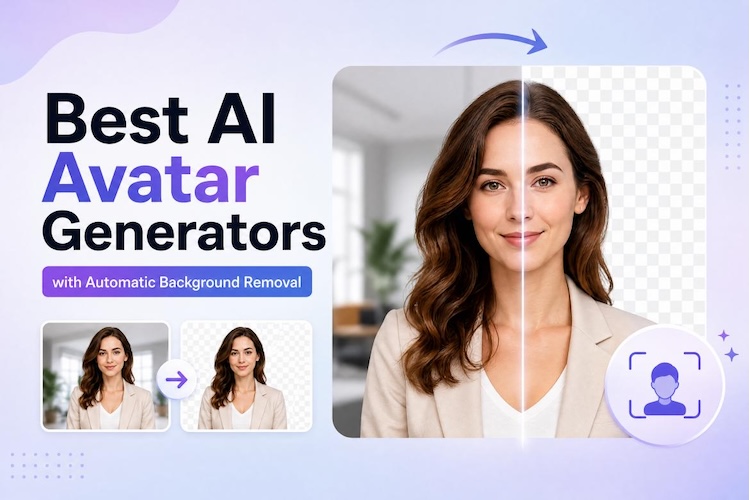
AI avatars can look professional on their own, but a fixed background can make them difficult to use across different campaigns, presentations, and video layouts. Background removal gives creators more control over where an avatar appears and how it fits a scene.
This guide compares five AI avatar generator with background removal options, covering their background tools, avatar capabilities, ideal use cases, and how to remove an AI Avatar background with the best tool.
What Does Background Removal Mean for an AI Avatar?
Background removal separates an AI avatar from its original scene, making it easier to place the subject in new environments.
- Background Removal: Detects and removes backgrounds from AI avatars, creating clean subjects for videos, images, and designs.
- Green-Screen Removal: Uses chroma key technology to isolate avatars recorded with solid-color backgrounds for easier editing.
- Transparent Output: Creates avatars without visible backgrounds, but transparent export support varies across different platforms.
- Background Replacement: Replaces original scenes with offices, studios, classrooms, or custom visuals for flexible avatar videos.
Why Does AI Avatar Background Removal Matter?
Removing the background is more than a visual effect. It gives creators greater control over how an avatar fits into different types of content.
1 Fit Avatars Into Branded Videos
An avatar can be placed directly over a company’s branded background, product footage, presentation, or promotional graphic. Instead of rebuilding the avatar video for every campaign, creators can reuse the same presenter across different visual environments.
2 Create More Flexible Video Layouts
A cutout avatar can occupy a corner of the screen while product demonstrations, charts, screenshots, or other footage remain visible. This works particularly well for tutorials, explainer videos, online courses, and social media content.
3 Match Different Content Styles
The same avatar can appear in a professional office for a corporate presentation, a colorful environment for social content, or a product-focused background for advertising. AI avatar background replacement makes these changes faster than manually rebuilding scenes.
4 Save Time on Manual Editing
Traditional background removal can involve masks, keyframes, and frame-by-frame adjustments. AI tools automate much of this work. Edimakor, for example, offers one-click AI video background removal without requiring a green screen.
5 Best AI Avatar Generators with Automatic Background Removal
The best option depends on whether you prioritize avatar generation, background flexibility, corporate video production, or full video editing. Here are five platforms worth considering in 2026.
1. HitPaw Edimakor

HitPaw Edimakor combines AI avatar generation with video editing and background tools. Its AI Avatar feature supports stock and custom avatars, while creators can remove or replace backgrounds and continue editing the generated video within the same application. Particularly suitable for creating interactive avatars.
Key Features
- AI Avatar Creation: Generate AI avatars from prompts, photos, or videos.
- AI Background Removal: Remove video backgrounds without requiring a green screen.
- Background Replacement: Replace removed backgrounds with colors, images, or other visual environments.
- Avatar Editing: Continue editing generated avatar clips with subtitles, layouts, effects, and other timeline tools.
- AI Video Tools: Includes lip-sync, text-to-speech, voice tools, image editing, and other AI-assisted creation features.


Best For:
Creators who want an AI avatar video maker that combines avatar creation, background removal, replacement, and full video editing in one workflow.
2. HeyGen
HeyGen is an AI video platform focused on digital presenters, avatars and business video creation. Its current avatar background remover can remove backgrounds from avatar footage. The feature is available on paid subscriptions and works with eligible photo and video avatars.
Key Features
- One-Click Background Removal: Remove an avatar’s background directly in the editing studio.
- Custom Backgrounds: Add a new color, image, or other visual as the background behind the avatar.
- Photo and Video Avatars: Supports background removal for eligible avatar types.
- Digital Twins: Create personalized presenter-style avatars and voice experiences.
- AI Video Creation: Combine avatars, scripts, voices, and scenes into business-oriented videos.
Best For:
Businesses and marketers that need polished AI presenters with straightforward background control.
3. Synthesia
Synthesia is designed primarily for professional AI presenter videos. Its Spaces feature lets users remove a preset avatar background and place the avatar into a selected environment or colored background. However, the avatars cannot be exported with a transparent background in Synthesia.
Key Features
- AI Presenter Avatars: Create professional videos using digital presenters.
- Custom Environments: Add spaces, solid colors, or gradients around supported avatars.
- Background Removal: Remove an avatar’s selected Space to display the avatar without that scene inside the project.
- Professional Templates: Build training, presentation, and corporate communication videos.
- Multilingual Content: Create presenter-led videos for international audiences.
Best For:
Corporate teams that need structured training, onboarding, presentations, and professional AI presenter videos rather than transparent avatar exports.
4. Elai.io
Elai.io focuses on AI-powered presenter videos for training, education, marketing, and e-commerce. Its avatar system includes stock presenters, selfie avatars, studio avatars, photo avatars, and animated mascots. Elai also supports custom backgrounds and provides options to remove background elements from certain custom-avatar workflows.
Key Features
- Avatar Library: Choose from a broad collection of AI talking presenters.
- Custom Avatars: Create personalized avatars from suitable video footage.
- Background Control: Add or change backgrounds within video scenes.
- Presentation Tools: Combine avatars with slides, images, text, animations, and transitions.
- Multilingual Video: Create narrated avatar content in 75+ languages according to its current product information.
Best For:
Educators, L&D teams, and businesses creating presenter-led training and communication videos.
5. VEED
VEED is an online AI video creation and editing platform with AI avatars, background removal, background replacement, and other video tools. Its video background remover can automatically separate people from their backgrounds, while its image tools can produce transparent PNGs.
Key Features
- AI Avatar Creation: Generate virtual presenters and talking characters.
- AI Video Background Removal: Remove video backgrounds using AI.
- Background Replacement: Add an image, video, or generated background behind the subject.
- Transparent Image Output: Remove image backgrounds and export PNG files with transparency.
- Online Editing: Generate, edit, subtitle, brand, and export videos from a browser.
Best For:
Online creators who want avatar generation and background editing alongside a browser-based video editor.
How to Remove and Replace an AI Avatar Background in Edimakor
HitPaw Edimakor is particularly useful when background removal is only one part of the editing workflow. Its current AI Avatar feature specifically supports removing or replacing backgrounds.
Step 1: Open AI Avatar in Edimakor
Launch HitPaw Edimakor and open the “AI Avatar” feature from the main workspace. You can select an existing avatar option or begin creating a new avatar for your project.
Step 2: Create an AI Avatar
Choose a ready-made avatar template or upload a suitable image to create a personalized avatar. Edimakor supports both general avatar generation and real-character avatar creation based on photos.
Step 3: Edit Avatar Background
Open the background controls and use the background removal option to separate the avatar from its original scene. You can then select a replacement background, use a solid color, or add your own visual asset. For video background removal, Edimakor’s AI tool can remove, blur, or replace the background without a green screen.
Step 4: Finish the Avatar Video
After the background is ready, refine the avatar video with subtitles, effects, music, voice, or other editing elements. Preview the complete composition before exporting the final video, then click "Generate" and export your video.
FAQs
A1: Yes, some tools can remove backgrounds from avatar footage or create transparent assets. However, transparent video export is not universally supported. For example, Synthesia states that its avatars cannot be exported with transparent backgrounds.
A2: Upload or generate the avatar in a tool with AI background removal, then activate its background-removal feature. In Edimakor, you can use its AI background tools to remove the scene and replace it with a custom background.
A3: Yes. Tools such as Edimakor, HeyGen, and VEED allow users to replace removed backgrounds with custom images or other scenes. HeyGen, for example, lets users add a photo or text after removing an avatar background.
A4: For creators who want avatar generation and video editing together, HitPaw Edimakor is a strong option. It combines AI avatars, background removal, background replacement, and broader AI video editing tools in one workflow.
Conclusion
The right AI avatar generator with background removal depends on how much control you need after generating the avatar. HitPaw Edimakor stands out when you want avatar creation, background removal, replacement, and advanced video editing together. Try Edimakor to create more flexible AI avatar videos for your next project.
Leave a Comment
Create your review for HitPaw articles