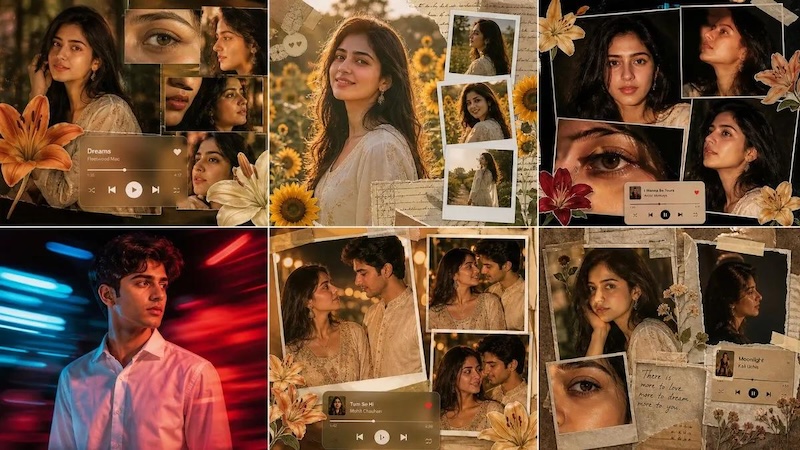
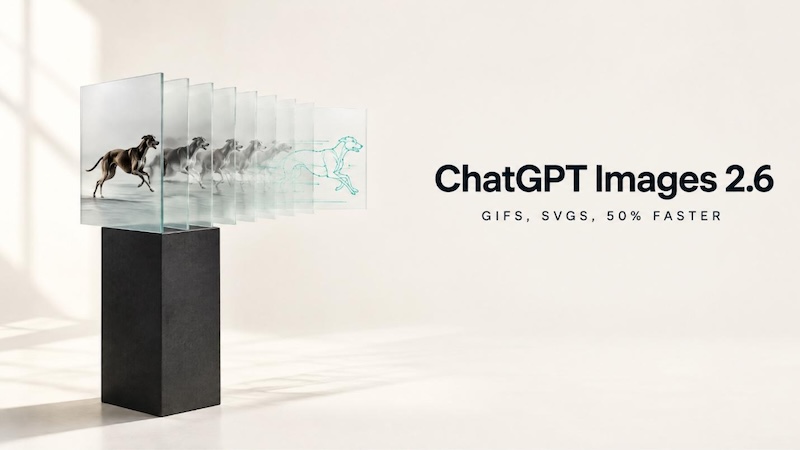
Can an AI image generator create a convincing food photograph, preserve an exact room layout, and combine multiple references without missing a detail? OpenAI’s ChatGPT Image 2.6 aims to make these tasks easier with improved image generation, editing precision, and visual consistency. The latest model introduces several enhancements designed to help users turn creative ideas into realistic visuals with greater control. From generating professional-looking images to modifying existing photographs and creating animated GIFs, it offers various possibilities. In this ChatGPT Image 2.6 review, we’ll explore its key features, examine its pros and cons, and the best alternative available in 2026.
Part 1: What is ChatGPT Image 2.6?

Image 2.6 is OpenAI’s latest image generation model, available in both ChatGPT and the API. With this model, you can bring motion to your images with GIFs — from animating a brand mascot or character to turning a product shot into an eye-catching loop. Beyond animation, it offers advanced image generation and editing capabilities that help users transform simple text prompts into detailed, high-quality visuals. Announced on November 4, 2026, Images 2.6 introduced a range of features that have expanded the possibilities of AI-powered visual creation. It focuses on improving image quality, maintaining consistency across multiple edits, and following complex users' instructions with greater accuracy.
Part 2: Key Features of ChatGPT Image 2.6
ChatGPT Image 2.6 has introduced multiple new features and capabilities that make AI-powered image generation and editing more flexible and accessible. Here are some of the most notable features of ChatGPT Image 2.6:
- Animate Your Ideas With GIFs: One of the most exciting additions to ChatGPT Image 2.6 is its ability to turn creative ideas into animated GIFs. For example, users can animate a brand mascot, bring an illustrated character to life, or transform a product photograph into an eye-catching animated loop.
- Improved Prompt Adherence: ChatGPT Image 2.6 offers better handling of detailed instructions involving object placement, composition, and multiple visual constraints. It can understand complex prompts and translate them into visuals while paying closer attention to the user’s requirements.
- Make SVG Files: This model saves simple graphics as SVG files when you start from a text prompt. Scalable Vector Graphics are useful for creating logos, icons, illustrations, diagrams, and other graphics that need to maintain their quality at different sizes. SVG files can be resized without losing sharpness.
- API Integration: With Images 2.6, developers get more control over how images are created, edited, and carried into the next stage of a project. OpenAI provides API access that allows developers to integrate its image generation capabilities directly into their applications, websites, and existing workflows.
- Advanced Image Editing: ChatGPT Image 2.6 offers advanced image editing features, allowing users to modify specific objects, materials, or visual elements without changing the entire image. Users can upload an existing photograph and provide instructions to replace backgrounds, adjust lighting, change color, and remove unwanted objects.
Part 3: ChatGPT Image 2.6: Pros and Cons
The new model of ChatGPT Image comes with several improvements that make AI-powered image generation and editing more convenient for different types of users. However, like other AI image generators, it also has certain limitations. Here are the top pros and cons of ChatGPT Image 2.6:
 Pros
- Users can generate GIFs and edit images directly within ChatGPT without switching to separate creative software.
- The simple interface allows beginners to create and modify images without professional design skills.
- Generates SVG files containing paths, shapes, and colors for icons and illustrations, allowing users to resize and customize graphics without losing image quality.
- Combines information from multiple reference images into a single composition while retaining important visual details.
- Offers improved prompt understanding, allowing users to generate visuals that closely match their creative instructions.
- Supports API integration, making it easier for developers to incorporate image generation into their applications.
 Cons
- The 2.6 model pages list Batch as not supported.
- Complex prompts may still require multiple attempts to achieve the desired results.
Part 4: Best Alternatives to ChatGPT Image 2.6 Available in 2026
Although ChatGPT Image 2.6 offers advanced image generation, editing, and GIF creation capabilities, it may not be a perfect choice for everyone. Some users may prefer alternative AI tools that offer creative control and advanced features. One such alternative is HitPaw Edimakor, an AI-powered video and image editing platform that enables users to create high-quality images without requiring professional editing experience. HitPaw Edimakor offers an advanced text-to-image feature that enables users to create high-quality and engaging visuals with a simple text prompt. The best part of this tool is that it supports multiple AI models, each with unique features and capabilities, such as Nano Banana, Nano Banana Pro, Flux, Midjourney, Stable Diffusion, and more.
Key Features of HitPaw Edimakor
- Text-to-Image: HitPaw Edimakor enables users to create high-quality images with a simple text prompt — no editing experience required. Simply enter the text prompt, choose the AI model, and click on the “Generate” button.
- Multiple AI Models: The program offers multiple AI models, each with unique image generation capabilities. It includes AI models such as Nano Banana, Nano Banana Pro, Flux, Midjourney, Stable Diffusion, and Seedream.
- Advanced Image Editing: With HitPaw Edimakor, users can customize existing images to their creative needs. Users can change the image style, add background music, insert text, apply filters and effects, and more.
- Adjust Image Settings: HitPaw Edimakor enables users to adjust image settings according to their requirements. Users can change the aspect ratio, resolution, output quantity, and more.
- Intuitive Interface: One standout feature is its easy-to-use interface, which lets users create high-quality, engaging visuals without professional help or editing experience.


Step-by-Step Guide:
Learn ho how to use HitPaw Edimakor with an easy-to-follow, step-by-step guide:
Step 1: Select Text to Image
Go to the official HitPaw Edimakor website and download the latest version for your PC. Launch it and select the “Text-to-Image” option from the main interface.
Step 2: Choose an AI Model
Next, select the desired AI model. The program offers a wide range of options, including Nano Banana, Flux, Seedream, Midjourney, and Stable Diffusion.
Step 3: Enter The Image Prompt
After selecting the desired AI mode, copy and paste the AI image prompt into the prompt box. Make sure to enter a detailed prompt to get accurate results.
Step 4: Generate The Image
Select the image settings, such as aspect ratio, resolution, and output quantity. Once all the requirements are complete, click on the “Generate” button to begin the image creation process.
Final Thoughts
In this ChatGPT Image 2.6 review, we’ve learned everything about the model, including its key features, benefits, limitations, and the best alternative available in 2026. With improvements in prompt adherence, advanced image editing, GIF generation, and SVG creation, OpenAI’s latest image model offers plenty of creative possibilities. However, it is not ideal for every user. That is where HitPaw Edimakor comes in.
Leave a Comment
Create your review for HitPaw articles