Have you ever had a great idea for an image but could not find the right stock photo? AI image generators have made that problem much easier to solve. Instead of searching through endless stock libraries, you can describe the image you want and let AI create it for you.
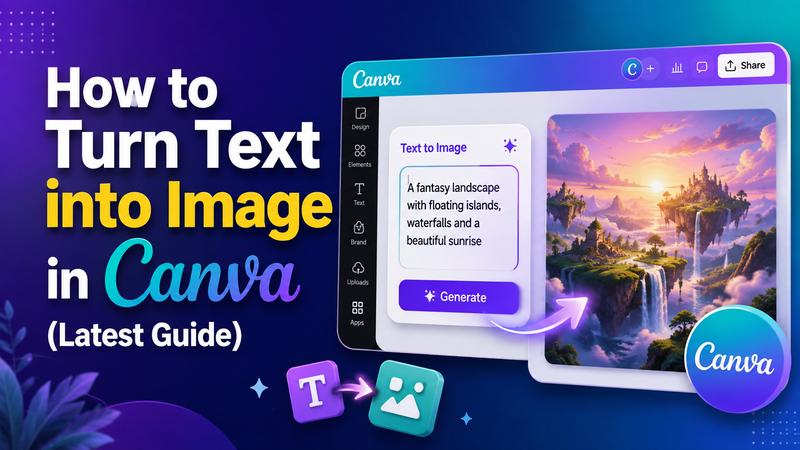
Canva includes AI image generation through its Magic Media feature. It lets you turn simple text prompts into custom visuals without leaving the Canva editor. In this guide, you will learn how to use Canva Text to Image on the web and mobile app.
Part 1: What Is Canva Text to Image?
Canva Text to Image (now part of the "Magic Media" suite) is an AI-powered tool that allows users to generate unique visuals by simply typing a description. It uses generative AI to interpret your words and create a matching image in seconds.
This tool is a lifesaver for content creators who need specific photos that don't exist in stock libraries. For example, if you need a "neon-lit cat drinking coffee on Mars," you won’t find it in a standard gallery. With the Canva AI text to image generator, you can bring that specific vision to life. It bridges the gap between imagination and design, making professional creativity accessible to everyone.
Use Cases for Canva AI Text to Image:
- Social Media: Create unique backgrounds and post elements that no one else has.
- Blogging: Generate specific illustrations for niche topics where stock photos are unavailable.
- Marketing: Rapidly prototype ad concepts or brand mascots.
- Personal Projects: Design custom greeting cards, wallpapers, or profile pictures.
Part 2: How to Use Canva Text to Image
Using the Canva text to image tool is incredibly intuitive. The interface is designed for speed, allowing you to move from a thought to a finished design in less than a minute. Here are the step-by-step instructions for both desktop and mobile users.
How to Use Canva Text to Image on the Web
Using the web version offers the most control and a larger workspace for fine-tuning your prompts.
Step 1: Open the Magic Media Feature
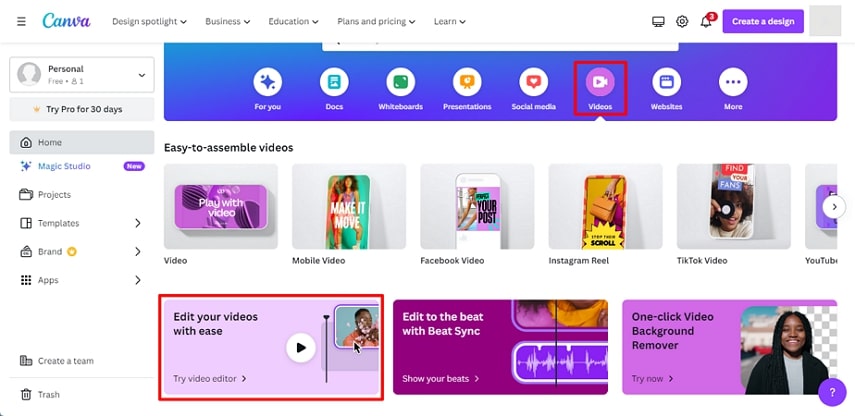
Start by logging into your Canva account. Open an existing design or create a new one (such as a "YouTube Thumbnail" or "Presentation"). On the left hand side toolbar, scroll down to find the "Apps" icon. Look for "Magic Media" and click on it. Once inside, ensure you are on the "Image" tab.

Step 2: Describe Your Image
In the text box provided, type a detailed description of what you want to see. For example, "A futuristic city with flying cars and purple neon lights." Below the text box, you can select a specific Style (such as Filmic, Dreamy, or Anime) and your preferred Aspect Ratio (Portrait, Square, or Landscape).
Step 3: Generate and Select Your Image
Click the "Create Your Image" button. Canva will generate four different variations based on your prompt. Simply click on your favorite image to add it to your design canvas. If you aren't satisfied, you can click "Create Again" to see four new options.
How to Use Canva Text to Image on the Mobile App
The mobile app is perfect for quick edits and social media updates while you are away from your computer.
Step 1: Open the Editor
Open the Canva app on your smartphone. Tap the purple plus sign (+) at the bottom of the screen to start a new project or open a recent design from your library.
Step 1: Access the Magic Media Tool
In the bottom menu bar, scroll to the right until you find the "Apps" icon. Tap it and search for "Magic Media" or look for the "Text to Image" icon.
Step 1: Generate Your Image
Type your prompt into the description box. Similar to the web version, you can select styles and ratios. Tap "Generate Image." Once the AI finishes, tap the image you like best, and it will automatically appear on your mobile canvas for further editing
Part 3: A Better Way to Convert Text to an Image
While Canva is excellent for layout design, specialized tools like Edimakor AI offer deeper control over image generation. Edimakor AI is a dedicated platform designed for creators who need high fidelity visuals without the limitations of a general purpose design tool. It provides a seamless transition from text to stunning 4K images, making it a powerhouse for professional artists and content creators alike.
1 Why Consider an Alternative to Canva Text to Image?
General tools often prioritize simplicity over technical depth. Edimakor AI offers a more robust suite of models and customization options than Canva’s Magic Media currently provides. If you find yourself frustrated by generic results or limited resolution, moving to a dedicated AI generator like Edimakor ensures your visuals are unique, high-definition, and perfectly aligned with your specific artistic vision. It offers superior model selection and more granular control over the final output quality.
Here is why Edimakor stands out:
- Multiple AI Models: Unlike Canva, which uses a proprietary model, Edimakor lets you choose from industry leaders. Options include Seedream 5.0, Nano Banana Pro, Kling 3.0, and GPT Image 2. Each model has unique strengths, such as better realism or stronger consistency.
- AI Image Effects (Templates): Edimakor offers built-in templates. You can upload an existing photo and apply a style (like 3D figurine or Cyberpunk) without even writing a prompt.
- Batch Generation: Efficiency is key. Edimakor lets you generate multiple variations (up to 4 at once) quickly, saving time on large projects.
- Accurate Prompt Understanding: The AI models used by Edimakor are trained to understand complex descriptions. This ensures that every detail of your text is reflected in the final image.
- Watermark-Free Exports: Export your creations in 4K ultra-high definition without distracting watermarks, making them ready for professional commercial use immediately.
2 How to Generate AI Images with Edimakor AI
Follow these simple steps to create professional images:
Step 1: Choose an AI Model and Enter Your Prompt.
Open the “Text to Image” tool and select the AI model Seedream 5.0. Enter a detailed description of the image you want to create, or use the AI prompt generator to help create a description.
Try it Online
Step 2: Adjust Image Settings
Adjust the Aspect Ratio, Resolution, and Output Quantity based on your needs. You can also select an image style to match the look you want.
Step 3: Generate Your Image
Click the "Generate" button to create your images. Once the images are ready, preview the results and download your preferred image to your device.
FAQs about Canva Text to Image
A1: Yes, Canva offers a free version of Magic Media. However, free users have a lifetime limit on the number of images they can generate. Canva Pro subscribers receive a much higher monthly allowance.
A2: The best prompts are descriptive and follow a "Subject + Action + Setting + Style" formula. Instead of “a dog,” try “a golden retriever running through a vibrant sunflower field at sunset, cinematic lighting, ultra-realistic details, 8K resolution.”
A3: According to Canva’s current terms, you own the designs you create, but the copyright status of AI generated content is still evolving legally. It is generally safe for marketing and social media use, but you should consult local laws regarding large scale commercial trademarks.
Conclusion
Canva Text to Image makes it easy to turn written ideas into custom visuals. With Magic Media, you can generate images directly inside your design and edit them immediately. However, for those who demand higher resolution and more model variety, Edimakor AI stands out as the best choice. Whether you are building a brand or just exploring your creativity, these tools will undoubtedly improve your efficiency. Ready to see the difference for yourself? Give Edimakor AI a try today and transform your words into masterpieces!


Leave a Comment
Create your review for HitPaw articles