Can Microsoft Office transcribe audio to text? In 2026, this is one of the most common questions among Microsoft Office users looking for an easy way to convert recordings into written content. Whether you have an interview, meeting, lecture, or voice recording, manually typing everything can be time-consuming. Fortunately, Microsoft offers several tools that can help turn spoken words into text. In this guide, we’ll provide step-by-step instructions on how Microsoft Word transcribes audio to text and more. Plus, we’ll also introduce one of the easiest ways to transcribe audio to text in 2026.
Part 1: Method 1: Transcribe Audio to Text in Microsoft Word
Can Microsoft Word transcribe audio to text? Before getting into the step-by-step instructions, it is important to know whether Microsoft Word actually supports this feature. Fortunately, Microsoft Word includes a built-in Transcribe feature that can convert recorded audio into written text. You can upload an audio file, and Microsoft Word automatically generates a transcript. Here is how to transcribe audio to text in Microsoft Word:
-
Open Microsoft Word on your PC and open a new or existing document where you want to add the transcript. Look for the “Dictate” button on the toolbar.

-
Click the small arrow next to “Dictate” to open the available options. From the drop-down menu, select the “Transcribe” option.
-
A Transcribe window will appear on your screen. Choose the language of your audio. Word offers multiple language options, such as English, Chinese, Spanish, Russian, Turkish, and more.
-
Next, click on the “Upload Audio” button and select the recording you want to convert into text. Microsoft Word supports common audio formats, such as WAV, MP4, M4A, and MP3.
-
After uploading the audio, Microsoft Word will automatically process the recording and generate a transcript. Once the transcription is complete, review the generated text for any mistakes. Click on the “Pencil” icon to edit the transcript section.
-
If you’re satisfied with the results, click on the “Add to document” button to insert the complete transcript into your Word document.
Part 2: Method 2: Transcribe Audio to Text in Microsoft Teams
Another Microsoft Office tool that can help with transcription is Microsoft Teams. Teams' transcription feature is designed to convert meeting audio into text automatically. This capability is part of its AI-powered toolkit, making transcription quick and accurate. Once transcription is enabled, Teams can generate a written record of the conversation that participants can review after the meeting. Follow the instructions below to learn how Microsoft transcribes audio files to text in real-time:
- Launch the Microsoft Teams desktop app or web version and sign in to your Microsoft account. Create a new meeting or join an existing Teams meeting.
-
Once the meeting starts, click the “More Actions” button available in the meeting toolbar. Choose the “Record and Transcribe” option. Select the “Start Transcription” option to begin the process.
- Teams will automatically convert the conversation into text in real-time. The generated transcript can include speaker names and timestamps, making it easier to identify who said what and locate specific parts of the conversation.
- When the meeting is finished, open the “More Actions” menu again and go to “Record and Transcribe.” Select the “Stop Transcription” option to end the transcription process.
Part 3: How to Transcribe Audio to Text in Multiple Languages Using HitPaw Edimakor
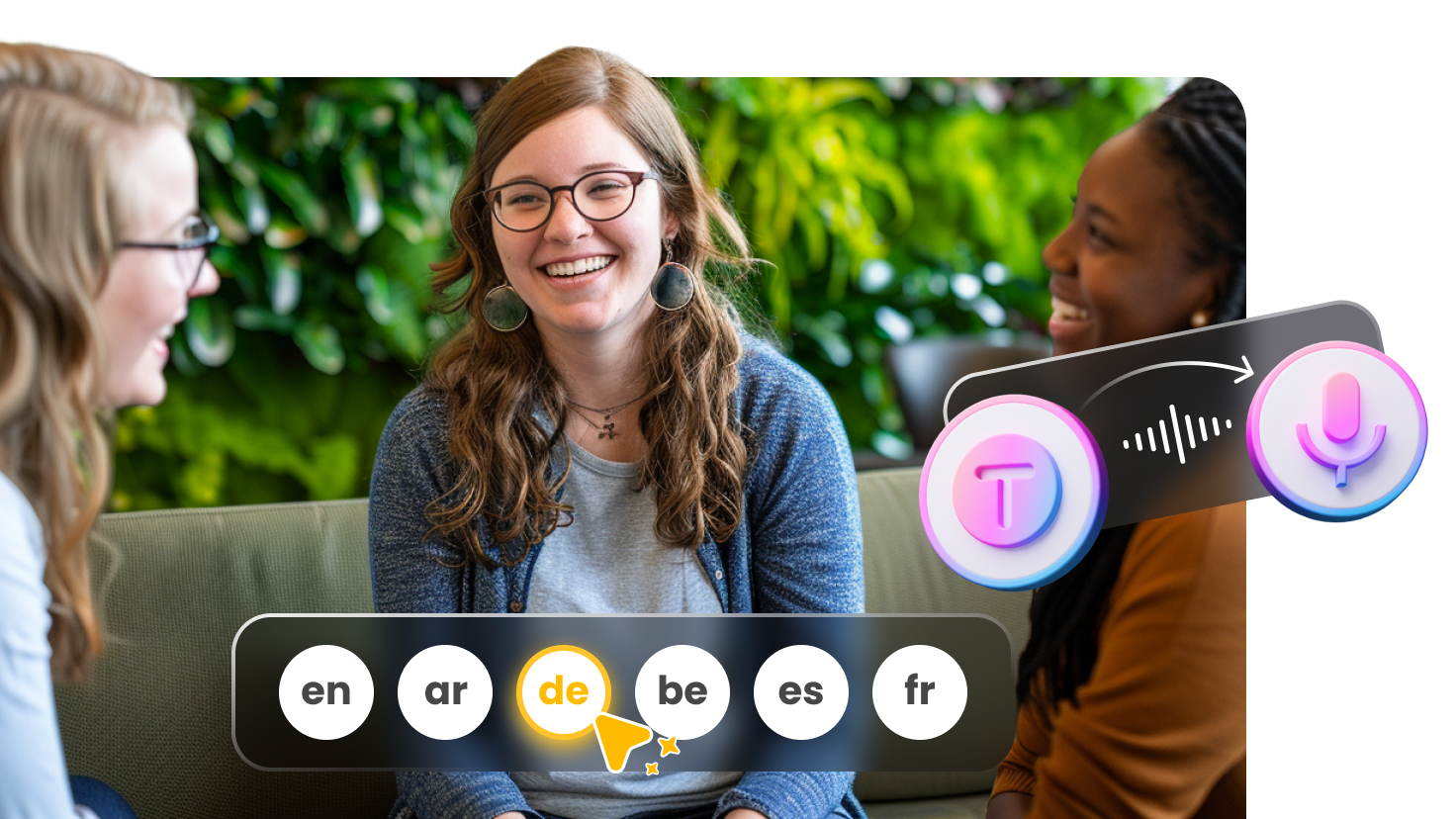
Microsoft Office’s transcription feature is an amazing tool for converting speeches, meetings, and recordings into text. However, for users who need accurate transcripts and multilingual options, HitPaw Edimakor is an ideal option. It is an all-in-one AI Video Editor that also includes a powerful Speech-to-Text feature. With the help of this tool, you can easily convert audio or videos into accurate, editable text without spending hours typing everything manually. This makes it an ideal option for content creators and YouTubers who regularly work with interviews, podcasts, tutorials, and other video content. Another amazing feature of HitPaw Edimakor is its intuitive interface, allowing users to create transcripts without professional help or editing experience. Once the text is generated, users can customize it according to their requirements. Users can adjust the text font, size, color, alignment, and style to create professional-looking subtitles and captions.
Key Features of HitPaw Edimakor
- Speech to Text: HitPaw Edimakor offers a powerful Speech-to-Text feature, allowing users to turn audio and videos into accurate text. Simply upload the audio file and click on “Speech-to-Text” to generate a transcript automatically.
- Customize the Transcript: One of the best parts of HitPaw Edimakor is that it offers advanced customization features, allowing users to personalize text according to their needs. You can adjust the font, size, color, alignment, and text style.
- Powerful AI Tools: The program isn’t limited to video editing or transcription. HitPaw Edimakor comes with a wide range of AI-powered tools designed to simplify different parts of the content creation process. Includes AI tools like Text-to-Speech, Text-to-Video, Text-to-Image, Image-to-Video, and more.
- Compatibility: HitPaw Edimakor works seamlessly with multiple devices, including Windows and macOS. Plus, it supports all Windows versions, including Vista, XP, 7, 8, 8.1, 10, and 11. Users can download the latest version from its official site.
- Beginner-Friendly Interface: This tool is specifically designed for non-tech and beginner users. Its clean and intuitive interface makes it easy to find different editing and AI features without navigating through complicated menus.


Step-by-Step Guide:
Compared to Microsoft's transcribe audio-to-text feature, HitPaw Edimakor offers a more straightforward and beginner-friendly way to convert spoken audio into text. Here is how to do it:
Step 1: Import Audio to HitPaw Edimakor
Visit the HitPaw Edimakor official site and download the latest version of the program on your PC. Launch it and select the “Create a Video” option. Click the “Import” button and upload the audio file.
Step 2: Choose Speech to Text
Once the audio file is uploaded, drag-and-drop it to the timeline below. Click on the audio track in the timeline and select the “Audio” option on the right-side panel. Navigate down and select the “Speech to Text” option.
Step 3: Preview The Text and Customize
Within seconds, HitPaw Edimakor will convert the audio into text and display the generated transcript on the screen. Preview the text to make sure the AI has correctly recognized the spoken words. If you notice any mistakes, you can easily edit or correct the transcript.
Part 4: FAQs
A1: Microsoft Office supports multiple formats such as WAV, MP4, M4A, MP3, and more. This makes it easy to transcribe recordings from different devices and applications.
A2: To open the Transcribe Panel, you can press Alt + Windows key + H, D, T, and S while editing a document.
Final Thoughts
In this guide, we’ve mentioned the step-by-step instructions on how Microsoft Word transcribes audio to text. Plus, we also discussed how Microsoft Teams can be used to transcribe meetings and conversations. However, if you’re looking for a tool that supports multiple languages, HitPaw Edimakor is the best option. The program can convert speeches into text in over 135+ languages, including English and Spanish.
Leave a Comment
Create your review for HitPaw articles