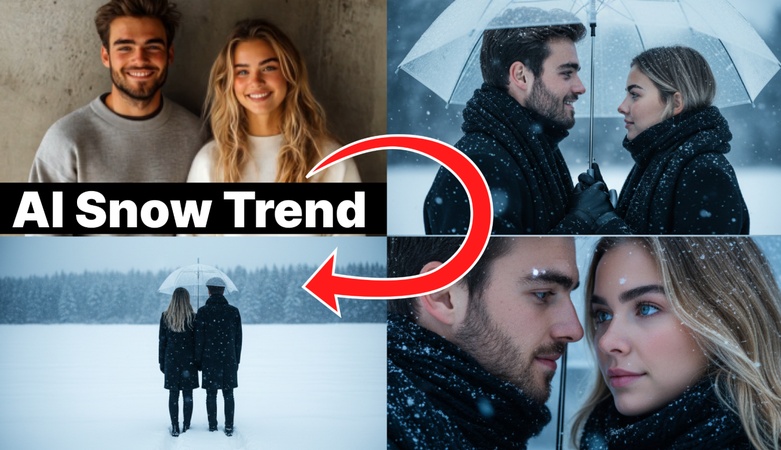
Anyone can transform basic images or videos into enchanting winter settings with falling snow, cinematic depth, and seasonal sentiments, thanks to the AI snow trend sweeping social media. Without the need for editing expertise, users can rapidly turn ordinary photos into popular winter content using simple tools and imaginative prompts.
Part 1: How to Make AI New Trend Snow Photos Edit
With the help of AI snow generator, you can quickly add winter effects, falling snow, chilly tones, and dramatic lighting to your photos, turning ordinary photos into fashionable, genuine winter scenes.

How to Make AI New Trend Snow Photos Edit with Edimakor
First, let us see how you can turn an image to snowy winter scene photo effect :
Step 1: Launch Edimakor and go to the Toolbox section. Inside the toolbox, open the Image category and select Reference Image, which lets you guide the AI using your original photo.


Step 2: Upload the picture you want to edit. Select the Google Nano Banana model, which is recommended. In the prompt box, describe that you want only the background turned into a snowy winter scene.
Step 3: After generation, go to My Creations, review the result, and export the final snowy background image.
How to Make AI New Trend Snow Photos Edit with Gemini
Here are the steps to use Gemini to make snow AI new trend photo edit:
- Open Gemini and upload your photo
- Enter a detailed ai new trend prompt like: Turn this into a snowy winter scene with falling snow and cool tones
- Generate and review multiple styles if available
-
Select your favorite version and download
How to Make AI New Trend Snow Photos Edit ith Meitu
Here are the steps to use Meitu to get ai new trend image:
- Open Meitu and select the photo to edit
- Apply winter filters or AI enhancement tools
- Add snowfall effects, white highlights, and cold color tones
- Adjust brightness and contrast for a clean winter aesthetic
-
Save the edited snow-style photo
Part 2: Turn Your Photo into a Snowing Video
Ready to bring a still photo to life? You can use Edimakor’s Image-to-Video with the Veo 3 model to create realistic snowfall, set duration, motion strength, preview, and then export your snowing clip.
Step 1: Open Edimakor & Go to Toolbox
Launch Edimakor and proceed to its main interface. To begin a snowing conversion, navigate to the Video area of the toolbox and select Image-to-Video.
Step 2: Select Veo 3 as the AI Model
Choose Veo 3, which is suggested for natural particle physics, in the model selection. With the help of this model, you can produce better, more feature-rich videos.
Step 3. Import Picture and Write Prompt
Bring in a high-quality JPG or PNG file. The AI exploits details to create realistic flakes and motion; thus, clear, well-lit landscapes or portraits perform best. Then write a detailed prompt, how you want your video to be.
Step 4. Set the Parameters
Adjust the duration, resolution, and aspect ratio of your video. At last, press Generate.
Step 5: Preview and Export
When the preview shows up in My Creations, you can drag it to the timeline. Click Export, select MP4, adjust the framerate and resolution, and then export.
Part 3: Best Prompt Templates for AI Snow Photos/Videos Edit
With realistic falling snow, cool lighting, and film-style color grading, AI snow prompts help transform normal photos or videos into dramatic winter edits within seconds. The right description allows the AI to understand the mood, depth, scene elements, and cold ambience you want.
1 AI Snow Trend Prompt Template for Photo
Here are some AI snow trend prompt templates for photos:
- A cozy outdoor portrait with falling snow, soft winter lighting, cold blue tones, frosted trees in the background, realistic snowfall particles, face clean and untouched, cinematic winter mood.
- Transform into a snowy evening street scene, cool neon reflections on wet ground, gentle snowflakes falling, wide depth of field, dramatic lighting, sharp portrait details.
- Winter forest background, snow-covered trees, soft white fog, gentle snowfall, icy highlights, keep subject untouched, natural cinematic style.
2 AI Snow Trend Prompt Template for Video
Here are some AI snow trend prompt templates for videos:
- Add realistic falling snow particles, cold blue grading, dramatic winter shadows, consistent frame-by-frame lighting, keep faces natural and sharp.
- Create a cinematic winter travel reel, snowy hills, moody sky, atmospheric snowfall, smooth color tones, rich cold contrast, natural camera look.
- Office scene transformed into snowy outdoor window view, falling snow outside, reflection of cold lighting inside, smooth natural motion.
3 Create AI Snow Filter Prompts with Gemini
Gemini can generate highly detailed prompts just by describing the scene you want. Simply upload a photo and ask Gemini to produce prompts that match your desired visual style, such as:
Generate a prompt for a dramatic winter portrait with heavy snowfall, cinematic shadows, and cool icy highlights, keeping the subject realistic and untouched.
Gemini will return multiple variations you can use directly in AI editors. You can also use the Edimakor AI Prompt Generator, which helps automatically craft structured prompts with lighting, textures, environment style, and subject protection.
Key Takeaways
Using imaginative suggestions and easy procedures, this guide shows how to produce ai snow trend with realistic winter effects. With its robust image-to-video capabilities, snow effects, and AI enhancements, HitPaw Edimakor (Video Editor) makes it simple for beginners to produce professional winter edits and easily join the viral trend.
Leave a Comment
Create your review for HitPaw articles