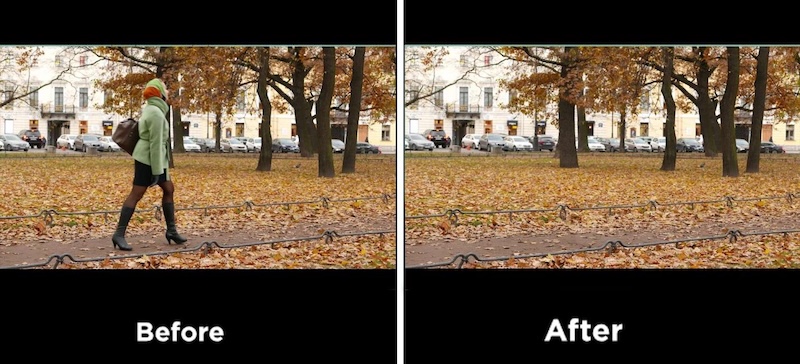
You framed the perfect shot. The lighting was right, the subject was nailing it — and then you notice it in post: a brand logo on a T-shirt, a stranger walking through the background, or an unwanted object distracting from the main subject. Instead of reshooting the entire video, AI-powered object removal tools can help clean up the footage in just a few steps. In this guide, we’ll explain how AI video object removal works and also mention the best tools. You’ll learn how to remove unwanted objects while keeping the video looking natural.
Part 1: What is AI Video Object Removal?

AI video object removal is a technology that uses artificial intelligence to detect and erase unwanted elements from video footage without sacrificing video quality. It can identify objects such as people, logos, text, signs, wires, or other distractions and remove them from the scene automatically. Instead of manually editing every frame, AI analyzes the surrounding areas and reconstructs the background to make the removed object less noticeable. This technology can save time and simplify the editing process, especially for beginners and content creators. Most AI object removal tools can also track unwanted elements as they move through a scene. Once an object is selected, the AI can follow its position across multiple frames and apply the removal effect. This makes the process faster than traditional editing methods.
Part 2: What Can You Remove From a Video With AI?
AI-powered video object removal tools can remove a wide range of unwanted elements from video footage. Here are some of the most common objects you can remove from videos using AI technology:
- Objects and Props: Users can remove objects from video AI, such as unwanted furniture, bags, signs, boxes, vehicles, equipment, or other distracting items in the background.
- People: With the help of AI object removal technology, you can easily remove strangers who walked into the frame, crew members, background pedestrians, or other unwanted people from your footage.
- Watermarks: A video watermark is a visible logo, text, or graphical overlay that is permanently embedded in the video output during export. An object removal tool can easily remove these types of watermarks without sacrificing the video quality.
- Microphones and Boom Poles: These tools can also help remove visible microphones, boom poles, mic stands, and more. This is especially useful for interviews, filmmaking, behind-the-scenes footage, and professional shoots.
Part 3: How AI Video Object Removal Works
AI remove object from video leverages machine learning to detect and erase unnecessary elements from video frames while preserving background consistency and composition. Here is how it works:
- Upload the Video: To begin the process, first upload the video you want to edit to an AI-powered object removal tool. Most tools support popular video formats, such as MP4, MOV, AVI, and more.
- Select the Unwanted Object: Next, use the masking tool to select the object you want to remove from your video. You can select people, logos, text, equipment, watermarks, and other elements.
- Remove the Object: Once the object is identified, the AI removes it from the footage. It uses frame interpolation to ensure smooth movement and consistent video flow across the join between original and reconstructed regions.
- Preview and Edit: After processing, preview the video to check the result. Use the built-in editor to customize the video, and if satisfied with the results, click on the “Download” button to export the video in MP4 format.
Part 4: Best Tools to Remove Objects from Video with AI
Once you’ve learned everything about AI object removal from video, now let's find out which tools can help you remove unwanted objects quickly and easily. Below, we’ve mentioned the top 2 AI object removal tools:
1 HitPaw Edimakor
If you want to remove unwanted objects, logos, and text from videos without sacrificing the original quality, HitPaw Edimakor is the best option. The program automatically detects the object you want to remove and naturally fills the background to create a cleaner and more polished result. Instead of manually editing individual frames, users can select the unwanted area and let the AI handle the removal process. Simply upload your video to HitPaw Edimakor and describe what you want to remove with a simple prompt. AI recognizes the target based on your description and removes it from the footage, making the process faster and easier.
Key Features of HitPaw Edimakor
- AI Object Removal: HitPaw Edimakor uses AI technology to detect and remove unwanted objects, people, logos, text, and more from videos. Simply upload the video, describe what you want to remove, and click on the “Remove” button. HitPaw will remove the object from the video within seconds.
- Remove Multiple Objects: With the help of this tool, users can remove multiple unwanted elements with a single click. This can be useful when a scene contains several distractions, such as people, logos, signs, wires, and more.
- Rebuild Background Naturally: Once the unwanted element disappears from the video, HitPaw Edimakor intelligently reconstructs the affected area using surrounding visual details. It analyzes the nearby textures, color, patterns, and background elements to create a seamless result.
- Compatibility: HitPaw Edimakor works seamlessly with multiple devices, including Windows and macOS. The program supports all Windows versions, including XP, Vista, 7, 8, 8.1, 10, and 11.
- Intuitive Interface: One of the standout features of this tool is that it offers an intuitive interface, allowing non-tech and beginner users to remove objects from videos without editing experience.


2 CapCut
CapCut is a web-based AI video editor that also offers an object removal feature. You brush over the unwanted item, the AI tracks it, and it disappears. The tool can be useful for removing distracting people, objects, and text from video footage without requiring complex editing techniques. One of the best parts of this tool is that it offers a simple interface, allowing users to remove unwanted objects from videos without technical expertise. In addition to object removal, CapCut provides a range of video editing features for trimming clips, adding effects, applying transitions, and more.
Key Features
- CapCut uses AI-powered technology to remove unwanted people, objects, text, and logos from video footage with minimal effort.
- Users can simply brush over the unwanted element to mark the area they want to remove, making the process straightforward for beginners.
- The program offers advanced AI video editing features, allowing users to trim, split, and add effects and filters to video.
- It is a web-based tool, meaning no software downloading or installation is required. Works with Android, iOS, Windows, and macOS.
Final Thoughts
AI video object removal has made it easier to clean up footage by removing unwanted people, objects, logos, text, and other distractions without spending hours. For the best results, choose an AI video editor that provides accurate and high-quality object removal. Tools such as HitPaw Edimakor make the process faster and more accessible.
Leave a Comment
Create your review for HitPaw articles