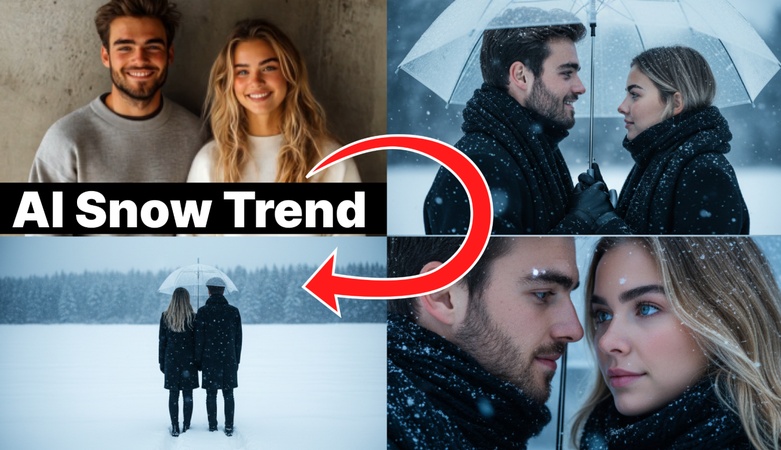
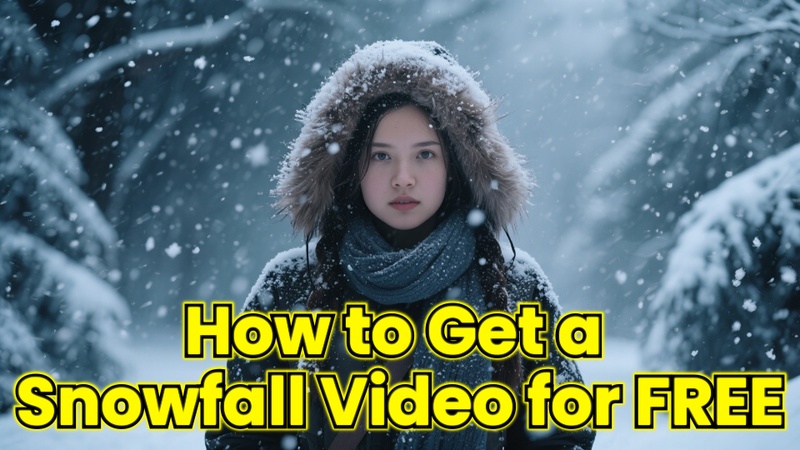
You might have seen many emotionally captivating winter photos with the Meitu snowing night AI effect applied on Instagram or KakaoTalk profiles lately.
However, if you've ever thought, "Is there a way to create a winter vibe while using various filters?" this article will introduce you to how to use Meitu snowing night and ways to differentiate yourself from others with snowing night effects, so do read it carefully if you're interested.
Part 1. What is ‘Meitu Snowing Night’?

Meitu Snowing Night is an AI snowy filter effect available in the popular Chinese photo editing app Meitu, transforming simple everyday photos into cold yet romantic winter-themed images.
It doesn't just change the background to look like it's snowing; it also automatically adjusts the overall color and atmosphere, allowing for a quality that looks like it was taken by a professional photographer, which is why it is so loved. Moreover, it can be applied not only to portraits but also to pet photos, couple pictures, and even food images, making it versatile.
Part 2. Why is ‘Meitu Snowing Night’ so popular?
The reason the snowing night feature in the Meitu app is so beloved is simple. With just one click, you can create an atmosphere reminiscent of Hokkaido in Japan or a Christmas market in Europe.
You can experience a magical effect that instantly transforms a beautifully taken photo at home into a scene from a movie, and no complicated editing skills like Photoshop are required, making it easy for anyone to use. Additionally, saving Meitu Snowing Night images is straightforward, contributing to its widespread popularity.
Part 3. How to apply the AI Snowing Night effect in Meitu (Step-by-step guide)
In this part, we will learn how to use Meitu Snowing Night step by step. It’s fun to use it with portraits or pets like dogs or cats.
- First, search for 'Meitu' in the App Store or Google Play Store to download and install the app.
- Once you run the app, you can immediately see the AI snowing night effects at the bottom, so select the filter you like. Note that the Meitu Snowing Night effect is currently not available for free, so if you were looking for how to use Meitu snowing night filter, please be aware that a paid payment is required. After selecting the image you want to apply the effect to, the filter will be applied immediately.
- Saving Meitu Snowing Night images is simple; just click ‘Save’, and they will be stored in your gallery, so check out the images you created.
Part 4. Differences between Meitu Snowing Night Free vs Paid
The Meitu app can be used for free, but some premium features require a paid subscription. Unfortunately, the AI snowing night filter has changed from the free version to the paid version, so if you want to use the snowing night effect, a paid payment is necessary.
Of course, the paid version includes more diverse premium filters, AI correction features, and watermark removal options, but if you're just creating photos for social media, the free version might be sufficient. You can test out other filters first and consider upgrading if needed.
If you were looking to try the free version of Meitu Snowing Night, I recommend the program introduced in the next part, so let’s find out more details in the next section.
Part 5. Alternative to create Meitu ‘AI Snowing Night Effect’
If you were disappointed that you couldn't use Meitu Snowing Night for free, try using HitPaw Edimakor introduced in this AI snowy filter trend. Edimakor is a comprehensive video editing program based on AI and offers a wider variety of AI snowing night filters than Meitu, making it versatile for different uses.
In particular, it can create not only images with the snowing night effect but also videos, making it suitable for YouTube Shorts or Instagram Reels. If you want to create longer videos than the short live streams from Meitu Snowing Night, this is highly recommended.
Main Features
- AI image generator Complete snowing night images with just a few clicks
- Offers various versions of snowing night templates such as 2-panel, 3-panel, and couple templates
- Supports both photos and videos, allowing all tasks to be done within a single program
- High-quality output and various resolution options for use on different platforms
- Easy to use for beginners with real-time previews and intuitive timeline editing
How to create an AI ‘Snowing Night’ filter
Now, I will detail how to create a winter-themed snowing night filter using Edimakor. Working on a PC will yield much higher quality results than mobile, so follow along step by step.
Step 1: Access the link below to download the HitPaw Edimakor program. It supports both Windows and Mac OS, so choose the version that matches your operating system, and run the installation file to go through a simple installation process, then open the program.


Step 2: When you run Edimakor, you will see a 'New Project' button on the main screen. Click this to start generating images with AI snow filters similar to Meitu Snowing Night.
Step 3: In the left menu, click on the ‘Image Special Effects’ section to see various presets offered by Edimakor. Since it supports various templates not available in the Meitu app, if you have a solo selfie or portrait photo, choose a single-screen template, and for group photos with friends, select the 2-panel or 3-panel split templates. There are also dedicated 2-person templates for couple photos, so choose the template you need.
Selecting a template is simple; hover your mouse over the image you want to use, and the ‘Create’ button will appear, so click that button.
Step 4: Next, it’s time to upload the images you want to use for the selected template. When uploading images, arrange the photos for each panel in order, and since the Meitu AI snow prompts are already applied, leave the prompt field as is, select the aspect ratio and quantity to generate, then click the ‘Generate’ button to create images similar to Meitu Snowing Night.
Step 5: Images with the Meitu AI snowing night effect can be checked in ‘My Creations’, and the created images can be moved to the timeline by clicking the + button. To save the files, click the ‘Export’ button at the top, and if you want to create images into videos or need additional editing, use the editing features at the top to enhance your photos.
Step 6: Click on the generated image and select 'Open Folder' to check if the image was applied correctly. Additionally, various features such as re-editing, re-generating, and converting images to videos are provided, so make use of Edimakor's diverse functionalities.
Step 7: Whether it's an image or a video, when the work is completed, you can click ‘Export’ in the upper right to save the final file. For local saves, it means saving to your computer, and social media options allow direct uploads to your YouTube account, so choose the necessary function.
Conclusion
Today, I introduced how to use Meitu Snowing Night step by step and how to utilize snowing night effects more diversely. While you can create beautiful photos with mobile apps, if you are considering more professional work or creating video content, make sure to use HitPaw Edimakor introduced in this article. With various templates available for creating tailored content such as couple images not provided in the Meitu app, and an intuitive interface like the Meitu app, you can easily create snowing night images with just a few clicks. Start with Edimakor for winter-themed profile pictures or videos that are great for short forms.
Leave a Comment
Create your review for HitPaw articles