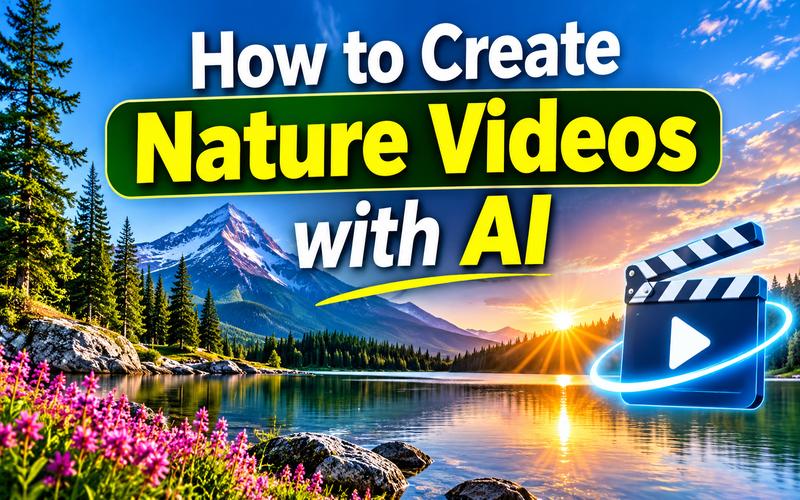
Nature videos showcase the beauty of the outdoors on any screen. These videos help people enjoy peaceful natural scenes, from green forests and flowing rivers to snowy mountains and colorful sunsets. However, filming nature can take time, travel, and special equipment. AI tools offer a simpler way to create these scenes. They can turn text descriptions and still images into moving videos. This guide explains how to create AI nature videos with easy steps and helpful tips.
What Are AI Nature Videos?
AI nature videos are video clips created with artificial intelligence. Instead of filming every scene with a camera, a creator describes a scene in text or uploads an image. The AI then builds motion, lighting, camera movement, and visual details around that idea.
For example, a prompt can describe golden sunlight moving through a pine forest. The result may show leaves swaying, light changing, and the camera slowly moving between the trees. An uploaded lake photo can also become a short clip with gentle water motion and drifting clouds.
These videos can look realistic, dreamy, cinematic, or animated. They are useful for YouTube channels, social media posts, travel pages, meditation content, online lessons, and digital ads. An AI generated nature video can also help creators test an idea before filming it in the real world.

How to Make AI Nature Videos
Creating an AI nature video is easier with the right tool. A video generator can turn written ideas into moving scenes or add motion to existing nature photos. This makes it possible to create different content styles without advanced editing skills.
Edimakor AI is an AI powered video creation tool that helps users turn creative ideas into videos. It offers text to video and image to video options, making it useful for creating nature scenes from written prompts or existing photos. Users can describe a forest, waterfall, beach, or mountain view and use AI to bring the scene to life. It can also help creators build visual content for social media, YouTube, and other projects. Edimakor AI makes it easier for beginners and creators to produce videos.
Key Features of Edimakor AI
Here are useful features for creating nature videos:
- Turn written prompts into short nature videos instantly
- Animate one image or several images smoothly
- Build simple AI animations without editing skills
- Create fresh landscape artwork from text prompts
- Transform existing photos into new visual styles
- Over 300 video effects for creative edits
- Create videos online without complex software installation
- Multiple AI models for different visual styles
- Export ready content for personal and commercial projects
Feature names, model availability, pricing, and export options may change over time, so check the Edimakor workspace before starting a project.
Create AI Nature Videos from Text
Text to video works well when a scene exists only in the imagination. A detailed prompt can explain the subject, location, movement, mood, and camera style.
Step 1: Open Text to Video
Open Edimakor AI and choose ‘Text to Video.’ Choose a ‘model’ that fits your project, such as Wan 2.7. Different models may create different levels of motion, detail, and realism, so testing more than one can help.
Create from Text
Step 2: Enter Your Nature Prompt
Write a clear ‘prompt’ that describes the full scene. Include the location, time of day, weather, subject, movement, camera action, and visual style. Then set the video options, such as duration, resolution, and aspect ratio.
For example, try this prompt: 'A peaceful cinematic view of a mossy forest after rain, soft morning fog between tall trees, a small stream moving over stones, slow forward camera movement, natural colors, realistic documentary style.'
Choose 16:9 for YouTube or a vertical ratio for Shorts, TikTok, and Reels. Short prompts may create simple scenes, while detailed prompts give the model more guidance.
Step 3: Generate and Save Your Video
Click ‘Generate’ and wait for the video to process. Watch the preview for odd movements, changing objects, blurry details, or unnatural water and animal motion.
If the result needs improvement, adjust one part of the prompt and generate another version. Save the best clip, then ‘download’ it in the format needed for editing or publishing.
Turn a Nature Image into Video
Image to video works well when you already have a favorite landscape photo, digital artwork, or AI generated image. The image provides the composition, while your prompt explains how the scene should move. This approach can help keep the mountain, forest, or shoreline more consistent across the clip.
Follow these steps to turn a still nature image into a video.
Step 1: Open the Reference to Video Tool
Go to the Edimakor AI workspace and open the ‘Reference to Video’ tool. This area is designed to animate an uploaded picture into a short moving scene.
Create from Nature Image
Step 2: Upload Your Image and Add Settings
Upload a clear nature image with a strong subject. A lake, forest path, desert, waterfall, or coastline can work well. Next, enter a motion prompt that explains what should move and how the camera should behave.
For example, write: “Animate the lake water with small natural ripples, move the clouds slowly, add a gentle camera zoom, and keep the mountain shape unchanged.” Set the duration, resolution, and aspect ratio before generating the clip. Clear instructions help protect important parts of the original image.
Step 3: Generate and Export Video
Click ‘Generate’ and preview the result when it is ready. Look for strange movement, flickering details, warped objects, or sudden color changes.
If needed, adjust the prompt and create another version when the clip looks right, ‘export’ it for editing, sharing, or publishing.
Tips for Creating Better AI Nature Videos
Good results depend on both the prompt and the review process. Small changes can make the scene more realistic, more peaceful, or more useful for a specific platform.
Use the following tips:
- Describe one clear scene instead of many
- Add camera movement, such as slow panning
- Mention realistic lighting and natural colors
- Keep animal movements simple and believable
- Match video size to the target platform
- Use short clips for easier editing
- Avoid crowded prompts with conflicting instructions
- Preview every clip before publishing online
- Add natural sound effects during final editing
Nature videos often look better when motion is gentle. Fast camera moves can make forests, water, and clouds feel artificial. A slow zoom, soft pan, or steady forward movement usually creates a calmer result. Adding sound later can also improve the viewing experience. Try birdsong, light rain, ocean waves, wind, or a quiet forest bed, but make sure the audio matches the scene.
FAQs About AI Nature Videos
A1: Yes. Text-to-video tools can turn a written scene description into a short video. Results improve when the prompt includes the location, subject, motion, lighting, camera movement, and visual style. Several versions may be needed before the motion looks natural.
A2: Yes. Image-to-video tools can animate a still photo by adding moving water, drifting clouds, waving grass, falling snow, or gentle camera motion. A clear image and a simple motion prompt usually produce more stable results.
A3: Some platforms offer free trials, limited credits, or a small number of free generations. Free access may include limits on video length, resolution, speed, watermarks, or export options. Check the current plan details before starting a large project.
A4: Popular ideas include peaceful forest walks, sunrise over mountains, underwater scenes, tropical beaches, desert sunsets, rainy city parks, wildlife documentaries, and fantasy landscapes. A simple theme can become a series by changing the location, season, weather, or time of day.
A5: A good prompt describes the subject, environment, lighting, movement, camera angle, and visual style. Specific instructions help AI understand your idea and create more relevant results.
A6: Choose a clear topic, such as forests, oceans, or travel landscapes. Create several short clips, arrange them in order, add suitable sound, and export in a horizontal YouTube format. Add a clear title, thumbnail, description, and keywords. Check media and music usage rights.
Conclusion
AI makes nature video creation faster, easier, and more accessible. Text prompts can build fresh scenes, while image-to-video tools can bring favorite photos to life. Clear prompts, simple movement, and the right settings help create better results. Edimakor AI combines these tools in one online platform. Start with a peaceful landscape or one of the nature video ideas above. Try Edimakor AI today and turn a simple nature concept into an engaging video.


Leave a Comment
Create your review for HitPaw articles