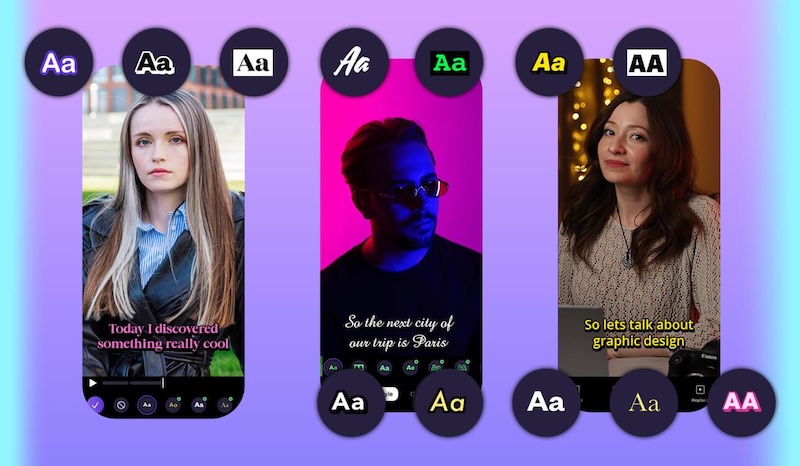
Want to add captions to your YouTube videos quickly without spending a fortune on editing software? YouTube offers an automatic captioning feature that converts speech into text and supports multiple languages. However, its captions are not always accurate, especially when videos contain background noise, complex terminology, or unclear speech. This is where free caption apps come in handy. These tools allow users to generate, edit, and customize captions without professional editing experience. In this article, we will explore five of the best free caption apps for YouTube videos in 2026.
Part 1: 5 Must-Try Free Caption Apps for YouTube Videos
Finding the right caption app for YouTube can be difficult, as there are hundreds of options available online. To make your search easier, we have compiled a list of five must-try free caption apps for YouTube videos in 2026:
1. AutoCap

If you want the best free caption apps for YouTube videos, AutoCap is an ideal option. It's an Android app that allows users to create transcripts, review the generated text, and make corrections before using the captions in their videos. Another advantage of this app is its straightforward interface, which makes it suitable for beginners who want to create captions without learning complicated editing techniques. Once the captions for YouTube videos are generated, users can also download them in SRT, VTT, or a burned-in MP4.
Pros
- Translate captions into 50+ languages, including English, Chinese, and Turkish.
- Enables users to download subtitles in SRT or VTT.
- Also supports AI voice generation in the target language
Cons
- Limited video editing features.
- App is only available for Android devices.
2. Voicella
The AI-powered automatic speech recognition of the app allows you to recognize, translate, and create subtitles automatically. The app uses speech/voice-to-text features to create subtitles in 40+ languages, including English, Chinese, Russian, Turkish, Italian, Spanish, and more. Users can also adjust the font size, color, and position of the captions as needed. One of the standout features of Voicella is that it offers an easy-to-use interface, which is ideal for non-tech and beginner users.
Pros
- Easy-to-use interface, ideal for non-tech and beginner users.
- Translate video content without any manual effort or editing.
- Supports all Android devices and versions, including the latest.
Cons
- Users need to download YouTube videos and translate them.
- The free version has limited languages and features.
3. Auto Caption Video Subtitles
For iOS users, Auto Caption Video Subtitles is an amazing option for adding captions to YouTube videos without spending hours transcribing speech manually. The app uses automatic speech recognition technology to convert spoken words into text, helping creators generate subtitles quickly. It also offers subtitle customization options, allowing users to adjust the appearance of captions to suit their content.
Pros
- With over 100 different styles to choose from.
- Add professional-looking captions and subtitles to your videos.
- 99 different languages and translations.
Cons
- No Android version available.
- The interface can be overwhelming for first-time users.
4. Subera
If you want to translate YouTube videos in 50+ languages, then we recommend using Subera. The program helps users create subtitles and make video content accessible to a broader audience. Its multilingual capabilities can be useful for YouTubers who want to reach international viewers without manually translating every line of dialogue.
Pros
- Supports 50+ languages, including Spanish and French.
- Options to export subtitles in different formats, including SRT.
- Choose subtitle font, size, and color.
Cons
- Issues with uploading long videos
- Subscription required for automatic captions.
5. CapCut
The final auto-caption maker on our list is CapCut. It is available on both Android and iOS devices and allows users to create automatic captions in 100+ languages. The program also offers a powerful editor that enables users to edit subtitle font, size, position, and color. The best part is that it also offers video editing capabilities, ideal for enhancing YouTube videos.
Pros
- Available on both Android and iOS devices.
- AI video editor for video customization.
- No watermark on the processed files.
Cons
- Free version of CapCut offers limited features.
- Editing experience is required.
Bonus Tip: Best YouTube Caption Generator for Windows and macOS: HitPaw Edimakor
HitPaw Edimakor is an AI-powered video editor that offers automatic subtitle generation as part of a complete video editing workflow. Its Auto Subtitles feature helps users recognize speech and convert it into text, reducing the time required to create captions manually. After generating subtitles, users can review the text, correct transcription errors, adjust subtitle timing, and customize caption styles according to their requirements. The software also allows users to edit their videos and export the finished content for YouTube. One of the standout features of this tool is that it includes powerful editing tools, covering various aspects of video production. Users can trim clips, add transitions, enhance visuals, and add background music to create polished YouTube videos.
Key Features of HitPaw Edimakor
- AI Caption: The program uses speech-to-text technology to create accurate subtitles for YouTube videos, helping users save time and effort. Simply upload a YouTube video, choose the desired language, and click on the “Generate” button.
- Customize Subtitles: One of the standout features of this tool is that it offers advanced customization features, allowing users to edit captions according to their requirements. Users can change the font style, text size, color, and positioning to make subtitles readable.
- Multiple Languages: HitPaw Edimakor enables users to create captions for YouTube videos in 130+ languages, including English, Chinese, Russian, Turkish, Italian, and Spanish. This multilingual support helps content creators make their videos accessible to a wider audience across different regions.
- YouTube Video Editing: Once subtitles are generated, users can edit their videos using HitPaw Edimakor’s built-in editing tools. The software allows creators to trim unwanted clips, add transitions, include background music, and enhance the overall appearance of their footage.
- Intuitive Interface: HitPaw Edimakor offers an easy-to-use and simple interface, allowing non-tech and beginner users to create subtitles for YouTube videos without manual effort or editing experience. Plus, it includes a drag-and-drop feature for effortless video editing.


Step-by-Step Guide:
Follow the instructions below to learn how to create automatic subtitles for YouTube videos using HitPaw Edimakor:
Step 1: Upload YouTube Video
Launch HitPaw Edimakor on Windows and macOS. Choose the “Auto Subtitles” option from the main interface and upload a YouTube video.
Step 2: Add Subtitles to Videos
Once the YouTube video is uploaded, choose the target language and click on the “Auto Subtitles” option.
Step 3: Edit Auto Subtitles
Within seconds, HitPaw Edimakor will create subtitles in the target language. Use the built-in video editor to customize the subtitles, including font, size, color, and position.
Step 4: Further Edit Your YouTube Video
If you want to make more changes beyond subtitles, open the Video Editor to continue editing your YouTube video. You can trim unwanted footage, split clips, add transitions and effects, adjust audio, and make other edits to polish your video before exporting.
Final Thoughts
This guide has provided you with the 5 best free caption apps for YouTube videos in 2026. With the help of these apps, users can create captions for YouTube videos on Android and iOS devices. Plus, it also introduces one of the best AI tools named HitPaw Edimakor. This AI Video Editor offers advanced customization features and AI tools like an automatic subtitle generator and more.
Leave a Comment
Create your review for HitPaw articles