Image-to-video AI can turn a static photograph into a moving scene within seconds. However, the image provides only the starting point. Your prompt tells the AI how the subject should move, how the camera should behave, and what should remain unchanged.
This guide explains how to write effective image to video prompts, provides eight copy-and-paste examples, and shows how to test them with HitPaw Edimakor.
How Image-to-Video Prompts Shape the Results
AI video prompts act as instructions that guide the model’s interpretation of your image. The clearer the instructions, the more control you have over motion, camera effects, style, and consistency.
- Control Subject Movement: Prompts tell the AI how objects or characters should move, helping create natural actions instead of random animations.
- Shape Camera Perspective: Camera instructions influence how the scene is viewed, from smooth tracking shots to dynamic zooms and cinematic angles.
- Define Visual Atmosphere: Style and mood descriptions help the AI create videos with a specific tone, such as realistic, cinematic, or artistic effects.
- Maintain Visual Consistency: Prompts can guide the AI to preserve important details from the original image, including faces, clothing, colors, and overall composition.
How to Write Effective Image-to-Video Prompts
The strongest image to video AI prompt describes movement without unnecessarily redesigning the original image. Start with the subject and explain what should happen to it.
1 Describe the Main Subject Action
Identify the main subject and give it one clear action. For example, say “the woman slowly turns toward the camera” instead of simply saying “animate the woman.”
2 Add Environmental Motion
Include subtle movement in the surroundings when appropriate. Wind moving leaves, flowing water, drifting clouds, or changing reflections can make a scene feel more natural.
3 Specify Camera Movement
Tell the model how the virtual camera should move. Common options include a slow push-in, gentle pan, tracking shot, orbit, or static camera.
4 Describe the Video Style
Add the visual direction you want, such as realistic, cinematic, documentary, dreamy, energetic, or product-commercial style.
5 Protect Important Details
Tell the AI what must remain consistent. For portraits, protect facial identity, hairstyle, clothing, body proportions, and skin texture. For products, preserve shape, color, branding, and proportions.
6 Basic Image-to-Video Prompt Formula
Use this structure when creating an ai image to video prompt:
Subject + Action + Environmental Motion + Camera Movement + Timing or Style + Consistency InstructionsFor example:
| Prompt | Image | Video |
|---|---|---|
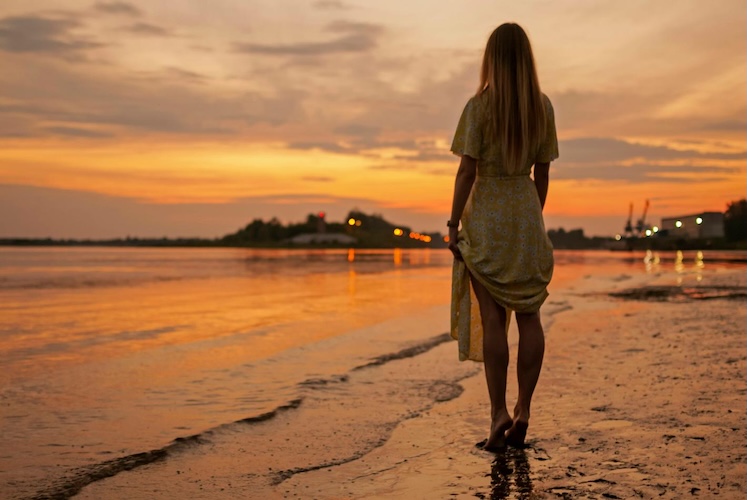
| A woman standing on a beach slowly turns toward the camera, her hair moving gently in the ocean breeze, waves moving naturally behind her, slow cinematic push-in, realistic golden-hour photography, preserve her face, clothing, body proportions, and original composition. |
|
This formula gives the AI both creative direction and clear boundaries.
8 Best Tested Prompts for Image-to-Video Generation
These AI video prompt examples cover common image animation needs. Each follows the formula above and can be customized for your own images.
General Still-Image Animation
This prompt is useful when you want to add subtle movement to an otherwise static photograph without dramatically changing the original composition.
Animate the main subject with subtle natural movement, add gentle environmental motion in the background, use a slow cinematic push-in, maintain realistic lighting and depth, keep the original composition stable, and preserve all facial features, clothing, colors, and proportions.
Natural Portrait Movements
Portrait animation works best with restrained movements. Small gestures can make a photograph feel alive without creating unnecessary facial or body distortion.
The person gently blinks, breathes naturally, and makes a subtle head movement while maintaining the original expression. Hair moves slightly in a soft breeze. Use a slow camera push-in and realistic portrait lighting. Preserve facial identity, skin texture, hairstyle, clothing, and body proportions.
Product Showcase Motion
Product videos need controlled movement and consistent product geometry. This prompt creates motion suitable for advertisements, product pages, and social media content.
The product remains centered while subtle reflections move across its surface. The background stays clean and stable as the camera slowly rotates around the product. Use polished commercial lighting and smooth premium motion. Preserve the exact product shape, colors, proportions, logo, and fine details.
Animated Landscape Elements
Landscape images become more engaging when natural elements move subtly. Avoid excessive motion that changes the original scenery.
Clouds slowly drift across the sky while grass and tree leaves move gently in the breeze. Water flows naturally in the distance. Use a slow cinematic camera pan with realistic outdoor lighting. Preserve the original landscape, horizon, colors, architecture, and overall composition.
Controlled Camera Shots
Sometimes the subject should remain almost completely still while the camera creates the movement. This works well for portraits, architecture, and cinematic photographs.
Keep the subject completely still while the camera performs a slow cinematic dolly-in followed by a subtle upward tilt. Maintain realistic depth and natural lighting throughout. Do not alter the subject, background, clothing, facial features, proportions, or original color grading.
Prompt for Consistency
Use this when maintaining visual consistency is more important than adding complex animation.
Add only subtle natural movement to the existing image. Preserve the subject’s identity, facial features, hairstyle, clothing, body proportions, colors, lighting, background, and composition exactly. Avoid introducing new objects, changing facial expressions, or modifying the original visual style.
Avoiding Distortion in People
People can be difficult to animate because uncontrolled movement may affect hands, faces, and body proportions. Keep the requested action simple and restrained.
Animate the person with a slow, natural breathing motion and a slight head turn. Keep both hands and arms stable. Preserve facial identity, eyes, teeth, fingers, clothing, body proportions, and skin texture. Use smooth, realistic movement and avoid warping, extra limbs, facial distortion, or sudden motion.
Negative Prompt for Products
Negative instructions can help reduce unwanted changes when generating product videos.
Slowly rotate the product while maintaining its exact shape, size, color, logo, and proportions. Use smooth commercial camera movement and realistic studio reflections. Avoid warped geometry, duplicated objects, changing logos, text distortion, flickering, color shifts, extra products, or background changes.
Try Your Image-to-Video Prompts in an AI Video Generator
Once you have an image to video prompt guide and a few tested ideas, you need a tool that can turn those instructions into actual clips. HitPaw Edimakor provides an image-to-video workflow where you can upload an image, add a prompt, select an AI model, and generate the clip.
Key Features of HitPaw Edimakor
- AI Video Generator: Edimakor supports multiple AI video models for different generation needs, including image-to-video workflows.
- Viral Video Templates: Ready-made AI effects and templates let users create popular social videos without writing detailed prompts.
- Prompt Generator: Edimakor’s AI prompt tools can turn basic ideas or reference images into more descriptive prompts, helping users create detailed instructions.
- Video Editing Tools: Generated clips can be added to the timeline and further edited with music, effects, transitions, trimming, and other tools.


Here’s how to create an image-to-video clip in Edimakor:
Step 1: Open AI Video
Launch HitPaw Edimakor and open “Video” from “AI Toolbox”. Select “Image to Video” to access the image-animation workflow and available generation models.

Step 2: Upload Your Image
Upload the photo you want to animate. Choose a clear image with a strong subject and enough visual detail for the AI model to interpret the scene accurately, and pick the AI model of your choice.
Step 3: Paste a Prompt
Enter one of the prompts above and adjust it for your image. If you are unsure how to describe the motion, use Edimakor’s prompt-generation tools to develop a more detailed instruction from your basic idea.
Step 4: Generate the Video
Choose the available duration and resolution settings, then click “Generate”. Preview the result in “My Creations” and continue editing the clip if needed.
FAQs
A1: Useful ai image to video prompts should describe the subject, action, environmental movement, camera movement, visual style, timing, and details that must remain consistent.
A2: Yes, but keep the description focused. Mention important visual elements and then concentrate on the movement you want the AI to create.
A3: There is no universal word count. A concise prompt containing specific motion and consistency instructions is usually more useful than a long description filled with unrelated details.
A4: Distortion can happen when the requested movement is too complex or conflicts with the source image. Reduce the motion, protect important details, and avoid asking for several major changes simultaneously.
A5: Yes. Edimakor provides ready-made AI video templates and effects, allowing you to create certain image-to-video effects without writing a custom prompt.
Conclusion
Effective image to video prompts balance creative direction with clear consistency instructions. The eight examples above provide a practical starting point for different animation needs. For an all-in-one image to video AI tool, try HitPaw Edimakor to generate, refine, and edit your AI video clips in one workflow.
Leave a Comment
Create your review for HitPaw articles