YouTube is full of amazing videos, from captivating Vlogs to insightful tutorials. However, it’s hard to understand them if you are not familiar with their language. Fortunately, automatic video translation makes it easier to break language barriers and enjoy content from creators around the world. With modern AI-powered tools, you can translate YouTube videos, generate subtitles, create dubbed audio, and even make content accessible in multiple languages. In this article, we’ll mention the top methods to auto-translate for YouTube in 2026, helping you choose the best solution for your needs.
Part 1: Why Auto-Translate YouTube Videos?
YouTube is one of the most popular streaming platforms in the world. Millions of videos are uploaded to the platform, each with a unique language. However, language barriers can prevent viewers from fully understanding the content. Here are the top reasons why auto-translate for YouTube videos is essential:
- Break Language Barriers: Automatically translated videos allow viewers to understand content even when they do not speak the original language.
- Reach a Worldwide Audience: Auto-translate for YouTube enables content creators or marketers to make their videos accessible for viewers who speak different languages.
- Higher Watch Time and Revenue: Native-language audio keeps viewers engaged for longer because they can understand the content more naturally and comfortably.
- Expand Channel Growth: Reaching audiences in multiple languages can help creators attract more viewers and grow their YouTube channels.
Part 2: Method 1: How to Translate Videos Using YouTube Built-In Tool
YouTube is one of the most-watched streaming platforms in the world because it offers a wide range of content and an easy-to-use interface. One of the platform's best features is its built-in translation capability, which allows viewers to understand videos in different languages. Users can easily auto-translate for YouTube mobile, Windows, and macOS. Follow the instructions below to learn how to do it:
- Open YouTube on your web browser and search for the video you want to translate. Click on the video to play it.
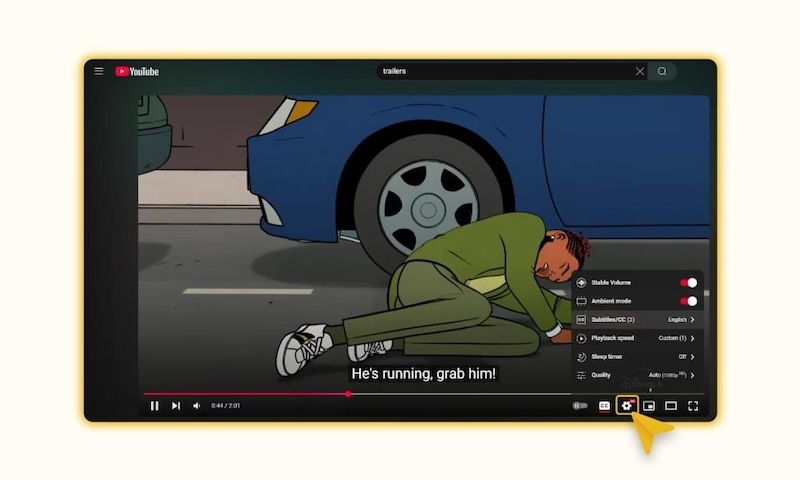
- YouTube video player will open. Click the “Subtitles/Close Caption” button in the YouTube video player controls, and real-time subtitles will appear on the screen.
-
If you want to translate video subtitles into a different language, click on the “Settings” option. Choose the “Subtitle/CC” option and select the language you want. YouTube will automatically translate your video into the desired language within seconds.

Is it possible to auto-translate for YouTube app? Yes, the YouTube mobile app also offers an auto-translate feature. Simply select the “CC” option to enable the subtitles.
Part 3: Method 2: Auto Translate For YouTube Using a Browser Extension
Google Chrome offers multiple auto-translate extensions for YouTube, which allow users to instantly translate videos into the desired language. Live Voice Translation & Transcription is one of the popular Chrome extensions that helps you translate videos into multiple languages, including English, Chinese, Russian, Turkish, French, and more. Here is how to use this extension.
- Just visit the Live Voice Translation & Transcription extension page and click the “Add to Chrome” option. Click “Add Extension,” and it will be ready to use immediately.
- Next, open YouTube and play the video you want to translate. Click on the “Extension” icon available in the browser toolbar. Choose “Live Voice Translation & Transcription.”
- Select the source language or enable the “Auto Detect” feature if multiple languages are spoken. Now, enable “Live Translation” and select your target language.
- Within seconds, your YouTube video will be translated into the target language. To save your captions, click on the “Save File to Dashboard,” and you will be able to download the file in .srt.
Part 4: Method 3: Auto Translate For YouTube With a Third-Party Tool (Recommended)
You must be wondering if YouTube offers a built-in auto-translator; why choose another third-party tool for this job? The answer is simple: tools like HitPaw Edimakor enable users to translate YouTube videos into over 135+ languages, making it easier to translate YouTube videos into the desired language. The best part of HitPaw Edimakor is its advanced video editing and subtitle customization features, making it easy to translate videos with subtitles and customize them to fit your needs. Users can easily change the color of the subtitles, font, style, position, and overall appearance to match their video. With its user-friendly interface and AI-powered features, HitPaw Edimakor makes the translation process simple, even for users with limited video editing experience.
Key Features of HitPaw Edimakor
- AI Video Translation: HitPaw Edimakor enables users to translate videos automatically without any manual effort. Simply upload the video, choose the target language, and HitPaw Edimakor will do the rest.
- Support Multiple Languages: The program supports 135+ languages, including English, Chinese, Russian, Turkish, Italian, Spanish, French, Dutch, Urdu, Korean, Thai, Persian, Somali, Bangla, Tamil, Malay, Filipino, etc.
- Advanced Customization Features: HitPaw Edimakor offers advanced customization features, allowing users to design subtitles for YouTube videos according to their requirements. Users can change the colors, fonts, sizes, styles, alignment, and positioning.
- Wide Range of AI Voices: One of the standout features of this tool is that it offers a wide range of AI voices, allowing users to translate videos with natural-sounding voiceover in different languages.
- Intuitive Interface: The program offers an easy-to-use interface, which is ideal for non-tech and beginner users. Users can translate videos without hiring a translator, professional help, or editing experience.


How to Translate Videos for YouTube Using HitPaw Edimakor
Users can translate videos for YouTube within a few clicks. Follow the instructions below to learn how to do it:
Step 1: Launch Video Translator
Visit HitPaw Edimakor’s official site and download the latest version of the program on your PC. Install and launch it, and choose the “Create Project” option from the left panel. Multiple AI tools will appear on your screen; select the “Video Translator.”
Step 2: Translate Subtitles and Dub Videos
Click on the “Import” button and choose the video that you want to translate. Choose “Auto Detect” in Original Language and select the desired language in the Translated Language. HitPaw Edimakor will automatically translate the video into the selected language.
Step 3: Customize Translated Subtitles
In the Subtitles section, translated subtitles will appear. Customize them according to your requirements. You can edit the font, style, color, size, and more.
Step 4: Export Subtitles Files
Once the translation process is complete, click on the “Export” button. You can download original and translated subtitles separately in multiple formats, such as SRT, ASS, ATT, and TXT.
Final Thoughts
Auto-translate for YouTube has become a trend. In 2026, viewers want to enjoy videos in their preferred languages, but finding high-quality content created in those languages is not always possible. Auto-translation makes international content more accessible by providing translated subtitles. HitPaw Edimakor is an amazing AI video editor that enables users to translate videos in 135+ languages, including English, French, Turkish, and Chinese. Plus, the platform offers an intuitive interface, which is ideal for non-tech and beginner users.
Leave a Comment
Create your review for HitPaw articles