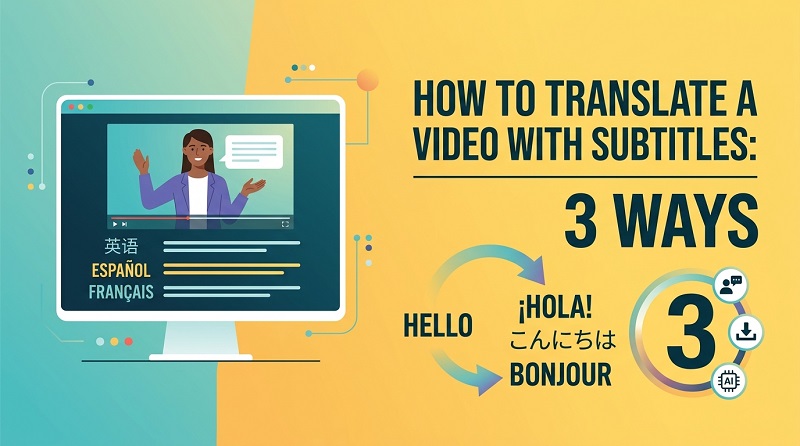
Need to make a video understandable to viewers who speak another language? You can translate its spoken content and subtitles using AI, work directly with an existing subtitle file, or translate everything manually. This guide explains how to translate a video with subtitles using all three methods so you can choose the right approach for your content.
Can You Translate a Video with Subtitles?
Yes. You can translate video with subtitles in several ways, depending on what you already have and how much control you need over the final translation.
For example, if you have a complete video with spoken dialogue but no translated captions, an AI video translator can recognize the speech, translate it into another language, and generate subtitles. This approach reduces the amount of transcription, translation, and subtitle timing you need to handle manually.
If the video already has a separate subtitle file, such as an SRT file, you can translate the text in that file while preserving its timestamps. You can then import the translated subtitle file back into a compatible video editor or player.
A third option is manual translation. You listen to the dialogue, transcribe it, translate the text, create subtitles, and synchronize each line with the video. It gives you more direct control but requires considerably more time.
Therefore, the best method depends on factors such as:
- Whether subtitles already exist
- The length of the video
- The source and target languages
- How quickly you need the translation
- The level of accuracy required
- Whether you also need translated voice audio
Let’s examine all three methods.
Method 1: Use an AI Video Translator
There isn’t one ideal translation workflow for every project. An AI translator is usually the most convenient for handling an entire video, while separate subtitle-file translation can be useful when captions already exist. Manual translation offers maximum human control but involves the most work.
If you’re wondering how to translate a video with subtitles without manually transcribing every sentence, an AI video translator is one of the easiest options.
AI tools can automate several stages that would otherwise need to be completed individually, including speech recognition, translation, subtitle generation, and, with supported tools, voice translation.
One option is HitPaw Edimakor.
What Is HitPaw Edimakor?
HitPaw Edimakor AI Video Translator is an AI-powered video translation solution designed to translate spoken content and subtitles for multilingual video creation.
Rather than requiring you to manually transcribe dialogue, translate the transcript, create captions, and synchronize them with the original footage, Edimakor combines these tasks within its video workflow.
According to HitPaw, Edimakor can automatically recognize speech, generate subtitles, and translate video content into different languages. It can also work with subtitle files and provide AI-powered dubbing capabilities.
This type of workflow can be particularly useful for YouTube videos, tutorials, educational materials, marketing content, interviews, podcasts, and social media videos intended for international audiences.
Key Features of HitPaw Edimakor
Some of the key capabilities relevant to video and subtitle translation include:
- AI Video Translation: Translate spoken video content into another language using AI.
- Automatic Subtitle Generation: Detect dialogue and generate synchronized captions automatically.
- Subtitle Translation: Translate generated or imported subtitles into another language.
- Multilingual Support: Work with numerous source and target languages for international content.
- AI Dubbing: Create translated voice audio for supported translation workflows.
- Subtitle File Support: Import and work with subtitle files rather than recreating every caption manually.
- Subtitle Editing: Review and adjust generated subtitles before exporting the finished project.
- Video Editing Tools: Continue editing the video within Edimakor after generating or translating subtitles.
Using one application for these processes can reduce the need to move transcripts, subtitle files, translations, and videos between several different programs.
How to Translate a Video with Subtitles Using Edimakor
Step 1: Install and Open HitPaw Edimakor
Download and install HitPaw Edimakor on your computer. Launch the program and start a new project.
Import the video you want to translate into Edimakor and add it to your editing workspace.
At this stage, make sure you have selected the correct video, especially when working with several versions of the same project.


Step 2: Open the AI Translation Tool
Next, locate the AI-powered translation or subtitle tools within Edimakor.
Choose the appropriate translation workflow for your video. The objective is to let Edimakor recognize the video’s spoken dialogue and prepare it for translation instead of manually typing everything yourself.
Select the original language of the video if required. Correctly identifying the source language helps the speech-recognition and translation process.

Step 3: Choose the Target Language
Now select the language into which you want to translate the video.
For example, if the original video is in English and you’re preparing it for Spanish-speaking viewers, choose English as the source language and Spanish as the target language.
Depending on your workflow and available options, you can then have Edimakor process the spoken content and generate translated subtitles.
Step 4: Generate and Translate the Subtitles
Start the AI processing.
Edimakor analyzes the speech in the video and generates subtitle content. The recognized text can then be translated into the selected target language.
Once processing finishes, review the subtitles carefully.
AI can dramatically accelerate transcription and translation, but names, technical terminology, slang, accents, background noise, and sentences with several possible meanings may still require human correction.
Step 5: Export the Translated Video
Once you’re satisfied with the translation, preview the complete video.
Check whether subtitles appear at the right moments and remain on screen long enough to read. If you also generated translated voice audio, listen for synchronization and pronunciation issues.
Finally, select your desired export settings and export the finished video.
Using an automated workflow like this is particularly helpful when you need to translate video subtitles regularly or work with longer videos where manual transcription would take significant time.
Method 2: Translate the Subtitle File Separately
You don’t always need to process the entire video. If you already have a separate subtitle file, translating that file can be a more direct approach.
Subtitle files such as SRT typically contain the subtitle sequence, timestamps, and text. The timestamps determine when each caption appears and disappears.
Instead of changing the video itself, you translate the subtitle text while retaining the timing information.
Suitable For
This method is suitable when:
- The video already has an accurate subtitle file.
- You only need translated subtitles, not translated audio.
- You want to preserve existing subtitle timing.
- You need subtitle files in several languages.
- You plan to upload different subtitle tracks to a video platform.
- The original transcription has already been reviewed.
How to Translate a Subtitle File Separately
Step 1: Obtain the subtitle file. Start with the original subtitle file associated with your video. SRT is one of the most commonly encountered formats, although other subtitle formats are also used.
Step 2: Make a backup. Keep an untouched copy of the original file before editing it. This makes it easier to restore the original timing or wording if something goes wrong.
Step 3: Open the subtitle file. Use a compatible subtitle editor or text-based workflow that preserves the subtitle structure.
A typical SRT entry contains an index, timestamps, and caption text. The timing information should generally remain unchanged when you’re only translating the language.
Step 4: Translate the subtitle text. Translate each caption into the target language without accidentally deleting sequence numbers or timestamps.
The translated sentence does not always need to follow the original sentence word for word. The goal is to preserve the intended meaning while keeping the subtitle concise enough for viewers to read comfortably.
Step 5: Review the translated captions. Check terminology, spelling, context, and consistency. Play the video alongside the subtitles to ensure the translated text still fits the scenes and dialogue.
Step 6: Save and import the translated file. Save the new subtitle file using a suitable encoding and filename. You can then import it into your video editor, media player, or supported publishing platform.
Cons
Although this is an effective way to translate subtitles in a video , it has several limitations:
- You need an existing subtitle file.
- It doesn’t automatically translate the video’s voice.
- Translation can still require extensive manual review.
- Longer translated sentences may no longer fit the original timing comfortably.
- Accidentally changing timestamps or formatting can cause synchronization problems.
- Managing many language versions can become time-consuming.
This approach is therefore most convenient when the original subtitles are already accurate and only the written language needs to change.
Method 3: Translate the Video Manually
The third method is to translate the video’s content manually.
Instead of relying primarily on automated transcription and translation, a person listens to the dialogue, creates or reviews the transcript, translates it, and builds the subtitles.
This method requires considerably more work, but it can be useful when the content needs careful human interpretation.
Suitable For
Manual translation may be suitable for:
- Short videos
- Content containing specialized terminology
- Dialogue with jokes, idioms, or cultural references
- Videos where tone and context are particularly important
- Projects already being handled by a professional translator
- Content where every translated line needs individual review
How to Translate a Video Manually
Step 1: Watch the complete video. Before translating individual lines, understand the topic, speakers, tone, and context.
Step 2: Transcribe the dialogue. Listen to the video carefully and write down what each speaker says. Include important spoken information while keeping the transcript accurate.
Step 3: Divide the transcript into subtitle-friendly sections. Long paragraphs should be broken into shorter captions that viewers can comfortably read while watching the video.
Step 4: Translate each section. Translate the dialogue into the target language while preserving its meaning and tone. Avoid overly literal translations when they sound unnatural or change the intended message.
Step 5: Add timestamps. Synchronize each translated caption with the corresponding dialogue. Set appropriate start and end times so subtitles don’t appear too early or remain after the speaker has finished.
Step 6: Review the video from beginning to end. Watch the finished version and check the translation, timing, readability, punctuation, and consistency.
Step 7: Export or save the subtitles. Depending on your publishing requirements, export a subtitle file or incorporate the captions into the final video.
Cons
Manual translation offers control, but it also presents several disadvantages:
- It is much slower for long videos.
- Transcription adds another time-consuming stage.
- Subtitle synchronization must be handled carefully.
- Translators need to understand both languages well.
- Professional human translation can increase project costs.
- Creating multiple language versions multiplies the workload.
For creators producing multilingual content frequently, manually repeating this process for every video can become inefficient. An AI-assisted solution such as HitPaw Edimakor can automate much of the initial transcription, translation, and subtitle-generation workload while still allowing you to review the results.
FAQs About Translate Subtitles in a Video
A1: An AI video translator can automate much of the process. With a tool such as HitPaw Edimakor, you can import the video, use AI to recognize its spoken content, select a target language, generate translated subtitles, review them, and then export your project. Human review is still recommended for names, terminology, and context-sensitive translations.
A2: Yes. If you only need viewers to read the dialogue in another language, you can translate the subtitles while leaving the original audio unchanged. If an accurate subtitle file already exists, translating that file separately can be an efficient option.
A3: Open the SRT file with a compatible subtitle editor or text-editing workflow and translate the caption text while preserving the sequence numbers and timestamps. After reviewing the translation, save it as a new subtitle file and test it with the original video.
A4: AI video translation tools can support more than subtitle translation. Depending on the tool and selected feature, they may combine speech recognition, subtitle generation, translation, and AI dubbing. HitPaw Edimakor is designed to support AI-based video translation and multilingual subtitle workflows.
A5: It depends on your priorities. AI is useful when speed and scalability matter, especially for longer videos or multiple language versions. Manual translation provides greater human control over cultural nuances, jokes, specialized terminology, and context. A practical workflow is often to use AI for the initial translation and then manually review and refine the results.
Conclusion
Knowing how to translate a video with subtitles makes it easier to share your content with audiences who speak different languages. You can translate an existing subtitle file, create subtitles manually, or automate much of the process with AI. For a faster all-in-one workflow, try HitPaw Edimakor. Its AI-powered tools can simplify video translation, subtitle generation, and multilingual content creation while still giving you the opportunity to review and refine the final result.
Leave a Comment
Create your review for HitPaw articles