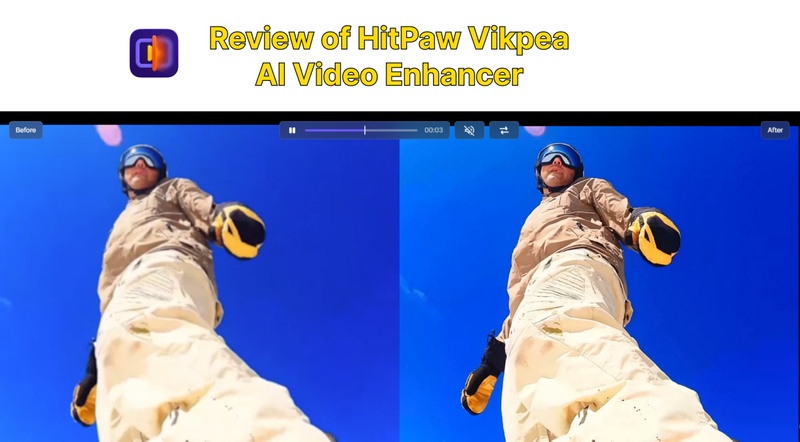
Clipfly, which is well-known for its user-friendly interface and AI-powered upscaling technology, claims to improve video quality online without requiring complex editing knowledge. We will go over everything about clipfly ai video enhancer in this guide, including features, alternatives, tutorials, and actual user experiences.

Part 1: Quick Snap Of Clipfly AI Video Enhancer
Clipfly AI Video Enhancer is an online AI-powered tool designed to upscale videos to 4K, reduce noise, enhance clarity, and improve overall video quality effortlessly. More knowledge of Clipfly AI Video Enhancer is described below:
1 What Is Clipfly AI Video Enhancer
An online AI-powered tool called Lipfly AI Video Enhancer was created to automatically increase video quality. It makes use of sophisticated AI models to improve colors, sharpen details, lower noise, and increase resolution. The platform is helpful for creators who desire professional-quality outputs without the need for manual editing because it offers 4K video capability.
Feature:
- Converts low-resolution or blurry videos into sharp 4K quality using AI upscaling models.
- Automatically removes grain, blur, and compression artifacts.
- Adds smart effects and visual enhancements powered by AI.
- Generates videos from text, images, or templates.
- No software installation required, works directly in your browser.
Score:
8.4 / 10
Who Should Buy It:
- Content creators are improving old or low-quality videos
- Social media marketers producing short-form videos
- YouTubers upscaling legacy content
- Beginners who want AI video enhancement without technical skills
- Users looking for 4K AI upscaling video online for free
Who Shouldn't:
- Professional filmmakers needing frame-by-frame control
- Users working with extremely large or long cinematic footage
- Advanced editors who prefer manual color grading and control
Pros & Cons:
Pros
- Easy to use for beginners
- AI-powered 4K upscaling
- Works online, no install
- Multiple AI tools in one platform
Cons
- The free version has limitations
- Export speed depends on the internet
- Advanced controls are limited
- Watermark on free plan
Pricing Plans:
| Plan | Price | Features |
|---|---|---|
| Free | $0 | Basic enhancement, watermark |
| Monthly | $9.99/month | Full AI tools, no watermark |
| Yearly | $39/year | Best value, priority processing |
Part 2: Clipfly AI Video Enhancer And Its Alternatives
Explore how Clipfly AI Video Enhancer compares with similar tools like Edimakor, Vidnoz, Remini, and Utool, highlighting differences in pricing, quality, user experience, and ideal use cases for each.
| Tool | Pricing | Quality | User Experience | Good At | Best For |
|---|---|---|---|---|---|
| Clipfly AI | $9.99/m | High | Very easy | 4K upscaling, AI effects | Beginners & creators |
| Edimakor | $29/m | Very high | Smooth | Detailed enhancement | Semi-pro users |
| Vidnoz AI | $19/m | Medium | Easy | Online enhancement | Quick fixes |
| Remini Video Enhancer Online | $17/m | High | Simple | Face & detail enhancement | Portrait videos |
| Utool Video Enhancer | $19/m | Medium | Basic | Simple upscaling | Casual users |
Best Clipfly AI Video Enhancer Alternative - Edimakor
HitPaw Edimakor AI Video Enhancer is among the top choices if you are searching for a powerful substitute for Clipfly for enhancing video quality. Whether you are using a PC or Mac, it uses AI-powered upscaling, color correction, and frame-by-frame editing to make any video appear smoother, crisper, and more polished.


Key Features
- Resolution and details are automatically improved by End-to-End AI Video Upscaling.
- The Denoise & Stabilization Toolkit can easily correct shaky film and eliminate grain.
- Every frame can be edited, objects can be blurred, and visual problems can be easily fixed using frame-by-frame editing.
How to Use Edimakor AI Video Enhancer
Step 1: Open Edimakor and Select Video Enhancer
If HitPaw Edimakor is not already installed on your device, download and install it. Open the application, then choose Video Enhancer from the main menu bar.
Step 2: Select the Enhancement Type
Select the improvement mode that best suits your requirements. AI Enhancer, Quality Repair, General Repair, and Color Enhancer are among the options. Choose the Quality Repair option for overall video enhancement.
Step 3: Create and Import Your Video
To begin the improvement process, upload your video file, select your preferred resolution (up to 4K), make any necessary adjustments, and click Generate.
Step 4: Export and Preview the video
Your improved video will show up in My Creations after processing. To access the storage folder, click the folder icon located in the upper-right corner of the video preview. If you are happy with the video preview, export it for sharing or saving.
Part 3: Tutorial Of Clipfly AI Video Enhancer
This tutorial explains how to use Clipfly AI Video Enhancer step by step, helping beginners easily upscale videos, improve quality, and apply AI-powered enhancements without technical complexity.
Step 1: Access Clipfly Video Enhancer
Firstly, you have to search for Clipfly Video Enhancer. For that, you can use any browser and then sign up. Click the button Upscale Videos to 4K to enhance the quality of your video.
Step 2: Upload your Image
You will be brought to a new screen where you will see an upload option. Choose it and import the video that you want to enhance.
Step 3: Download and Preview
Click Download to export the upscaled file, store it on your device, and confidently share high-quality results across platforms with clients, teams, social media, or personal projects after carefully previewing the improved video to ensure sharpness, colors, and motion consistency.
Part 4: Reviews Of Clipfly AI Video Enhancer
Read real user experiences and platform reviews of Clipfly AI Video Enhancer to understand how it performs in everyday use, including strengths, weaknesses, and satisfaction across diverse video projects.
1 Review of Clipfly AI Video Enhancer
- Users on the free plan will notice that every video exported carries a watermark, which can be distracting and reduce the professional appeal of content, making it less suitable for commercial use.
- Videos with longer durations require significantly more processing time, which can be inconvenient for users needing quick results. This may slow down workflows, especially when working with multiple large files.
- The platform offers few options for manual adjustments, restricting control over settings like brightness, contrast, and sharpness. Advanced users may find it difficult to achieve highly customized results.
2 User Review 1
The reviewer uses Clipfly to convert photos into videos and finds the results good for direct-facing images, but mentions needing multiple attempts and adjustments to achieve desired outcomes.
3 User Review 2
The reviewer, new to AI tools, finds Clipfly the best balance of price, quality, and simplicity, especially suitable for beginners, even with a small budget.
4 Trustpilot Platform Review
The reviewer reports app creates unintended images, ignores prompt changes, still charges coins after mistakes, and lacks a free retry option, causing frustration despite otherwise acceptable performance and disappointing user experience overall.
Wrapping Up
Clipfly AI Video Enhancer is a good option in 2026 if you are searching for an easy, AI-powered way to enhance video quality. It provides beginner-friendly controls, additional AI tools like picture animation and video production, and dependable 4K AI upscaling video online. The clipfly ai video enhancer is still a fantastic choice for designers, even though more experienced users might prefer alternatives like HitPaw Edimakor (Video Editor) .
Leave a Comment
Create your review for HitPaw articles