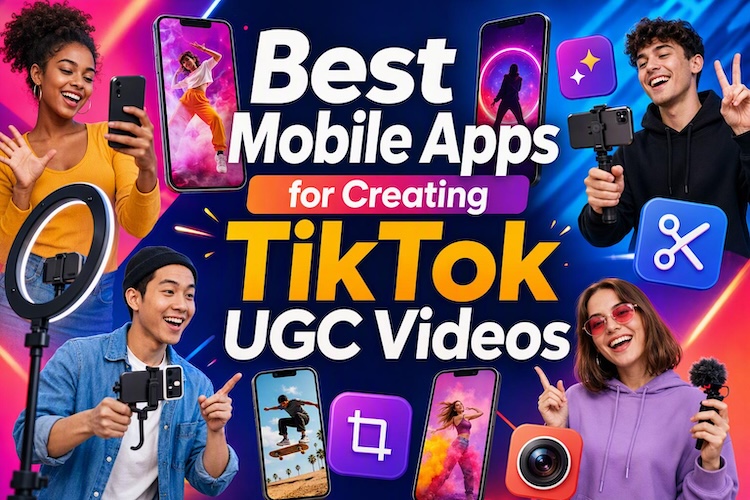
A good TikTok UGC doesn't look like an ad. It looks like a real person sharing something they actually use. That's why it works. And you don't need a studio to make it. A phone and the right editing app are enough. Here are the best mobile UGC video editing apps . Some suit beginners. Others give pro-level control. Most let you start for free.
What to Look for in a UGC Video App
Most apps can cut a clip. That's the simple part. You need an application that creates your video and keeps people watching. Here's what to consider before you pick one.
- Core editing: Trimming, clip order, speeding, 9:16 export resolution, and voiceover controls take a few taps.
- UGC tools: B-roll, captions, product overlays, and clean natural templates make your video look real.
- Brand and workflow: Choose an app that offers brand customization, edits fast, and exports in high quality in the right format.
- Free-plan limits: Check for feature limits, watermarks, export caps, and premium assets. A watermark hurts trust. So test one export before you commit.
7 Best Mobile Apps for Creating Authentic TikTok UGC Videos
Here are seven beginner UGC creator apps and pro tools for different workflows. Each has a clear strength, and most have a catch on the free plan. We've pointed those out too.
1 CapCut: Best for TikTok Creators
Editing for TikTok? CapCut is hard to beat. Record your clip, and it adds the captions for you. Pick a template, drop in some B-roll, and put your product name on screen. It also matches TikTok's look, so your video fits with everything else on the feed.
Free-plan limits: You can export in 1080p for free. Templates and effects marked Pro leave a small watermark. For 4K and the full AI tools, you'll need to pay.
2 InShot: Best for Fast, Natural-Looking Edits
Short on time? Use InShot. You trim clips, add text, change speed, and drop in music with a few taps. Its clean tools suit casual, phone-shot videos. That makes it a good pick for the best TikTok UGC apps that should look raw and real.
Free-plan limits: The free UGC video editing app adds a watermark in the bottom corner and shows ads. Pro removes both. Buying "remove ads" alone does not remove the watermark.
3 VN Video Editor: Best for More Editing Control
Need more control? VN gives you a multi-track timeline, keyframes, and speed curves. You can fine-tune every cut. It also has auto captions, text-to-speech, and video cutout. It's the best app for UGC creators who want pro-level editing on a phone.
Free-plan limits: VN is free and watermark-free too. VN Pro adds extra tools. That makes it a strong budget pick for free and the best UGC video editing apps.
4 Canva: Best for Branded UGC and Product Content
Posting for a brand? Canva helps you keep a steady look. Add logos, brand colors, fonts, and product graphics to your clips. It also makes captions and exports MP4 files. It is a smart choice for sellers who need apps for TikTok Shop videos.
Free-plan limits: Free accounts can export without a watermark if you use free elements only. Pro elements add a watermark. Premium elements and some export options need a paid plan.
5 Creatify: Best for AI-Generated UGC Ads
Don't want to film at all? Creatify turns a product link into a UGC-style video ad. It writes a script and adds an AI avatar and voice. It runs in a web browser, which helps with faceless UGC video apps and fast ad tests.
Free-plan limits: The free plan gives 10 credits a month. That is about two videos. All exports carry a watermark, and the avatar library is limited.
6 Captions: Best for Caption-Heavy UGC
Filming yourself? Captions is great for real-person UGC content. You speak to the camera, and it adds animated captions to the video. It's a teleprompter, AI UGC video app for editing and dubbing that keeps the video real.
Free-plan limits: The free plan is limited. It has basic editing and one caption template. AI tools use credits, and some exports may carry a watermark. Check the export screen first.
7 Splice: Best for Polished, Creator-Style UGC
Want a cleaner, creator-style look? Splice gives you easy video editing features, trimming, music sync, effects, and text tools. The final finish suits product demos and reviews that maintain a personal touch.
Free-plan limits: Splice offers a valid free trial for 14 days. After that, it requires a subscription for Pro tools. Always check the screen for watermark options before exporting.
Mobile App Comparison: Which Tool Fits Your Workflow?
Use this table to match an app to your workflow. New creators can start with CapCut or VN. If you don't want to film anything, try Creatify.
| App | Best for | Editing control | Free plan |
|---|---|---|---|
| CapCut | All-around TikTok UGC | High | Free, but Pro templates add a watermark |
| InShot | Quick, simple edits | Medium | Watermark and ads |
| VN | Detailed edits | High | Free, no watermark |
| Canva | Branded product videos | Medium | Free elements export clean |
| Creatify | AI avatar ads | Low (AI-led) | 10 credits, watermark |
| Captions | Talking-head videos | Medium | Limited, check for watermark |
| Splice | Polished creator-style edits | Medium | 14-day free trial |
Make UGC Videos for TikTok with a More Powerful Desktop Editor
Mobile video editing apps for TikTok are great for filming and quick edits. But a small screen has limits. Want a bigger workspace and finer control? A desktop TikTok video maker gives you both.
HitPaw Edimakor is a good alternative for creators who want to generate UGC-style videos. It works on Windows and Mac, and it also adds AI to the process. It it a powerful commercial video maker for modern digital campaigns.
Key Benefits:
- AI avatars : Make videos with a virtual presenter, so you don't have to be on camera.
- AI script generator : Get a quick first draft of a script for your product promo.
- Free recording: Record your screen or other supported content at no cost, depending on the recording features available.
- Easy editing: Change captions, visuals and other video elements without hassle.


How to Create a TikTok UGC Video in Edimakor
Follow these five steps in the app to make TikTok product videos.
Step 1: Generate a UGC Video Script
Open Edimakor and go to Toolbox, then AI Copywriting . Type the product name and its features. Pick a short, friendly style. Then edit the text so it sounds like a real person.

Step 2: Upload Your Media Files
Go to AI Ads and select the Product Character Mode. Upload your product image and the model image. Or, you can choose from our Charactr Library.
Step 3: Add your UGC Script
Paste your script into the speech box. Then choose a matching voice, you can also record your own voiceover or upload a sound.
Step 4: Generate and customize the video.
If you want changes, describe them. Otherwise, just click Generate. Your video will show up in My Creation. Preview it, you can continue to edit the video, add auto captions, and music with Edimakor.
Step 5: Export and share to TikTok.
Then click Export. You can export the final video to TikTok directly. Make sure it's vertical in format (9:16).
FAQs
A1: Shoot in natural daylight and talk in a human tone. Keep the script small and showcase the product. Use clear, minimal captions, avoiding heavy effects. Viewers easily identify fake ads.
A2: Creatify and Edimakor are good picks, since both use AI avatars and voiceovers. If you use B-roll, text, and a voiceover, CapCut works well too.
A3: Yes. Just follow TikTok's rules on posting AI-made content. Use a script and a friendly voice so the video feels human.
Conclusion
The best app for editing UGC videos depends on your goal. CapCut and VN suit beginners. InShot is quick, Canva helps with branding, and Captions fits talking videos. Creatify and Splice cover AI ads and polished edits.
If you want more control and AI avatars on a bigger screen, Edimakor is a strong pick. Download it today and make your first TikTok UGC video in minutes.
Leave a Comment
Create your review for HitPaw articles