Need a clip that you never filmed? Adobe Premiere Pro can now make new clips with AI, right inside your project. The Premiere Pro Generative Media Tool lets you create video and sound without leaving your edit. No stock search and no reshoot, so that you can fix a missing shot in minutes.
But is it easy to use, or is it just hype? In this review, we'll look at how the tool works and how to use it step by step. Learn how Premiere Pro integrates generative AI into video editing and whether there’s a simpler alternative better fits your creative workflow.
What Is Premiere Pro's Generative Media Tool?
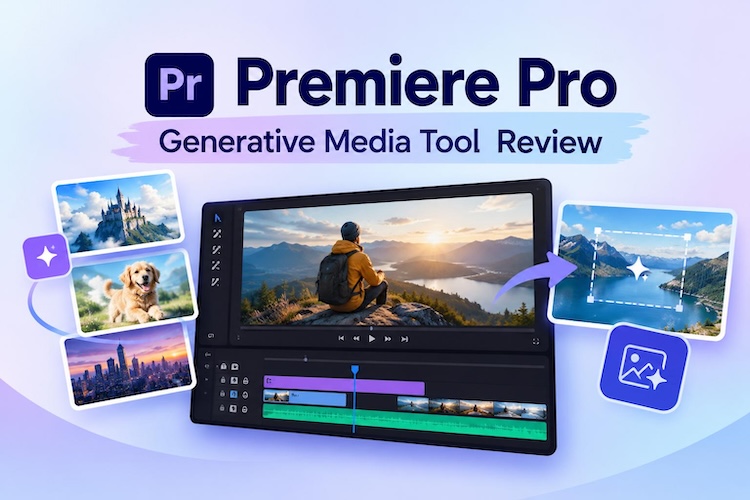
Premiere Pro's Generative Media Tool is an AI feature built into Adobe Premiere Pro. Type a prompt to generate a new video clip or sound effect. No downloads and no need to leave the app. It happens right next to your timeline so that you can keep editing. Here's what you can do:
- Generate Video: Write a short prompt, and the tool creates your video. It helps when you require a cutaway or a background.
- Create Custom Audio: Describe the sound, and the tool generates it for you. This helps for effects that are not in the library.
- Use Frames as References: Choose a clip from the footage and use the sound effect you need. It helps match the video look.
How Generative Editing Improves the Premiere Pro Workflow
Every editor knows the pain of a missing shot. You have the story, but one clip is not there. Adobe Premiere Pro AI g enerative tools help fill the gap fast.
1 Create Extra Clips for Your Video
Sometimes your footage runs short. A scene ends early, or you need one more shot. With AI, you can make that clip in minutes. You skip the stock sites and the extra shoot. This keeps your Adobe Premiere Pro editing running smoothly.
2 Test Different Ideas with AI
Not sure which look works? Try some prompts and see. Test the mood, the setting, or the camera angle. It's cheaper than a reshoot, and you'll know what you want faster.
3 Review and Refine AI Results
Not every clip will work, and that’s normal. Drop it onto your timeline and see whether it fits the scene. If it doesn’t, adjust the prompt and generate it again. Sometimes one word is enough: swap “sunny street” for “rainy street,” and you’ve got a completely different shot.
4 Keep Everything in One Place
Switching between apps wastes time. You create, trim, and place clips in a single workspace. Keep your files organized and focus on the story.
How to Use the Generative Media Tool in Premiere Pro
Here's a premiere pro tutorial in four steps. Your screen might look different from mine because menu names shift between versions.
- Open your project and sequence. Then open the Generative Media Tool from the Premiere Pro panel or menu.
- Mark the spot on your Premiere Pro timeline where the new clip should go. This sets how long the clip will be.
- Type your prompt in plain words. Choose video or audio, and add a reference frame if you like. Then click Generate.
- Play the new clip. If you like it, add it to your edit. If not, change the prompt and generate again.

A Simpler Alternative to Premiere Pro's AI Video Tools
Premiere Pro is powerful, but it feels heavy. The menus are deep, and new users feel lost. If you want AI tools in a lighter app, try HitPaw Edimakor. You can generate videos with AI, add effects, and make quick edits without navigating complex menus. This makes it a practical choice for beginners and creators who want to finish projects with less effort.
Key Features of HitPaw Edimakor
- Built-In AI Video Generation Tools: Make clips from text or images. You can also use footage as a reference, so new shots match the original video. Edimakor brings several leading AI models into one place.
- Smart Editing Tools: Edimakor provides tools like auto cut and text-based editing. Edit the words, and the video follows.
- AI Audio and Voice Tools: Create voiceovers with text-to-speech, change a voice, or make music and sound effects. Auto subtitles are included too.
- Simpler Interface for Beginners: The layout is easy to read. You can start editing on day one, with no long learning curve.


Edimakor is free to start. You can use its non-AI tools for free, and new users get free credits to try the AI features. It works on Windows and Mac, and it also has an online version.
How to Edit Timeline Videos with AI in Edimakor
Want AI help without the heavy menus? Edimakor makes it easy to work right on your timeline. You can add your clips, right-click, and let the AI do the hard part. Here's how it works, step by step.
Step 1: Import Your Media
Open HitPaw Edimakor and click the import button to upload your video clips, photos, or audio files. Drag and drop these assets directly onto the main editing timeline to start.
Step 2: Choose an AI Generation Feature
Right-click on your imported material to open the context menu. Browse through the available AI tools to select your desired feature, such as Reference to Video, video extension or style transformation.
Step 3: Enter a Prompt and Adjust Settings
Type a detailed text prompt describing the exact visuals or changes you want to create. Customize the generation settings, including video duration and aspect ratio.
Step 4: Generate and Add the Result
Click the Generate button and wait for the AI to process your request. Preview the generated clip, and if you are satisfied, insert it directly onto your timeline to continue.
FAQs
A1: Premiere Pro's Generative Media Tool can create new video clips and sound effects from text prompts. You can also use frames from your existing footage as a guide. These AI features help you generate content that fits your project without spending extra time searching for suitable media.
A2: No, it is not completely free. You need an Adobe plan to use Premiere Pro, and some AI features may require generative credits. The availability of features and credits depends on your subscription. Check Adobe's website for the latest pricing and plan details before using these tools.
A3: Not always. You may need to add your generated clips to the timeline manually. With Premiere Pro Generative Extend, you can extend footage to improve transitions or provide extra time for a scene. Review the generated results before adding them to your project to ensure they fit your video's timing and flow.
A4: HitPaw Edimakor is a useful alternative for creators who want AI video tools in a simpler interface. It combines AI generation with basic editing features, making it easier to create and refine videos.
Conclusion
The Premiere Pro Generative Media Tool makes it easy to fill gaps and test ideas without leaving your edit. It saves time, and you can edit on one platform. But it feels complex if you are new to editing.
If you want a lighter app with strong AI tools, try HitPaw Edimakor . It brings AI video, audio, and smart editing tools into one clean, simple app. Start for free, download Edimakor today, and create your next AI video with ease.
Leave a Comment
Create your review for HitPaw articles