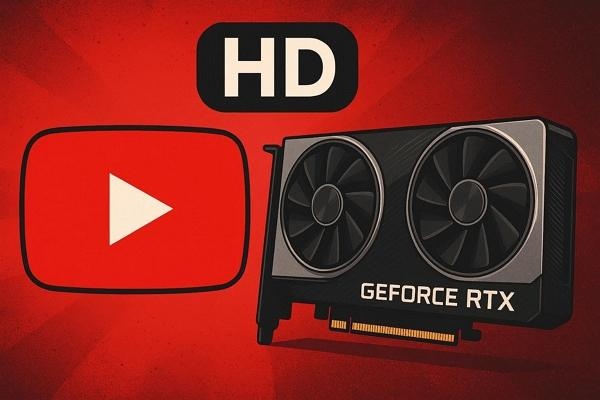
With RTX video enhancements, you get sharper visuals, reduced noise, and smoother playback, instantly making everyday videos look cleaner and more detailed. These improvements elevate streaming, gaming, and low-quality footage, creating a more immersive and comfortable viewing experience overall. Read till the end to discover how these benefits work together and how you can enhance videos easily.

Part 1. What Is RTX Video Enhancement
This technology enhances streaming, gaming, and older video playback, delivering sharper visuals and smoother performance without requiring costly hardware upgrades. By intelligently refining detail and reducing visual imperfections, RTX creates a richer, more immersive experience across modern displays. RTX video enhancement is reshaping digital viewing by leveraging AI-driven upscaling, noise reduction, and real-time clarity improvements.
1 Requirements Of RTX Video Enhancement
- GPU: NVIDIA GeForce RTX™ 2060, Quadro RTX™ 3000, TITAN RTX™, or higher
- RAM: 8GB RAM or higher
- CPU: Recommended: Intel Core i5 8600, AMD Ryzen R5 2600 or higher
- Driver: NVIDIA Studio Driver R570, Game Ready Driver R570, NVIDIA RTX Enterprise Driver R570, and above
- Internet: Internet connectivity during installation
2 How Does It Work
RTX 3080 Video Enhancement performance uses NVIDIA’s AI models running on RTX GPUs to upscale and sharpen streamed or local videos in real time. It analyzes each frame, reduces compression artifacts, enhances edges, and improves clarity using Tensor Cores. The processing happens during playback, boosting visual quality without re-encoding the original video.
Part 2. How to Improve YouTube Video Quality with RTX
RTX Video Super Resolution (VSR) functionality within the NVIDIA environment provides the ability to upscale the quality of video. Instead of changing the original stream, it intelligently sharpens details, smooths compression noise, and improves clarity. To learn how to enable the VSR on RTX NVIDIA for YouTube videos, read the steps provided next:
- Open the NVIDIA Control Panel and head to the panel on the left. Locate the Adjust Video Image Settings option and click on it.
- Now, locate the Super Resolution option in the following interface, and tick the checkbox. Increase the Quality by expanding the drop-down menu. Now, play the YouTube video with enhanced visuals and high quality.
Part 3. Pros And Cons Of RTX Video Enhancement
 Pros of Using RTX Video Enhancement
- Makes low-resolution videos look clearer by improving sharpness and reducing visible compression noise.
- Enhances detail in real time without needing separate editing software or manual adjustments.
- Works smoothly with popular browsers, making it easy to improve online streaming quality.
- AI-powered upscaling happens automatically, so videos look better instantly without changing player settings.
- No impact on original video files, as AI artifact reduction is applied only during playback.
 Cons of RTX Video Enhancement
- Only works with NVIDIA RTX graphics cards, so many systems can’t use the feature.
- Uses GPU power, which may slightly reduce performance during gaming or heavy tasks.
- AI upscaling isn’t perfect and may sometimes create overly smooth or artificial-looking details.
Part 4. How To Enhance Any Video Quality With AI
No matter how high-end your means of video enhancement are, nothing can replace AI enhancement. One of the most reliable AI-powered video enhancement tools available is HitPaw Edimakor . The tool uses advanced AI to detect the flaws in your video and offers you various enhancement functions. Follow the guide below and learn how to enhance a video using this AI video upscaling tool :


Step 1. Access AI Video Enhancer
To begin, launch Edimakor on your device and access the Video Enhance feature from the homepage.
Step 2. Select Enhancement Option
In the following interface, choose the enhancement model and press Select to opt for it.
Step 3. Choose Quality Import Video
Next, press the + icon to import your video and select the Resolution from the options provided. Once done, hit the Generate button to execute the process.
Step 4. Preview Enhanced Video and Export
Once the video is enhanced, drag it to the editing timeline and preview it within the preview window. Finally, press the Export button to successfully save it to your device.
FAQs on Nvidia RTX Video Enhancement
A1: If RTX Super Resolution appears inactive, first ensure your NVIDIA RTX GPU and drivers are fully updated. You may also need to enable it in the NVIDIA Control Panel for advanced enhancement or offline video fixing.
A2: Turning RTX on improves video clarity, reduces compression artifacts, and enhances color, especially on lower-resolution content. However, it uses GPU resources, so only enable it if your system can handle the extra processing without slowing down.
A3: HDR enhances dynamic range and color for compatible displays, making bright areas brighter and the dark regions richer. RTX HDR uses AI to expand SDR or standard video content into HDR-like visuals, adding sharper details and better color depth beyond regular HDR.
A4: Enable RTX HDR via the NVIDIA Control Panel while playing videos on platforms like YouTube or streaming apps. For offline videos or more control over HDR enhancement, tools like HitPaw Edimakor allow you to apply RTX HDR-like effects to any video file.
Key Takeaway
NVIDIA RTX Video Enhancement is a powerful way to instantly improve YouTube and streamed video quality through AI upscaling, noise reduction, and real-time clarity boosts. However, for users who want deeper control, offline processing, or to enhance any video regardless of hardware limits, HitPaw Edimakor stands out as a reliable AI solution.
Leave a Comment
Create your review for HitPaw articles