Picture this. The shot is perfect, the light is right, and then you notice some guy in the back pulling a face at your camera. Annoying. Reshooting isn't happening, so now what? This post walks through three ways to remove things from video, and shows the beginner-friendly one in HitPaw Edimakor.
Why Remove Objects from a Video?
Hardly anyone spots the problem while filming. You spot it later, on the editing screen, when a retake is off the table. That's usually when people remove unwanted objects from a video. The common reasons:
- Improve Visual Focus: Eyes go to the brightest, busiest thing in the frame. If that's a street sign and not your subject, you've got a problem.
- Protect Personal Privacy: Film outdoors and you'll catch faces, plates, even house numbers. Better to remove them before you post.
- Fix Recording Mistakes: A mic creeping in at the top. A water bottle you forgot on the table. Small stuff, but viewers notice.
- Create Clean Content: A brand channel can't have a rival's logo sitting in the corner of a product shot.
3 Practical Ways to Remove Unwanted Objects from Video
Type " remove object from video " into Google and you get a pile of tools. Strip them down and there are really only three approaches. Which one fits depends on the size of the object, if it moves, and how messy the background is.
Option 1: Use an AI Video Object Remover
An AI object remover is where most beginners should start. Some apps hand you a brush and tell you to paint over the thing. Others take a typed description, like "the red bike on the left." Typed prompts tend to cope better with moving objects and crowded scenes.
Pros:
- Quick
- No editing skills needed
- Fills the hole behind the object by itself
- Copes with moving things
Cons:
- Only as good as your footage
- Crowded scenes may need another go
Option 2: Crop or Blur the Object
Got an object sitting at the edge? Crop it. Zoom in a little and it's gone. For something in the middle, like a face or a number plate, blur or pixelate it instead.
Pros:
- Done in a minute
- Free in almost every editor
- Works fine for privacy
Cons:
- Cropping eats into your frame
- Blur practically announces that something was there
Option 3: Apply a Mask and Track the Area
This is the old-school route. You draw a mask over the area and cover it with a patch, often lifted from a different frame. Object moving? Then you need keyframes or motion tracking so the mask keeps up.
Pros:
- Total control
- Can look flawless
- Every pro editor has the tools
Cons:
- Steep learning curve
- Painfully slow on long clips
- Needs a clean patch to cover with
Which Object Removal Method Works Best?
Short version: for beginners, AI wins on speed and quality. The table has the rest.
| Method | Quality | Ease of Use | Best For |
|---|---|---|---|
| AI Object Remover | High, natural | Very easy | Moving objects and fast results |
| Crop or Blur | Low to medium | Easy | Edge objects and privacy |
| Mask and Track | High, skill-dependent | Hard | Pro editors with time |
How to Remove an Object from Video with the Best AI Tool
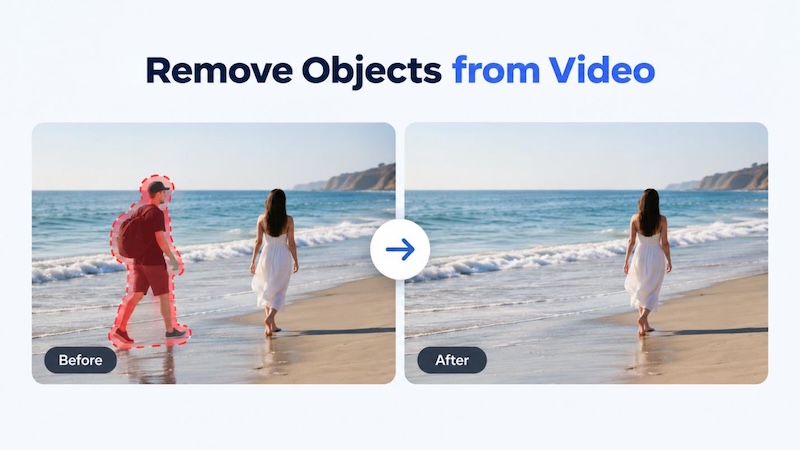
HitPaw Edimakor is a video object remover for people who'd rather not mask frame by frame. Tell it what to remove and it deletes the object, then fills in the space behind it.
1 Why Choose Edimakor as Your AI Object Remover?
- Broad Format Support: Load clips from your computer, up to an hour each, and process as many as 10 in one batch.
- Prompt-Based Control: Describe the object in a sentence. That helps most when it's moving and a brush would be a pain.
- Natural Background Repair: The AI fills the gap using the surrounding colors and light, so you rarely spot the edit.
- High-Quality Export: Save at 720P, 1080P or 4K.


2 How to Easily Remove an Object from a Video with Edimakor
Now for how to remove an object from a video with Edimakor. It takes four steps.
Step 1: Launch Edimakor and click AI Toolbox in the left menu. Under AI Tools, choose the Watermark Remover card. Object Remover is tucked inside it.

Step 2: In the sidebar, click Object Remover . Then press Choose Video or drop your file onto the box.
Step 3: Use the prompt box on the right to say what should vanish, like "the man walking behind the woman." Choose your resolution and hit the remove button at the bottom right.
Step 4: Wait while it processes. Once it's finished, head to Results , preview the clip and download it. If part of the object is left, rerun it with a sharper prompt.
Practical Tips for Removing Objects from Video with AI
- Use High-Quality Footage: Blurry, dark clips give the AI little to work with. Start with the sharpest version you have.
- Write Precise Prompts: "The red cup on the left table" works. "That thing" doesn't. Mention color, position and size.
- Check Object Movement: Does the object leave the frame and come back? Does someone walk in front of it? Scrub through the whole result before you export.
- Keep Background Details Simple: A blank wall or open sky is easy to rebuild. A packed crowd isn't. Trim the clip to just the part you need.
FAQs
A1: Sometimes. There are lots of tools available to uninstall items from a video free, but through trials or starter credits. See the length of clips, resolution and watermarks and try a small clip first to see if there are any limitations.
A2: Use an AI tool. Wondering how to edit something out of a video without touching keyframes? Upload, describe, wait. The software handles the tracking and filling.
A3: Select a tool that will only repaint the object's location and write a prompt. Edimakor does that. Note: Do not skip and blur here as this alters the shot.
A4: Depends on the task at hand, but a good object remover from video should be user friendly and result in clean objects. Edimakor is a good choice for newbies and features quick control and is capable of 4K output.
Conclusion
There are three ways of removing an unwanted object from a video. Cropping and blurring take time, but at least you don't lose the entire image and masking looks great, but takes a lot of time. In the middle – AI is quick and the results won't be questioned by most viewers.
HitPaw Edimakor has it down to a simple process with typed prompts and automatic background repair and export up to 4K. Download it and give it a shot on your next clip.
Leave a Comment
Create your review for HitPaw articles