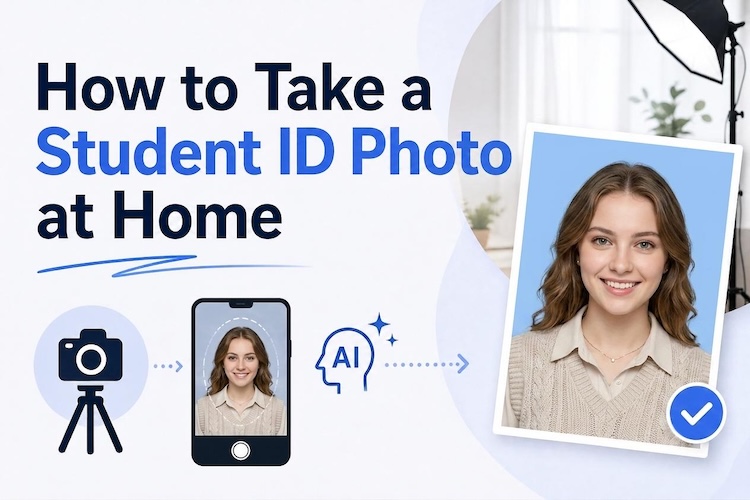
As a new school term begins, one of the first things many students need is a student ID card photo. Whether it’s for a school ID, library card, campus access, or online student profile, submitting the right photo is essential.
With a smartphone and a few simple techniques, you can take a high-quality ID photo at home. This guide explains common student ID photo requirements, shows how to take an ID photo at home, and introduces an AI-powered alternative for even faster results.
What Are the Requirements for a Student ID Photo?
Most schools and universities follow similar guidelines when accepting student ID photos. Although exact requirements may vary, meeting these basic standards improves the chance that your photo will be accepted the first time.
1. Background
Use a plain white, light gray, or other neutral-colored wall whenever possible. A clean background helps your face stand out and prevents distractions. Avoid patterned walls, furniture, posters, or busy outdoor scenes behind you.
2. Lighting
Good lighting is one of the most important factors in creating a professional photo for student ID. Natural light from a window usually produces the best results. If natural light isn’t available, use two soft light sources positioned on each side of your face to minimize shadows.
3. Position and Framing
Face the camera directly with your head centered in the frame. Keep both eyes open, maintain a natural expression, and avoid tilting your head. Your shoulders should remain visible, and your face should occupy most of the image without being cropped too tightly.
4. Photo Quality
Use the highest camera resolution available on your phone. The image should appear sharp, well focused, and free from filters, excessive editing, or compression artifacts. Avoid blurry photos, heavy beauty filters, or screenshots taken from video recordings.
How to Take a Student ID Photo at Home with Your Phone
Learning how to take student ID photo with phone is easier than many students expect. Following these simple steps can help you capture a clear, professional-looking photo without visiting a studio.
Step 1: Find a Suitable Background
Stand in front of a plain white or light-colored wall without decorations, posters, or furniture. Make sure the background is evenly lit and free of shadows.
Step 2: Set Up Proper Lighting
Face a large window during the day or use two soft light sources positioned on either side of your face. Avoid direct flash or strong back-light, which can create sharp shadows.
Step 3: Position Your Phone Correctly
Place your phone at eye level about one meter away using a tripod, stand, or stable surface. Keep the camera straight, center your face in the frame, and maintain a natural posture.
Step 4: Take Multiple Photos
Take several photos while keeping a neutral expression and looking directly into the camera. Review each image and select the best one.
By following these simple steps, you can produce a professional-looking student ID photo that is suitable for most schools, colleges, and universities.
A Simpler Method: Generate a Student ID Photo with AI Tools
Taking a photo with your phone works well, but it may still require multiple attempts to get the background, lighting, and framing just right. If you want a faster workflow, AI-powered online tools like Edimakor AI can simplify the process.
Why Choose Edimakor for Student ID Photos?
Compared with traditional photo editing, Edimakor provides a faster and more beginner-friendly workflow. Some advantages include:
- AI-assisted portrait enhancement for cleaner, more professional results.
- Browser-based editing without installing additional software.
- Simple workflow that requires only a few clicks.
- High-resolution image export suitable for digital submissions.
- Additional AI image editing tools for other creative projects beyond student ID photos.
Whether you’re preparing for high school, college, or university, Edimakor helps simplify the process of creating a professional-looking portrait from home.
Create NowStep 1: Go to Edimakor Online
Open the HitPaw Edimakor Online and access the “AI Image Effects” workspace. The online platform works directly in your browser, so there’s no software installation required before you begin creating your portrait.

Step 2: Choose the AI Portrait Template
Select “AI Portrait," and pick a template of your choice by clicking "Create" on it. The template is designed to generate polished portrait images with improved composition, lighting, and background, making it suitable for professional-looking student photos.
Step 3: Upload Your Photo
Click "Create," then upload a clear photo taken with your phone. For the best results, use an image with even lighting, a neutral facial expression, and your face fully visible. Then click “Generate” and wait while Edimakor processes your image.
FAQs
A1: A student ID photo is an identification portrait used by schools, colleges, and universities for student cards, campus systems, online portals, library access, and other official records. It usually requires a clear view of your face against a simple background.
A2: Yes. Modern smartphones are capable of capturing high-quality student ID photos when used with good lighting, a plain background, and proper framing. Using the rear camera and taking multiple photos usually produces the best results.
A3: Use soft lighting, keep the background clean, wear solid-colored clothing, and position your camera at eye level. If you want to improve your photo further, AI tools such as HitPaw Edimakor can enhance the portrait while maintaining a natural appearance.
A4: Most schools recommend maintaining a natural, relaxed facial expression. A slight smile is generally acceptable unless your school specifically requires a neutral expression. Always check your institution’s photo guidelines before submitting your image.
Conclusion
Creating a professional student ID card photo no longer requires a studio appointment or expensive equipment. By following the basic background, lighting, and framing guidelines, you can capture a high-quality photo using only your smartphone.
If you want an even faster and easier solution, Edimakor AI helps generate polished portrait images in just a few steps. Try Edimakor today to create a professional student ID photo from the comfort of your home.


Leave a Comment
Create your review for HitPaw articles