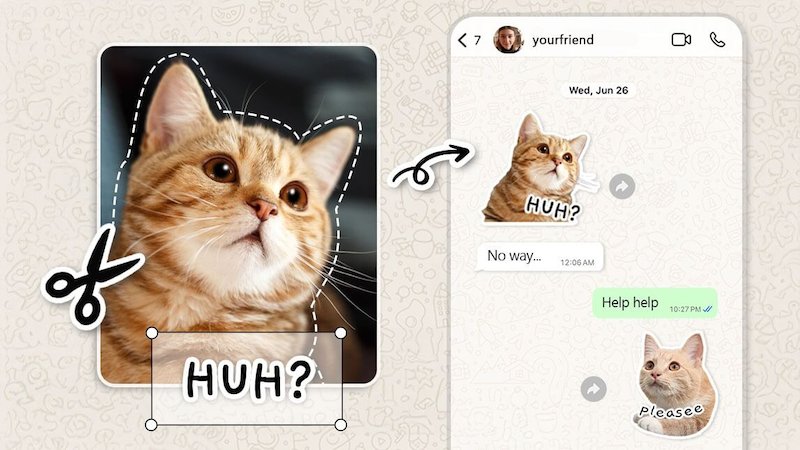
Stickers are some of the most popular ways to create unique reactions and emotes. Unlike traditional emojis, custom stickers allow users to add a personal touch by transforming their favorite photos, selfies, pets, and memorable moments into creative designs. How to make a photo into a sticker? With the latest technology, you can easily convert photos into stickers in 2026. In this guide, we will explore multiple methods to turn pictures into stickers, including step-by-step instructions for iPhone, Android, Canva, WhatsApp, and Snapchat. Ensure to read this guide till the end.
Part 1: What is a Photo Sticker?

A photo sticker is a digital cutour creating from an image. It has become one of the easiest and most creative ways to express yourself — whether you’re chatting with friends, promoting your business, or building a strong brand identity. Unlike a regular photo, a sticker features a transparent background, allowing it to blend seamlessly into messages, social media posts, videos, presentations, and other digital content. Today, photo stickers are widely used on platforms such as WhatsApp, iMessages, Snapchat, Telegram, and Instagram.
Part 2: How to Make a Photo into a Sticker on iPhone
Stickers are a fun, personal way to liven up chats, stories, and posts. If you’re an iPhone user, you don’t need to download a third-party app to create them. With the built-in sticker feature available in the latest version of iOS, you can easily convert any image into a custom sticker in just a few taps. Here is how to make a photo into a sticker on iPhone:
-
Open the “Photos” app and select the image that you want to convert into a sticker. Tap to open it full screen.
-
Touch and hold the main subject until an outline appears around it. Once the subject is selected, release your finger and tap the “Add Sticker” option.
-
Within seconds, the iPhone will automatically convert the image into a sticker. You can access it from the emoji or sticker panel in iMessage.
Part 3: How to Make a Photo into a Sticker on Android
With Android, you can easily create custom cutout stickers and bring your favorite moments to life — no design skills needed. Many modern Android smartphones come with built-in AI photo editing features that can automatically detect the main subject in an image and convert it into a sticker. Follow the instructions below to learn how to create a sticker from photo Android:
- Launch your phone’s Gallery or Google Photos app and select the image you want to convert into a sticker.
- Press and hold the subject in the photo for a few seconds. Once selected, a menu will appear on your screen with options such as Copy, Share, and Save as Sticker.
-
Tap on the “Save as Sticker” option to automatically convert the selected subject into a custom sticker. You can now use the new sticker on apps like Google Messages, WhatsApp, Telegram, Instagram, and more.
Part 4: How to Make a Photo into a Sticker Using Canva
Did you know that you can also create engaging stickers using online tools like Canva? Canva offers an amazing Sticker Maker that automatically turns any image into a high-quality sticker with a single click — no editing experience required. Whether you want to transform a selfie, company logo, pet photo, product image, or illustration into a sticker, Canva provides all the tools you need to customize your design. Here is how to make a photo into a sticker on Canva:
-
Go to the Canva official site and click on the “Create a New Design” option. Drag the photo from your desktop to Canva. Users can also click on the “+” icon to upload the image.
-
Select the image, click the “Edit Image” button, and choose the “Background Remover” option. This will instantly remove the background from your image. Click “Apply” to save the changes.
-
Next, go to the “Shadows” section and choose the Glow option. Set the background color of the glow to while, set the blur to 0, and the transparency to 100%. Once all the customization is complete, click on the “Download” button to save the sticker.
Part 5: How to Make a Photo into a Sticker on WhatsApp
WhatsApp is one of the most popular messaging apps available on both Android and iOS devices. The app is filled with amazing features and offers a dedicated emoji and sticker, allowing users to create and share custom stickers without relying on third-party apps. If you want to learn how to turn pictures into stickers on WhatsApp, you’re in the right place. Here are the step-by-step instructions:
- Open WhatsApp on your Android and iOS devices. Open a chat with anyone and select the “Sticker” option available at the bottom right corner. Tap the “Sticker” icon and open your private sticker collection.
- Tap on the “Create” button. Choose the photo you want to use for your sticker. Make sure to select a clear photo that shows the emotion or context you want.
-
After choosing your photo, it’s time to edit your sticker. Customize it according to your needs. Once the customization process is complete, click on the “Send” button. Your sticker will automatically be saved in the “My Sticker” section.
Part 6: How to Make a Photo into a Sticker on Snapchat
Stickers are a creative and fun part of Snapchat, but did you know you can actually create your own Snapchat stickers? Snapchat lets you turn objects, people, pets, and other subjects from your photos into custom stickers. The process of creating your own custom Snapchat sticker is quick and simple. Follow the instructions below to learn how to make a photo into a sticker on Snapchat:
- Launch Snapchat on your device and capture anything you want to turn into a sticker. You can also upload a photo from your camera roll.
- Next, tap the “Scissors” icon located in the editing toolbar on the right side of the screen. This feature is designed for creating custom stickers from your photos.
-
Using your finger, draw around the subject you want to convert into a sticker. Once the cutout is complete, Snapchat will automatically save it to your Custom Sticker library.
Bonus Tip: How to Add a Custom Sticker to a Video Using HitPaw Edimakor
HitPaw Edimakor is an AI-powered video editor that makes it easy to personalize videos with creative elements like custom stickers, emojis, text, animations, and effects. Users can freely place stickers anywhere in their videos, adjust their size and position, and create engaging content for social media, tutorials, marketing videos, and vlogs. In addition to its flexible editing features, Edimakor offers AI-powered tools such as Text-to-Video, Image-to-Video, and Text-to-Image to help streamline the creative process. With an intuitive interface and powerful editing capabilities, Edimakor enables anyone to create polished videos without professional editing experience.
Key Features of HitPaw Edimakor
- Add Custom Stickers: With the help of this tool, users can add custom stickers to any video in just a few clicks — no editing experience or professional help required.
- Advance Video Editor: HitPaw Edimakor offers advanced video editing capabilities, allowing users to customize the AI video according to their requirements. It allows you to enhance AI video, add stickers, and much more.
- Text-to-Video: One of the standout features of this tool is that it enables users to create high-quality AI videos with a text prompt or any source material. Enter the text prompts, choose the AI model, and click on the “Generate” button.
- Compatibility: HitPaw Edimakor works seamlessly with multiple devices, including Windows and macOS. Support all Windows versions such as Vista, XP, 7, 8, 8.1, 10, and 11.
- Intuitive Interface: The program offers an easy-to-use interface, allowing users to add stickers to videos without editing experience or professional help. Best for non-tech and beginner users.
Step-by-Step Guide:
With HitPaw Edimakor, users can easily add custom stickers to videos. Follow the instructions below to do it:
Step 1: Download, install, and launch HitPaw Edimakor from its official site. Choose the “Media” option and upload the video in which you want to add custom stickers.


Step 2: Now, select the “Stickers” option available at the top. Browse through the available stickers and select the sticker you want to use. Drag and drop the sticker directly onto the timeline above your video track.
Step 3: Once you’ve finished adding and customizing your stickers, click the “Export” button in the top-right corner of the editor. Choose the preferred format and click on the “Export” button again to download the video.
Final Thoughts
After reading this guide, you now know how to make a photo into a sticker on iPhone, Android, WhatsApp, Canva, and Snapchat. Plus, we’ve also introduced an amazing AI video editor named HitPaw Edimakor. With the help of this tool, users can easily add custom stickers to their videos without editing experience or professional help.
Leave a Comment
Create your review for HitPaw articles