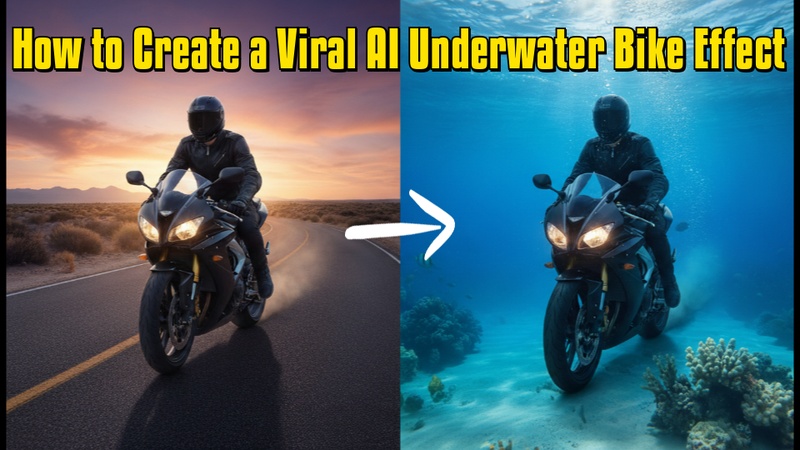
On social media, the AI underwater bike video editing is rapidly gaining popularity as a visual fad. This article provides step-by-step instructions on how to use HitPaw Edimakor Image and Video generator to produce visually striking underwater bike images and videos.
Part 1: How to Create a Viral AI Underwater Bike Effect Photo
Here is the complete guideline on creating a viral AI underwater bike effect photo:
How to Create a Viral AI Underwater Bike Effect Photo with Text Only
Edimakor's Text-to-Image tool makes it simple to create an AI underwater bike photo that goes viral.
AI Underwater Bike Photo Prompt:
A futuristic sports bike submerged underwater, ridden by a fearless biker wearing a helmet and leather suit, surrounded by floating bubbles, light rays passing through deep blue water, dramatic cinematic lighting, ultra-realistic details, sharp focus, high contrast, viral social media style.
Step 1: Open Edimakor and Access the Text-to-Image Tool
On your PC, launch HitPaw Edimakor. Click Toolbox from the main interface, then choose Text-to-Image. This tool lets you generate AI images using only written prompts without uploading any photos.



Step 2: Enter the AI Underwater Bike Prompt
Paste the above underwater bike AI prompt into the prompt box. You can also generate or refine your concept using the Prompt Generator option, which is located directly beneath the prompt box, if you would like to make a slightly different version.
Step 3: Adjust Image Settings
Depending on whether you want to use the image for posters, YouTube thumbnails, Instagram, or another platform, choose the aspect ratio, image style, and output number. Once everything is configured, click the Generate button to begin creating images.
Step 4: Preview and Export the Image
Check the image's lighting, sharpness, and composition by carefully previewing it after it has been generated. You can find the image by choosing the folder icon placed at the top right.
How to Create a Viral AI Underwater Bike Effect Photo with Image
Using a reference image makes the AI photo of an undersea bike considerably more lifelike.
AI Underwater Bike Photo Prompt:
Transform the uploaded image into an underwater scene. Keep the same bike, rider pose, and composition. Add deep blue water surroundings, floating air bubbles, light rays from above, water particles, cinematic lighting, realistic underwater depth, high detail, dramatic mood, ultra-realistic, viral AI photo style.
Step 1: Open Edimakor and Access the Reference Image Tool
Get HitPaw Edimakor installed on your PC. Select the Reference Image tool from the Toolbox area of the main interface. With this option, you can use AI effects and prompts to change an existing photo.
Step 2: Upload the Bike Reference Image
Upload a crisp picture of a bike or a cyclist. This picture will serve as the foundation for the underwater effect, so for the best effects, pick a high-quality photo with adequate lighting.
Step 3: Add the Underwater Bike Prompt
Write your desired underwater scene in the prompt box, using details like light rays, floating bubbles, deep blue water, and a dramatic atmosphere. The automatically created prompt is yours to keep or change to include further information.
Step 4: Adjust Image Settings
Adapt the output quantity, image style, and aspect ratio to your requirements. These parameters assist you in optimizing the image for TikTok thumbnails, Instagram, and posters, among other sites. Click the Generate button when you are ready.
Step 5: Preview and Export the Image
Make sure the underwater bike image is realistic and striking by previewing it after generation. Open the image by selecting the folder icon shown on the top-right side.
Part 2: How to Create a Viral AI Underwater Bike Effect Video
Here are the steps for creating a viral AI underwater bike effect video using text as well as image:
How to Create a Viral AI Underwater Bike Effect Video with Text Only
With just a few simple steps, Edimakor's Text-to-Video technology transforms a thorough prompt into a fluid, viral-ready video
AI Underwater Bike Video Prompt:
A powerful sports bike riding underwater, rider wearing a helmet and riding gear, deep blue ocean environment, floating bubbles and particles, dramatic light rays from the surface, slow cinematic motion, realistic water physics, high contrast lighting, ultra-realistic details, viral AI video style, 4K quality.
Step 1: Open Edimakor and Access the Text-to-Video Tool
On your PC, launch HitPaw Edimakor. Choose the Text-to-Video option from the Toolbox area of the main interface. With just written prompts, you can create AI films with this program.
Step 2: Enter the Underwater Bike Video Prompt
In the prompt box, paste the AI underwater bike movie prompt. You can also create a more thorough version of your concept using the Prompt Generator, which is accessible beneath the prompt box, if you wish to improve or broaden it.
Step 3: Adjust Video Settings
Depending on whether you want to distribute the video on TikTok, YouTube Shorts, or Instagram Reels, choose the aspect ratio, length, and resolution. Click the Generate Video button once everything is configured.
Step 4: Preview and Export the Video
Once the generation is finished, carefully preview the underwater bike AI movie under the My Creations section. Click the folder icon in the upper-right corner to access the saved file and export it for sharing if you are happy with the outcome.
How to Create a Viral AI Underwater Bike Effect Video with Image
Edimakor's Image-to-Video tool makes it simple to transform an existing bike photo into a stunning underwater AI video.
AI Underwater Bike Video Prompt:
Transform the uploaded bike image into an underwater scene with flowing water motion, floating bubbles, light rays from above, realistic underwater depth, cinematic lighting, smooth animation, and a dramatic, viral AI video look.
Step 1: Open Edimakor and Choose Image-to-Video
On your PC, launch HitPaw Edimakor. Choose the Image-to-Video tool from the Toolbox area of the main interface. With this option, you can use AI effects to animate a still image.
Step 2: Upload the Bike Image
Upload a crisp picture of a bike or a cyclist. Since Edimakor will use the photograph as the foundation for the underwater animation, pick one with good lighting and quality for the best effects.
Step 3: Add the Underwater Bike Video Prompt
Describe the desired underwater effect in the prompt box. The auto-generated prompt can be left alone or minimally altered to include features like light rays, floating bubbles, deep blue water, and cinematic motion.
Step 4: Adjust Video Settings
Depending on your platform, such as YouTube Shorts, TikTok, or Instagram Reels, choose the aspect ratio, video length, and resolution. Click the Generate Video button once everything is configured.
Step 5: Preview and Export the Video
Open the My Creations section after the video has been created, and carefully inspect the underwater bike effect. Once you are pleased, export the movie for sharing by clicking the folder icon in the upper-right corner.
To Sum Up
Creating scroll-stopping images without the need for sophisticated editing abilities is simple with the ai underwater bike video editing. Simple prompts or images can be transformed into viral underwater scenes using HitPaw Edimakor (Video Editor) image and video generator, which speeds up, expands, and makes content production more accessible to all.
Leave a Comment
Create your review for HitPaw articles