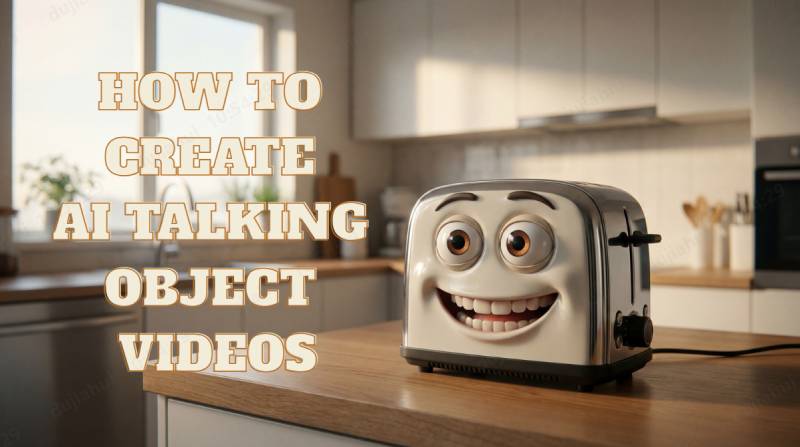
AI object talking videos are quickly becoming a new content trend on TikTok, YouTube Shorts, and Instagram Reels. Instead of people on camera, common objects like phones, mugs, or lamps explain how they work using AI-generated voices and visuals. These videos are easy to create, highly engaging, and beginner-friendly. In this guide, you’ll learn how to make objects talk with AI step by step, even with no editing or technical experience.
Part 1. How to Create Animated Talking Object Videos
AI talking everyday object videos are easy to create when you follow a clear workflow. By using AI tools for prompt generation, image creation, and image-to-video conversion, beginners can produce engaging explanation videos without filming or advanced editing skills. The steps below break the process into a simple, repeatable system.
Step 1: Generate Prompts with ChatGPT
The first step is to create clear and engaging prompts for your AI talking object images and scripts.
A cinematic 3D illustration of a [object] set in [place]. It features exaggerated cartoon-like eyes full of emotion, paired with a [description] mouth and realistic dental details. Film-quality lighting, soft shadows, and high-resolution rendering.
Tips: Ask ChatGPT to write short, first-person scripts where objects explain how they work in a friendly tone. Keep prompts concise and easy to understand to ensure the AI generates accurate and visually appealing results.
Step 2: Create the AI Images
Once your prompts are ready, use an AI image generator like Gemini to create high-quality images of everyday objects.

Tips:
Choose a clean background and a clear view of the object so it stands out visually. Simple, realistic styles work best for explanation videos. The better your image quality, the more natural the final talking video will look.
Step 3: Turn the Image into a Talking Video
After generating the image, convert it into an AI object talking video using an AI image-to-video like Nano Banana or talking avatar feature.
- Upload the image, paste the script, and select a natural-sounding AI voice.
- Add subtitles to improve engagement, especially for short-form platforms like TikTok and YouTube Shorts.
- Export the video in a vertical format for best performance.
This method also works for other AI talking stuff videos.
The [object] faces forward toward the viewer, speaking the following dialogue: "[describe what the object says]". The voice sounds [describe what the voice sounds like], with fast-paced delivery and continuous flow. Cinematic 3D animation, natural motion, and polished, lifelike movements.
Part 2. Best Tool for AI Talking Videos
While using multiple AI tools can work, it often slows down the workflow. Switching between prompt writing, image generation, video creation, and voice tools takes time and increases complexity.
This is where an all-in-one solution like HitPaw Edimakor becomes more efficient.It combines AI image, video, and voice generation with professional photo and video editing in one all-in-one software. It simplifies the entire creative workflow, making content creation fast, efficient, and beginner-friendly while still meeting professional needs.
Next, I’ll walk you step by step through how to create AI Talking Videos in HitPaw Edimakor.
Step 1: Launch HitPaw Edimakor
Download HitPaw Edimakor for free.Then,create a new project.


Step 2: Create the AI images
Acess AI Image from the left menu. Select the model “Google Nano Banana Pro.” Then, paste your image prompt, select your resolution, aspect ratio, and output quantity, and then click Generate.
Within seconds, you’ll get an image like this.
Step 3: Turn the Image into a Talking Video
Now let’s make the object talk with AI. Right-click on the image and select Image to Video.
Choose an AI model and paste your dialogue prompt. Set the duration to 10 seconds, enable audio, and click Generate.
And just like that, your talking object video is ready—in minutes.
Step 4: Download and Share
Before downloading and sharing, you can add subtitles and effects in HitPaw Edimakor to make your video more engaging.
Once everything looks perfect, download your video in high quality and share it across your favorite social media platforms.
Part 3. Why AI Talking Object Videos Becomes a New AI Video Niche in 2026
AI talking everyday object videos are an emerging content niche with strong growth potential. As short-form platforms favor educational and entertaining content, this format fits both perfectly. By combining simple concepts with AI automation, these videos are easy to create, scalable, and appealing to a broad audience.
- Low-Competition Keywords in a New AI Niche
- High Watch Time and Algorithm-Friendly Format
- Easy to Scale with AI Tools
- Beginner-Friendly for AI Creators
Tips to Make Your AI Explanation Videos Go Viral
1.Hook viewers within the first three seconds.
2.Use first-person narration to make objects feel alive.
3.Keep explanations short and simple.
4.Add subtitles for silent viewing
5.Focus on familiar, everyday objects
Conclusion
AI talking object videos offer a simple and scalable way to create engaging short-form content in 2026. By combining clear prompts, high-quality AI images, and image-to-video tools, anyone can make objects talk with AI and explain how they work. With an all-in-one solution like HitPaw Edimakor, the entire process becomes faster and more efficient, making this low-competition AI video niche ideal for beginners and content creators alike.
Leave a Comment
Create your review for HitPaw articles