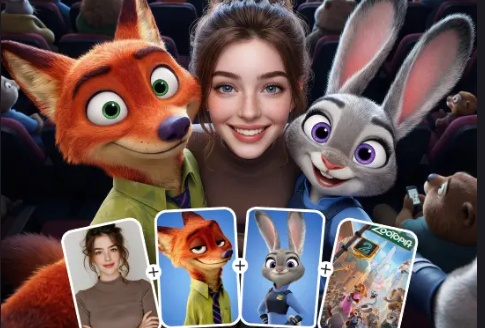
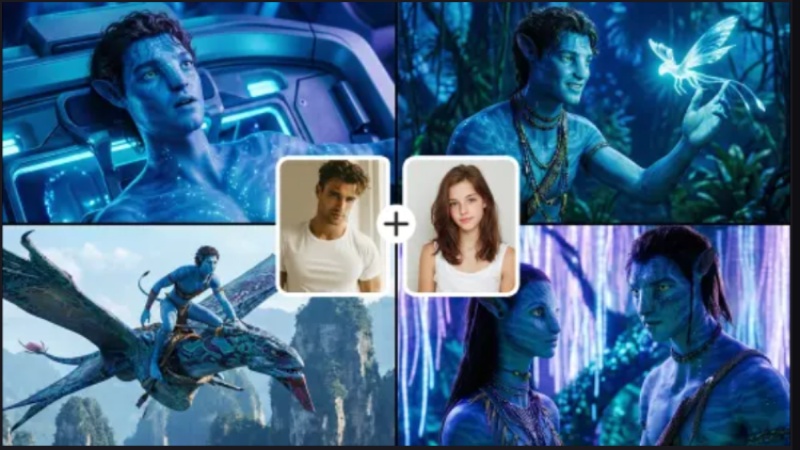
Pixverse AI Valentine’s Day effects have brought romantic content creation to a new level in 2026. These effects make it simple for anyone to create emotive visualizations, from AI hug and kiss animations to flower-filled love sequences. In this guide, we will discuss how to use Pixverse AI valentine effects for photos and videos, along with its alternative, HitPaw Edimakor.
Part 1: How To Use Pixverse AI Valentine's Day Effects For Photo
Creating Valentine-themed photos with Pixverse AI is easy and fun. You can transform ordinary images into romantic, AI-enhanced visuals that look professional, perfect for sharing, printing, or using in personalized Valentine projects. Here’s how to do it step by step.
Step 1: Access Pixverse AI
Open your browser and go to the official Pixverse AI website. Log in with your account credentials or sign up if you’re new. Accessing the platform allows you to explore all AI creative tools, including Valentine-specific effects and image generation features.
Step 2: Select Create Image
Once logged in, click on the Create tab located on the left-hand menu. Choose the Image option to start working on a Valentine-themed project. This opens the workspace where you can design, edit, and generate AI-enhanced romantic visuals easily.
Step 3: Adjust Settings
Before generating your image, adjust the settings to match your requirements. Choose the AI model for realistic or artistic results, select a resolution for clarity, set the aspect ratio, and decide how many images to generate simultaneously for multiple output options.
Step 4: Import Image and Write Prompt
Upload the base image you want to enhance, or start from scratch. In the prompt box, provide a detailed description, including outfits, background, mood, and Valentine-specific elements such as hearts, flowers, soft lighting, and romantic atmosphere for AI processing.
Step 5: Create an Image and Download
Click Generate and wait a few moments while Pixverse AI processes your prompt to create stunning Valentine visuals. Once ready, preview the generated image and click Download to save your romantic photo for personal or social media use.
Part 2: How To Use Pixverse AI Valentine's Day Effects For Video
Pixverse AI also allows you to create Valentine-themed videos with romantic effects like AI hugs, kisses, and floating petals. Using pre-made templates or custom inputs, you can generate professional-looking videos for social media, gifts, or personal keepsakes. Follow these steps for the best results.
Step 1: Access Pixverse AI
Open your browser and navigate to the official Pixverse AI website. Log in using your credentials, or create an account if you don’t have one. Accessing the platform ensures you can utilize all creative tools, including Valentine video effects and AI templates.
Step 2: Select Templates
From the left side menu, click on the Template option. Here, you’ll find pre-made Valentine video templates featuring romantic animations, AI hugs, kisses, and decorative elements designed for fast and easy video creation.
Step 3: Adjust Settings
Before importing your video, configure the settings to optimize quality. Set the resolution for clarity, pick the aspect ratio for your platform, select a seed for variations, toggle off-peak mode if needed, enable preview mode, and choose the number of video outputs to generate.
Step 4: Choose Template and Import Video
Select the Valentine template you like most, then upload your video clip. Pixverse AI will automatically integrate your video with the template effects, adding romantic elements such as AI hugs, floating hearts, or soft lighting to enhance your Valentine’s Day visuals.
Step 5: Create Video and Download
Click Generate and wait while Pixverse AI processes the video. Once the output is ready, preview it carefully to ensure the effects and timing look correct. Finally, click Download to save the enhanced Valentine video in your preferred format.
Part 3: Alternative To Pixverse AI Valentine's Day Effects
Edimakor is a powerful all-in-one AI tool that works as a strong alternative to Pixverse AI for Valentine’s Day content. It lets you create romantic photos, videos, and ready-made templates using AI effects, even if you have no editing experience.
1 Alternative To Pixverse AI Valentine's Day Photo Effects
Step 1: Start by opening HitPaw Edimakor on your computer. From the main interface, scroll down and click on Image Effects. This will open the AI effects library filled with trending and seasonal photo effects.


Step 2: Browse through the effects and select a Valentine-style effect such as romantic glow, heart aura, soft lighting, or couple-themed looks. Click on Create to continue.
Step 3: Upload your photo, adjust the aspect ratio and output quantity, and then start the AI generation process.
Step 4: Once the image is generated, preview it in My Creations. If it looks good, click the folder icon to open the saved file and share it instantly.
2 Alternative To Pixverse AI Valentine's Day Video Effects
Step 1: Launch Edimakor and from the home screen scroll down to find AI Video Effects .
Step 2: Inside the effects library, look for Valentine-themed video effects such as heart animations, romantic transitions, or love-story styles. Tap Create on your chosen effect.
Step 3: Upload a photo or short video clip that you want to transform into a Valentine’s Day video.
Step 4: Adjust the video duration, resolution, and aspect ratio based on where you plan to share it, such as Instagram or WhatsApp.
Step 5: After generation, preview the video in My Creations. Once satisfied, export it and share it with your loved ones.
3 Alternative To Pixverse AI Valentine's Day Templates
Step 1: Open Edimakor , scroll down, and select the Video Templates section.
Step 2: Look for ready-made Valentine’s Day templates designed for love messages, couple videos, or greeting cards. Click on the template to open it.
Step 3: Upload your own photos or videos and drop them into the template timeline to replace the sample media.
Step 4: Edit the text, add names, love quotes, or short Valentine messages. You can also tweak colors, effects, and music if needed.
Step 5: Preview the final Valentine template video. When everything looks perfect, export it and share it as a Valentine’s Day greeting.
To Sum Up
Pixverse AI Valentine's Day effects are quick, entertaining, and ideal for lighthearted love entertainment like AI kisses and hugs. This guide will make it clear how to use Pixverse AI valentine. However, HitPaw Edimakor (Video Editor) stands up as a potent and adaptable substitute in 2026 for more intricate creativity, personalization, and expert Valentine videos.
Leave a Comment
Create your review for HitPaw articles