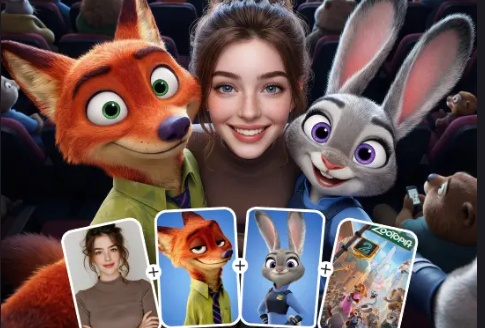
The AI Zootopia filter is now one of the most intriguing trends in the rapidly growing popularity of AI cartoon filters. It enables users to transform ordinary selfies into vibrant, animated Zootopia-style avatars that are ideal for social media and have animal features, expressive eyes, and a cinematic cartoon vibe.
Part 1: What Is the AI Zootopia Filter?
Inspired by the vibrant, emotive, and dramatic visual design of Zootopia, the Disney Zootopia AI filter uses artificial intelligence to turn actual pictures into animated, animal-style characters.
What Is the AI Zootopia Filter?
The AI Zootopia filter is a sophisticated AI-powered effect that transforms human selfies into 3D animal figures with lighting, textures, and expressions reminiscent of Disney. In a matter of seconds, it transforms images into cartoon animals based on facial feature analysis, giving them a whimsical, cinematic, and animation-ready appearance.
Why the Zootopia Character Trend is Dominating Social Media in 2025
Social media users adore emotive, narrative-driven images, which is why the AI cartoon filter Zootopia style is booming in 2025. With the help of AI tools like HitPaw Edimakor, these animal-style avatars are easy to create and are perfect for reels, shorts, and profile photos that instantly stand out in crowded feeds because they are unique, entertaining, and very shareable.

Part 2: How to Make A Photo Of Me With Characters From Zootopia
AI technologies make it simple to take amusing pictures with Zootopia characters. The Reference Image tool in HitPaw Edimakor allows you to organically combine your photo into an animated scene reminiscent of Zootopia.
Step 1: Download and Launch HitPaw Edimakor
Install HitPaw Edimakor on your device after downloading it from the official website. To easily get the most recent AI image and reference picture features, open the program and make sure it is up to date.


Step 2: Access the Reference Image Tool
Choose the Reference Image option from the toolbox of the main dashboard. Edimakor can create styled AI images using your photo as a base, thanks to this capability.
Step 3: Import Your Photo and Add Zootopia Style Prompt
Step 4: Create, Modify, and Export the Final Picture
After selecting create, watch as Edimakor processes the picture. Examine the outcome, make any necessary adjustments, and then export the finished image in high definition. You can now share or save your Zootopia-style photo.
Part 3: How to Use the AI Zootopia Filter on My Photo
Here are the simple steps to turn yourself into a Zootopia character AI using HitPaw Edimakor:
Step 1: Launch HitPaw Edimakor
Install HitPaw Edimakor on your device by downloading it from the official website. Ensure you are using the latest version to access the most recent AI image generation and reference image features.
Step 2: Access the Reference Image Tool
Select the Reference Image option in the toolbox from the Image section. This feature allows Edimakor to use your photo as a base and generate AI-styled images that integrate your facial features into a cartoon animal character.
Step 3: Import Your Photo and Add Zootopia Style Prompt
Upload a clear, well-lit portrait. In the prompt box, describe the Zootopia style you want. Specify additional details like expressions, outfit, or background scenery. Also, select the aspect ratio and the number of outputs you want to generate.
Step 4: Preview and Export the Final Picture
Click Create and watch as Edimakor processes your photo. Once the AI generates your Zootopia-style avatar, preview it carefully. Make adjustments if needed, such as changing lighting, colors, or details to match the classic Disney aesthetic. Finally, export your high-definition image and share it online or save it for future use.
Part 4: How to Make A Video Of Me With Characters From Zootopia
With Edimakor's Image-to-Video function, you can learn how to get Zootopia filter ai on your photo and can make a vibrant animated scene and entertaining Zootopia-style videos.
Step 1: Access Image-to-Video Inside Edimakor
After downloading and installing HitPaw Edimakor, launch the program. Choose the Image-to-Video tool from the toolbox on the left. With the help of this program, you can turn your images into animated scenes with unique backgrounds and characters.
Step 2: Upload Your Picture
Select a clear picture of yourself by clicking Upload Image. For optimal results, ensure the photo is taken from the front and well-lit. Your face will be instantly recognized by Edimakor, which will then get it ready for animation.
Step 3: Write the Prompt
Make a prompt for converting your photo, where you turn yourself into a Zootopia character AI, into a video. Also, adjust the duration and resolution of the video.
Step 4: Create the Video and Export It
Click Generate Video once you have finished modifying. Await the processing of your animation by the AI. After it is finished, preview it, make any necessary changes, and export your HD movie for internet sharing.
The Verdict
Using sophisticated AI models, the AI Zootopia filter makes it simple to replicate Disney-style animal figures from your own images. Users can produce animated Zootopia-style videos, reels, and creative content with little effort by using programs like HitPaw Edimakor (Video Editor) .
Leave a Comment
Create your review for HitPaw articles