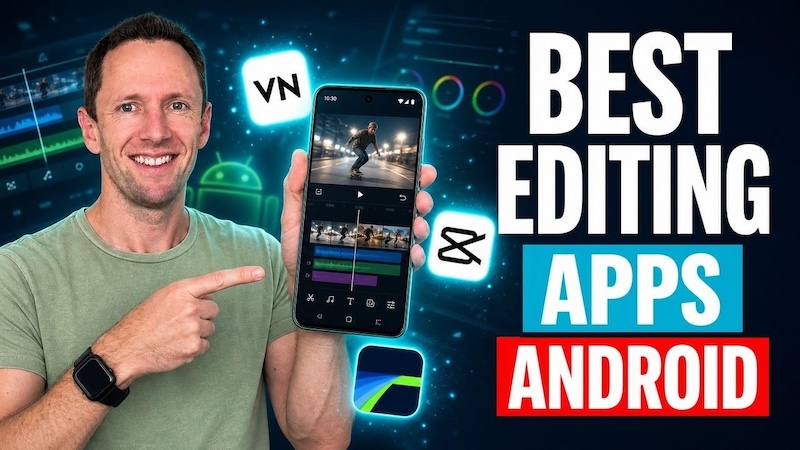
Android phones now let you edit videos without opening a computer. You can trim clips, add music, create captions, use effects, remove backgrounds, and prepare videos for TikTok, Instagram Reels, and YouTube Shorts. Many apps also include AI tools that can reduce editing work. However, every editor offers different features. Some apps work best for beginners, while others offer multi-track timelines and advanced controls. Some focus on short social videos, while others support longer projects. Your best choice depends on what you want to create and how much control you need. This guide covers the 10 best video editing apps for Android in 2026, including free and paid options.
Part 1. TL;DR: Best Video Editing Apps for Android at a Glance
| App | Best For | AI Features | Free Version | Watermark |
|---|---|---|---|---|
| CapCut | Social media videos | Yes | Yes | Depends on content/features |
| VN Video Editor | Free advanced editing | Yes | Yes | No |
| InShot | Beginners | Yes | Yes | Yes/varies by plan |
| KineMaster | Layered editing | Yes | Yes | Yes |
| PowerDirector | Advanced editing | Yes | Yes | Varies |
| Filmora | AI and creative effects | Yes | Yes | Yes |
| YouCut | Simple free editing | Yes | Yes | No |
| LumaFusion | Professional mobile editing | Limited | Paid | No |
| YouTube Create | YouTube content | Yes | Yes | Varies |
| GoPro Quik | Automatic highlight videos | Yes | Yes | Varies |
Quick Picks
- Best Overall: CapCut
- Best Free Video Editing App for Android: VN Video Editor
- Best for Beginners: InShot
- Best for Advanced Mobile Editing: KineMaster
- Best AI Video Editor: CapCut
- Best for Professional Mobile Editing: LumaFusion
- Best for YouTube: YouTube Create
- Best Free Alternative: YouCut
- Best Desktop Video Editing Software: Edimakor
Part 2. 10 Best Video Editing Apps for Android
Choosing the right Android video editor can make your editing easier and faster. The apps below offer tools for trimming clips, adding music, captions, effects, transitions, and AI features, helping beginners and experienced creators make better videos directly on their phones.
1. CapCut — Best Overall Video Editing App for Android
CapCut is one of the most popular choices for Android video editing. It works especially well for TikTok videos, Instagram Reels, YouTube Shorts, and other short-form content. The app gives you tools for trimming, splitting, combining, and adjusting clips. You can also add music, sound effects, text, stickers, filters, transitions, and video effects. CapCut also includes several AI-based tools. Depending on the available version and region, you can use features such as automatic captions, background removal, and other smart editing tools. Its templates can also help beginners create social media videos without building every edit from scratch. More experienced users can use features such as keyframes and multi-track editing for greater control.

Best for: Social media creators who want many editing tools in one Android app.
2. VN Video Editor — Best Free Video Editing App for Android
VN Video Editor is a strong choice if you want advanced editing without paying for basic editing work. It provides a multi-track timeline that gives you more control than many simple mobile editors. You can cut and arrange clips, add text and subtitles, use transitions, adjust video speed, apply filters, and work with multiple layers. Keyframe animation and speed curves also give you more control over how your video moves. VN works well for YouTube videos, short-form content, travel videos, tutorials, and personal projects. For users searching for the best free video editing app for Android, VN deserves a close look because it offers many tools without forcing beginners to use a complex desktop program.
Best for: Users who want a capable free Android editor with timeline controls.
3. InShot — Best Android Video Editor for Beginners
InShot focuses on simple mobile video editing. Its clean interface makes it easy to start editing without spending much time learning the app. You can trim and split clips, change video speed, add music, insert text, use stickers, apply filters, and adjust the canvas size. The app also makes it easy to prepare videos for different social media formats. For example, you can create a vertical video for TikTok or Instagram Reels and adjust the frame to fit your chosen platform.
InShot works well when you need to edit a video quickly rather than manage a large project with many tracks.
Best for: Beginners who want simple editing tools for social media videos.
4. KineMaster — Best for Layered Video Editing
KineMaster gives Android users more control over layers and effects. You can place multiple video clips, images, text, graphics, and audio elements on the timeline. The app also supports tools such as chroma key, keyframes, blending modes, transitions, and audio controls. These features make it useful for creators who want more control over each part of a video. You can use KineMaster for tutorials, gaming videos, social media content, presentations, and other projects that need several layers. The interface may take more time to learn than InShot, but the extra controls can make a big difference when you need detailed edits.
Best for: Creators who need multiple layers, effects, and timeline controls.
5. PowerDirector — Best for Advanced Android Video Editing
PowerDirector brings many advanced editing features to Android. It supports multi-track editing, effects, transitions, color tools, slow motion, and other controls for more detailed projects. The app also includes AI-based features that can help with tasks such as effects, background work, and other editing jobs. Some features may depend on your plan and device.
PowerDirector can also handle high-resolution video, including 4K editing and export on supported devices. It suits users who have moved beyond basic trimming and want more control over their projects.
Best for: Intermediate and advanced creators who want a wider set of editing controls.
6. Filmora — Best AI Video Editing App for Android
Filmora is a good option for creators who want traditional editing tools alongside AI features. You can trim clips, add transitions, apply filters, insert text, use templates, and add music or sound effects. Its AI tools can help with tasks such as captions, effects, and other creative edits. These features can save time when you need to prepare videos for social media. Filmora also works well for creators who want ready-made effects instead of creating every visual element manually. The free version can have restrictions, so check the current plan before choosing it for regular work.
Best for: Creators who want AI tools, templates, and regular editing features together.
7. YouCut — Best Free Android Video Editor for Simple Edits
YouCut focuses on everyday video editing. It gives you the basic tools most users need without making the editing process feel complicated. You can cut and merge clips, add music, insert text, change video speed, apply filters, and compress video files. You can also prepare videos for common social media formats. YouCut works well if you mainly need to remove unwanted parts, join clips, add music, and create a finished video for sharing. It can also help users who want a free editor without moving into a more advanced timeline system.
Best for: Users who want simple and free video editing on Android.
8. LumaFusion — Best Professional Video Editing App for Android
LumaFusion targets experienced editors who want a more professional workflow on a mobile device. It offers a multi-track timeline, keyframes, audio controls, color correction, and other advanced editing features. Its interface takes more time to learn than beginner-focused apps. However, that extra control makes it useful for longer and more detailed projects. LumaFusion can work well for filmmakers, journalists, YouTube creators, and other users who need precise control while working away from a desktop. It is a paid option, so it makes more sense for users who will actually use its advanced tools.
Best for: Experienced creators who want professional-style editing on Android.
9. YouTube Create — Best Android Video Editor for YouTube Creators
YouTube Create focuses on people who make content for YouTube. It provides tools for editing videos and creating Shorts directly from an Android phone. You can trim clips, add music and sound effects, use filters, add text, and create captions. The app also includes tools designed around YouTube content. If You mainly create YouTube Shorts and do not need a complex editing system, YouTube Create can make the process easier. It also makes sense for creators who want an editor that fits closely with their YouTube workflow.
Best for: YouTube creators who mainly make Shorts and simple videos.
10. GoPro Quik — Best for Automatic Video Creation
GoPro Quik is useful when you want to create videos with less manual editing. It can organize photos and videos and help create highlight-style edits. The app works particularly well with action-camera footage, travel clips, sports videos, and outdoor recordings. Its automatic editing tools can select useful moments and match edits with music. You can still make manual changes when you want more control, but Quik mainly focuses on helping users create finished videos quickly.
Best for: Travelers, sports creators, and GoPro users who want automatic highlight videos.
Part 3. Which Android Video Editing App Should You Choose?
Choosing the right app becomes easier when you match the app with your main purpose.
If You Want the Best Video Editing App for Android
Choose: CapCut
CapCut offers a wide range of editing tools and works especially well for social media content. It suits both beginners and users who want more advanced features.
If You Want the Best Free Video Editing App for Android
Choose: VN Video Editor
VN offers a strong set of free editing tools, including a multi-track timeline, keyframes, transitions, text, and speed controls.
If You Want the Easiest Android Video Editor
Choose: InShot
InShot keeps the editing process simple. It works well for quick videos, social media posts, and basic edits.
If You Want Professional-Level Editing on Android
Choose: LumaFusion
LumaFusion makes more sense for experienced editors who need multiple tracks, detailed controls, and a more professional workflow.
If You Want an AI Video Editing App
Choose: CapCut or Filmora
Both apps include AI-based tools alongside normal editing features. Your choice should depend on the specific AI tools, templates, and editing features you need.
If You Make TikTok and Instagram Videos
Choose: CapCut or InShot
CapCut works well for trends, templates, effects, and short-form content. InShot works better when you want a simple editing process.
If You Make YouTube Shorts
Choose: YouTube Create or CapCut
YouTube Create fits YouTube-focused workflows, while CapCut gives you more creative editing options.
If You Need Advanced Layers and Effects
Choose: KineMaster or PowerDirector
Both apps offer more editing control than basic mobile editors.
Part 4. Best Desktop Video Editing Software for Advanced Editing
Android apps work well for short videos and quick projects, but a desktop editor can offer more space and control. If your projects become longer or more complex, Edimakor can provide a better desktop workflow. Edimakor supports Windows and Mac and includes tools for multi-track editing, AI captions, text-based editing, background removal, audio tools, effects, transitions, and other video editing tasks. It can also help creators prepare videos for YouTube, TikTok, YouTube Shorts, and other social platforms.


Key Features of Edimakor
- Multi-Track Editing: Edit several video, audio, image, and text tracks together with better control over your timeline.
- AI Captions: Create captions automatically from spoken audio and save time when preparing videos for social media.
- Text-Based Editing: Edit video content through text, making it easier to find and remove unwanted spoken parts.
- AI Background Removal: Remove video backgrounds without complex manual editing and replace them with other backgrounds.
- Audio and Video Tools: Improve sound, add effects and transitions, adjust clips, and prepare videos for different platforms.
How to Edit a Video With Edimakor
Step 1: Import Your Footage or Start With a Video Template
Add your videos, photos, music, voiceovers, and other files to Edimakor. You can also choose a video template if you want a ready-made starting point.
Step 2: Cut and Arrange Your Clips
Place your clips on the timeline and remove parts that you do not need. Arrange the remaining clips in an order that makes the video easy to follow.
Step 3: Add Captions, Text, and Effects
Add captions, transitions, stickers, filters, and text animations. Keep your text easy to read and use effects only when they support the video.
Step 4: Improve Your Video With AI Tools
Edimakor provides AI-based tools that can help with tasks such as automatic captions, noise removal, background removal, auto cutting, and short-form content creation.
Step 5: Preview and Export
Watch the complete video before exporting. Check the framing, captions, transitions, and audio. Then choose the right resolution and format for your target platform.
Part 5. FAQs About Video Editing Apps for Android
A1: CapCut is a strong overall choice because it combines basic editing, creative effects, templates, captions, and AI tools. However, the best app depends on your needs.
A2: VN Video Editor is one of the best free choices for users who want more control. YouCut also works well for simple edits, while CapCut offers many free tools for social content.
A3: InShot is a good choice for beginners. Its simple interface makes trimming, adding music, inserting text, and changing video sizes easy.
A4: LumaFusion is a strong choice for experienced mobile editors because it provides advanced timeline and audio controls. For large projects, however, desktop software can offer more space and control.
A5: Yes, some Android video editors support 4K editing and export. However, the actual performance depends on your phone's processor, RAM, storage, and the app you use.
A6: Neither option works best for everyone. Android editing gives you convenience and lets you work almost anywhere. Desktop editing gives you a larger screen, more precise controls, and more room for complex projects.
Conclusion
The best app for editing videos on Android depends on the type of videos you create. CapCut works well for social media, VN Video Editor stands out as a free option, and InShot suits beginners. KineMaster and PowerDirector offer more control, while LumaFusion targets experienced editors. YouTube Create makes sense for YouTube creators, and GoPro Quik works well for automatic highlight videos. If you need more control than a phone can provide, consider moving to desktop video editing software such as Edimakor. The right choice comes down to your editing skills, project size, budget, and the features you use most often.
Leave a Comment
Create your review for HitPaw articles