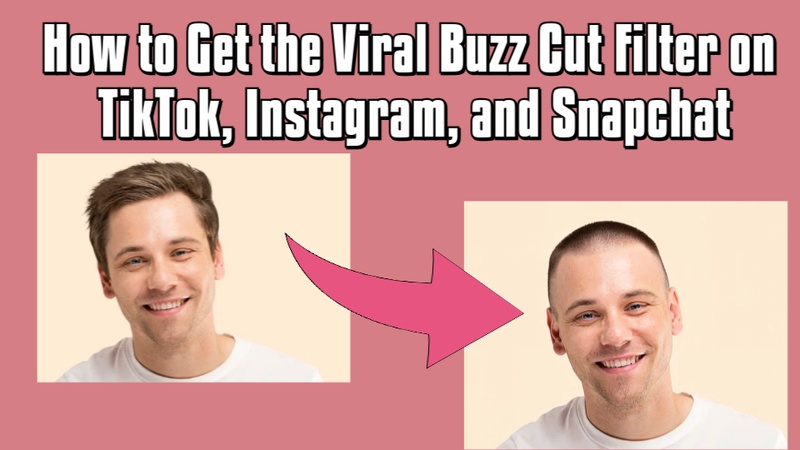

The buzz cut filter allows individuals to see their shaven heads without using a razor. These filters, which range from TikTok to Instagram and Snapchat, encourage curiosity, self-assurance, and enjoyment while enabling users to try out daring looks before committing to a true buzz cut in today's online social media culture.
Part 1: How to Make Videos with the Viral Buzz Cut Filter
Making videos with a viral buzz cut filter is not possible because of the available online tools and apps:
How to Make Videos with the Viral Buzz Cut Filter on a Computer
Edimakor's Image to Video function makes it easy to create a viral buzz cut filter video on a computer.
Step 1: To begin, open HitPaw Edimakor on your PC. After the main interface displays, select the Image Effects option by scrolling down the home screen. Locate the Buzz Cut effect by looking through the options in the Image Effects library.


Step 2: Upload the picture or video you wish to apply the Buzz Cut filter to on the following screen. Edimakor will precisely apply the effect after automatically analyzing facial information. Before beginning the generating process, you can change fundamental parameters like aspect ratio or output quantity.
Step 3: Adjust the resolution, aspect ratio, and output quantity of the output to suit your needs. Click Generate and wait for the AI to process your video once everything appears to be in order.
Step 4: A preview of your Buzz Cut transformation will show up once the AI has completed processing. Examine the outcome closely to make sure it appears clean and natural. If you are happy, export the finished video in the resolution you want to distribute online and add it to the timeline if necessary.
How to Make Videos with the Viral Buzz Cut Filter Online
Here are the steps to make videos using LightX AI buzz cut filter:
- Access Lightx AI buzz cut filter by searching on any browser
-
You will see the upload image option, hit it, and add the image where you want to add the filter.
-
Hit the Generate button to apply the buzz cut filter on your face. You can also add the prompt, and can also use the presets.
-
You will see the output image in a few seconds. Download it to share on any social media app.
How to Make Videos with the Viral Buzz Cut Filter Apps
You can also use the viral buzz cut filter on different apps like CapCut. This is how:
- Open Capcut and go to the templates library
-
Look for the buzz cut template and choose it
- Upload your image and wait until CapCut apply the filter to your image
- Download the output and share on different social media apps.
Part 2: How to Get the Viral Buzz Cut Filter on TikTok
You may quickly preview a shaved head style using the buzz cut filter tiktok. Before obtaining a proper haircut, you can safely test this trend with a few taps.
Step 1: Access the Create Screen
To begin, launch the TikTok app on your desktop or mobile device. Verify that you are signed into your account. After entering the application, hit the + symbol at the bottom of the screen to access the video creation interface, which offers filters and effects.
Step 2: Search the Filter
Tap the Effects option next to the record button on the recording screen. To launch a search, tap the magnifying glass icon inside the effects panel. TikTok will automatically display matched filter results as you write crew cut slowly.
Step 3: Choose the Crew Cut Filter
Tap the crew cut ai filter, which is typically indicated by a buzz cut icon, from the search results. Your screen is immediately affected by the effect. In order to give you a realistic shaved head preview, TikTok's facial recognition technology will modify the buzz cut to fit the shape of your head.
Step 4: Record or preview
After the filter is engaged, check your screen and use the flip icon to adjust your camera if necessary. To preview the buzz cut, you do not have to make a video. Press record, add music or effects, then submit your video if you like the way it looks.
Part 3: How to Get the Viral Buzz Cut Filter on Instagram
Social media is going crazy with buzz cut filter instagram. Without having to have an actual haircut, Instagram users can share entertaining videos, try out daring hairstyles, and instantly see how their shorn heads look.
Step 1: Access the Camera by Opening Instagram.
Go to your home feed by opening the Instagram app on your smartphone. Choose Story or Reel by swiping right from the feed or by tapping the plus symbol at the top.
Step 2: Look through the Gallery of Effects
There is a carousel of filter icons at the bottom of the camera interface. Until you get to the finish, swipe all the way to the left. To access Instagram's whole effects portfolio and discover thousands of imaginative filters, tap the Browse Effects icon, which resembles a sparkling magnifying glass.
Step 3: Look for the Buzz Cut Filter
Tap the search bar at the top once you are in the effects gallery. Enter terms like a buzz cut filter or jhonyaugust, the creator's username. Instagram will display well-liked results related to your query. Before attempting a filter, choose one to see a live preview right on your face.
Step 4: Try Your Look, Record It, and Share It
To instantly activate the filter, use the Try It button. For optimal results, place your face in the frame. Then, hold down the record button to take a picture or record a video. Save the outcome to your camera roll or instantly post it to your reel or stories.
Part 4: How to Get the Viral Buzz Cut Filter on Snapchat
With the buzz cut filter Snapchat, you may virtually attempt the appearance, take amusing pictures, and share your new look right away.
Step 1: Launch Snapchat and log in
Open the Snapchat app, which shows up as a yellow background with a white ghost. Click Sign In or register for a new account if you are not already. You will be on the camera screen after logging in. Snapchat now offers comparable effects that digitally remove your hair instead of a direct buzz cut filter.
Step 2: Use the Explore Lenses Function
Tap the Explore Lenses icon, which resembles a magnifying glass with a star, on the camera screen. This allows you to explore popular effects in Snapchat's Lens Explorer.
Step 3: Look for the Bald Character Lens
Type Bald Character into the top search bar. As you type, Snapchat will show you lenses that match. To choose Bald Character, scroll if necessary and press it. Your face will immediately be affected by the effect.
Step 4: Use, Capture, and Distribute Your Snap
In order for Snapchat to recognise your face and apply the filter, look at the screen. If necessary, switch to the front-facing camera. To record a video, hold down the record button; to take a picture, touch the shutter.
In the Bottom Line
The buzz cut filter rapidly displays realistic results, making style decisions simpler and less stressful. Tools like HitPaw Edimakor (Video Editor) enable you to comfortably sample, modify, and share your shaved head look before selecting a real haircut that precisely complements your personality, face, and way of life, whether for leisure or serious planning.
Leave a Comment
Create your review for HitPaw articles