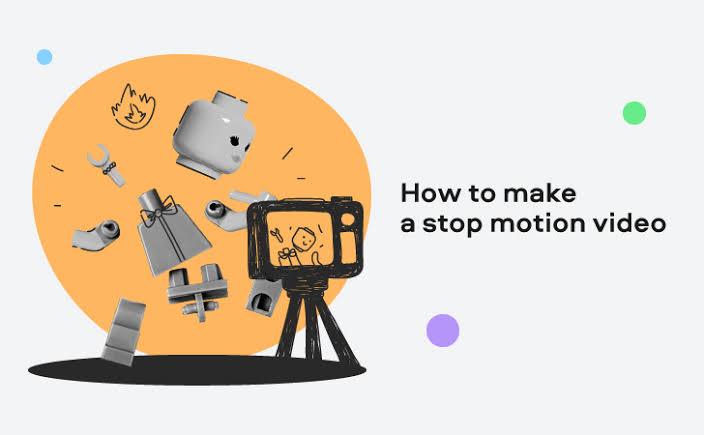
Have you ever watched those cool videos where toys come to life or food dances around the table? That’s stop-motion magic, and you can create it too. By capturing a series of photos and combining them into a video, you can create smooth, eye-catching animations with just a smartphone or camera. In this guide, you’ll learn how can I make a stop motion video, even if you’re a complete beginner.
From choosing the right equipment and setting up your scene to capturing consistent frames and editing them into a polished animation, we’ll cover every essential step. Whether you’re creating content for YouTube, TikTok, and Instagram, this guide will help you produce professional-looking stop motion videos.
Part 1: What is a Stop-Motion Video?

Stop-motion animation is an advanced, flipbook-style form of animation that creates the illusion of movement by combining a sequence of still images. Instead of recording continuous motion like a traditional video, you take a photo, slightly move the object, take another photo, and repeat the process. When these images are played back in rapid succession, the objects appear to move independently. These types of videos can be created using everyday objects such as toys, clay figures, paper cutouts, LEGO bricks, food, and even people.
Part 2: What FPS Should You Use for Stop Motion?
For beginners, 10-12 FPS is an excellent starting point because it provides smooth motion while keeping the number of required photos manageable. If you’re looking for professional-quality stop-motion films, consider using 15-24 FPS.
FPS Comparison Table for Stop Motion Videos
| FPS | Look | Frames For 10 Seconds | Best For |
|---|---|---|---|
| 10 FPS | Very choppy, stylized | 100 | Basic animations |
| 12 FPS | Classic stop motion feel | 120 | Ideal for beginners |
| 15 FPS | Smoother motion | 150 | Smoother movement |
| 24 FPS | Very smooth | 240 | Professional quality |
Part 3: Step-by-Step: How to Make a Stop Motion Video in 2026
Creating a stop-motion video looks difficult at first, but with the right tool and a little patience, anyone can do it. Once you’ve learned the basics, you’ll be able to transform ordinary objects into engaging animations that captivate attention on social media platforms.
Follow the step-by-step guide below to create your first stop-motion video from start to finish:
1. Pick One Short Action
Select a single movement with a clear start and end point. Keeping your first project simple will make the animation process much easier and help you understand how stop motion works. Good beginner ideas include a toy driving across a table, a LEGO character walking, a book opening by itself, and more.
2. Define The Starting Position
Place your object where the animation will begin. Think about what viewers should see in the first frame. Make sure the object is fully visible and positioned where you want it.
3. Decide The End Point
Now, select the final position before you start shooting. If you’re animating a toy car, decide where it will stop. Knowing the ending helps you calculate how many frames you’ll need.
4. Set Up Your Camera and Scene
Once you’ve planned your animation, it’s time to prepare for filming. Choose your recording device, such as a smartphone, DSLR, webcam, or tablet. Next, position the camera so your entire scene is visible.
5. Capture Each Frame
With your camera and scene ready, it’s time to start creating the animation. Capture your subject in its starting position and move the subject only a small distance. Repeat the process until your object reaches its final position.
6. Import and Edit Your Stop Motion Video
After you’ve captured all your photos, the next step is to combine them into a video using a video editing tool. Launch your preferred editor and import all your stop motion images in the correct order. Select the FPS and combine all the images into a continuous stop-motion video.
You’ve successfully created a high-quality stop-motion video. Preview the final results, and if satisfied, click on the “Export” button to download the final output. Now, you can upload it to multiple social media platforms, such as Instagram, YouTube, and TikTok.
Part 4: Best Stop Motion Video Editing Software in 2026
When creating a stop-motion video for social media platforms, it is essential to choose the right tool for combining your images into a smooth, high-quality animation. HitPaw Edimakor is the best AI video editor available in 2026. With the help of this tool, users can import hundreds of images and instantly turn them into a smooth stop-motion video by selecting their preferred frame rate. Apart from video editing, HitPaw Edimakor AI offers a wide range of AI tools, such as Text-to-Video, Image-to-Video, AI Video Enhancer, Online Video Editor, and more. With its Text-to-Video feature, users can generate high-quality stop-motion videos with a simple text prompt — no editing experience required.
Key Features of HitPaw Edimakor
- High-Quality Stop Motion Videos: HitPaw Edimakor enables users to create engaging and high-quality stop-motion videos by combining hundreds of images into a smooth animation. Simply import your photos, choose your preferred frame rate, and click on the “Export” button.
- Multiple Frame Rates: The program supports multiple frame rate options, allowing users to choose the ideal FPS for their stop-motion projects. Frame rates available on HitPaw Edimakor are 8, 10, 12, 15, or 24 FPS.
- High-Quality Output: The standout feature of HitPaw Edimakor is that it enables users to create high-quality stop-motion videos without compromising image quality. Users can export videos in up to 4K resolution and in desired formats, such as MP4, MOV, AVI, MKV, and more.
- Powerful AI Tools: In addition to video editing, Hitpaw Edimakor offers a wide range of AI tools such as Text-to-Video, Image-to-Video, Online Video Editor, AI Video Enhancer, Text-to-Image, and more.
- Intuitive Interface: HitPaw Edimakor offers a user-friendly interface, allowing non-tech and beginner users to create engaging stop-motion videos — no editing experience or professional help required.


Step-by-Step Guide:
Users can create high-quality stop-motion videos with HitPaw Edimakor with ease. Here is how to do it:
Step 1: Import All Images
Download, install, and launch HitPaw Edimakor on your PC. Click on the “New Project” option and import all of the slow-motion video photos.
Step 2: Customize Stop-Motion Video
Once you’ve successfully uploaded all the stop-motion images. Use the Video Editor to customize the video. You can add transitions, effects, or filters. You can even upload any voiceover or audio track as the background music.
Step 3: Preview and Download
After customization, click on the “Export” button available at the top. Adjust the video settings, such as format, resolution, bit rate, and frame rate. Finally, click on the “Export” button, and your stop-motion video will be ready. Preview the results and click on the “Download” button.
Final Thoughts
With the right tool and instructions, anyone can create their own stop-motion videos within seconds. In this guide, we’ve mentioned how can I make a stop motion video effortlessly. Once you have fulfilled all the processes, choose HitPaw Edimakor to convert images into stop-motion videos. The program offers an intuitive interface, allowing users to create high-quality videos within seconds.
Leave a Comment
Create your review for HitPaw articles