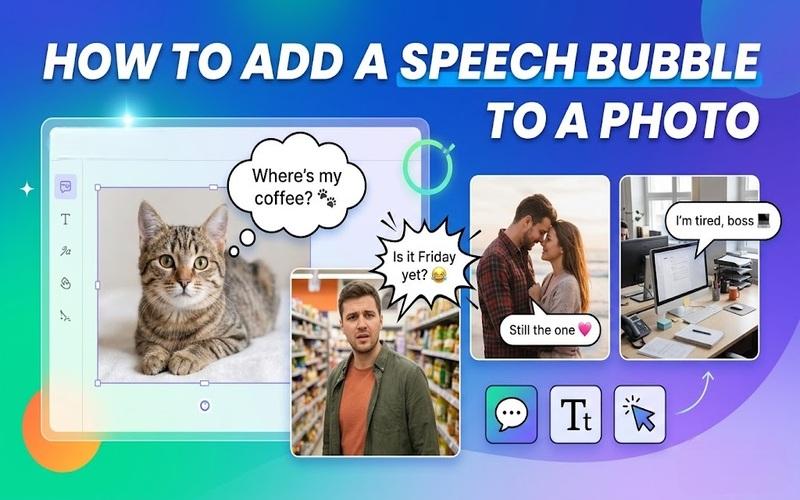
Have you ever looked at a photo of your pet and wondered what they might be thinking? Or maybe you want to turn a funny moment with friends into a comic-style meme. A simple speech bubble can add personality and bring your images to life. Adding a speech bubble to pictures can provide context, humor, or a unique storytelling element, whether you’re creating a digital scrapbook, social media post, or professional presentation. This guide explains how to add a speech bubble to a photo using HitPaw Edimakor. You’ll also find creative ideas and customization tips.
What Can You Add a Speech Bubble to?
A speech bubble is more than just a decorative element. It is a tool for storytelling. You can add a text bubble to photo projects of almost any kind. Here are a few popular examples where adding a dialogue box makes a significant impact:
- Pet Portraits: Give your dog or cat a voice. Use a thought bubble to express their hunger or a jagged cartoon bubble to show their excitement.
- Memes and Social Media: The core of internet humor often involves a speech bubble-to-image overlay that provides a punchline or a sarcastic comment.
- Family and Couple Photos: Capture the unspoken dialogue between loved ones. Adding talk bubbles to photos can turn a standard portrait into a heartwarming or humorous narrative.
- Professional Presentations: Use speech bubbles to highlight specific features in a product photo or provide helpful tips in a tutorial image.
- Holiday Cards: Send unique digital greetings by having the people in the photo “speak” their holiday wishes directly to the recipient.
- School Projects: Use speech bubbles to make educational images more engaging by adding explanations, questions, or character dialogue.
- Comics and Cartoons: Create your own comic-style scenes by adding dialogue boxes to characters and illustrations.
- Travel Photos: Add speech bubbles to vacation pictures to show funny reactions, memorable moments, or comments about the destination.
- Birthday Photos: Add fun messages, jokes, or birthday wishes to the birthday person or guests with colorful dialogue bubbles.
- Event Invitations: Make digital invitations more engaging by adding speech bubbles with event details, greetings, or playful messages.
- Storytelling Projects: Turn a series of photos into a visual story by giving each person or character their own dialogue.
How to Add a Speech Bubble to a Photo
When you decide to insert speech bubble elements into your photography, the process involves three main components: the base image, the bubble shape, and the text. The goal is to make the bubble look like it belongs in the scene, not like a distracting afterthought.
Modern AI-powered editing tools have made this process much easier than traditional graphic design software. To get a polished result, choose an editor that lets you add graphic elements, adjust their position and size, and customize text styles.
HitPaw Edimakor is an all-in-one AI-powered video and image editor. It is designed to help creators turn their ideas into high-quality content without needing years of experience. Edimakor provides a robust platform for all your visual needs, whether you prefer working on your desktop or need a quick edit using the online version.
It is not just for video. Edimakor’s image editing capabilities are extensive. With its massive library of media assets, including over 1000 text styles and 500+ stickers, it is the perfect solution for anyone wondering how to add speech bubbles to a photo. The software combines simplicity with professional power, making it a favorite for 30 million users worldwide.
Why Use Edimakor AI to Add a Speech Bubble?
HitPaw Edimakor provides several features that can make photo editing easier:
- Create high-quality visuals with AI assistance.
- Access over 500 unique stickers and trending GIFs.
- Choose from 1000+ stylish fonts and text animations.
- Edit images and videos on desktop or online.
- Use AI tools to quickly enhance photo quality.
- Enjoy a simple interface for all skill levels.
- Remove watermarks or backgrounds with one single click.
- Preview your creations instantly before saving the file.
- Export high-resolution images for every social media platform.
The tool is useful for beginners because the workflow is visual. You can see each change as you make it. If you want to add a speech bubble to pictures for social media, this makes it easier to check the final design across different screen sizes.
Steps to Insert a Speech Bubble into a Photo
Want to know how to put speech bubbles on photos? Follow these basic steps in HitPaw Edimakor.
Step 1: Open HitPaw Edimakor
Launch HitPaw Edimakor on your computer and select “New Project.” Choose the option to begin editing your visual content.



Step 2: Import Your Photo
Click “Import” or drag your photo into the media area. Select the picture you want to edit and add it to the project. Edimakor supports image editing as part of its broader media editing workflow.
Step 3: Add the Photo to Your Project
Place the imported image into the editing workspace or timeline. Make sure the photo is positioned correctly before adding text or graphic elements.
Step 4: Add a Speech Bubble
Open the “Elements” section and select a suitable speech bubble element. Choose a style that matches the mood of your photo. Edimakor’s library makes it easy to add cartoon bubble to photo projects with just one click.
Step 5: Enter Your Text
Select the text area and type your desired message. Keep it brief, clear, and easy to read. You can add a fun message such as “Where’s my coffee?” or “I definitely didn’t eat the cookies.”
Step 6: Customize the Bubble
Adjust the bubble’s size, position, and text appearance. Move the bubble close enough to the subject so viewers can understand who is speaking.
Step 7: Preview and Export Your Creation
Preview the finished image to check the spelling, position, and readability of the speech bubble. When everything looks right, export your project. Edimakor’s editing workflow includes an “Export” option to save the finished result.
Speech Bubble Ideas for Your Photos
Visual inspiration can help you decide how best to use a speech bubble in pictures. Here are some popular categories to explore for your next project:
1 Funny Speech Bubble Meme
Memes are the lifeblood of the internet. By taking a relatable photo, perhaps one of a friend caught in a funny pose or a strange situation in public and adding a witty comment, you can create viral content. Think of a picture of someone looking confused at a confusing sign. A bubble saying “Is it Friday yet?” can turn a mundane shot into a relatable joke. Use bold, impact fonts and jagged bubbles to emphasize the humor.
2 Pet Speech Bubble Ideas
Our pets often have expressions that look like they are judging us or begging for treats. A photo of a cat staring intensely at a closed door could feature a thought bubble saying, “I know there’s tuna in there.” Alternatively, a dog with a tilted head could have a bubble that simply says, “Did someone say ‘Walk’?” These additions are perfect for sharing on platforms like TikTok and Instagram, where pet content is king.
3 Couple Photo Ideas
Add a romantic or playful touch to your couple photos. Instead of a standard “I love you” caption, use a photo where one partner looks lovingly at the other, with a speech bubble that says, “Still the one.” For a more humorous take, use a photo of a couple trying to decide what to eat, with bubbles like “Pizza?” and “Anything but pizza” to capture an everyday relationship moment.
4 Work & Office Photo Ideas
Office life is full of moments that deserve a commentary. A photo of a desk piled high with papers could have a small bubble from a computer monitor saying, “I’m tired, boss.” Or a group photo from a successful meeting could feature bubbles with motivational quotes or funny “inside jokes” from the project. This is a great way to humanize your brand and engage with colleagues or clients on professional networks like LinkedIn.
FAQs About Speech Bubbles on Pictures
A1: Yes. Add multiple bubbles when several people, pets, or objects appear to speak. Keep the reading order clear by placing the first bubble higher or farther left, depending on your audience and language. Keep the design simple and avoid adding too much text.
A2: Use a short phrase that supports the photo. A joke, reaction, question, quote, or callout can work well. Read the text aloud before saving. If it sounds natural and matches the subject’s expression, it is probably a good choice.
A3: Choose a simple font, use strong contrast, and leave enough padding around the words. Avoid placing small text over a detailed background. If necessary, add an outline or shadow to separate the letters from the bubble.
A4: Yes. With Edimakor AI, you can use the AI Image to Image feature to add a speech bubble to a photo. Upload your image, enter a prompt describing the speech bubble and its text, and let AI generate the result. You can then preview and download your edited image.
A5: Yes, HitPaw Edimakor allows you to get started for free. You can use the standard features to add speech bubbles to photos and export your work. New users also receive credits to try out the advanced AI powered features
Conclusion
A speech bubble can make a photo more expressive, funny, and memorable. Choose a clear image, keep the message short, and place the bubble near the subject without hiding important details. With the right shape, font, color, and spacing, you can create a polished post in minutes. Try HitPaw Edimakor to add a speech bubble to your photo and turn everyday pictures into engaging visual stories.
Leave a Comment
Create your review for HitPaw articles