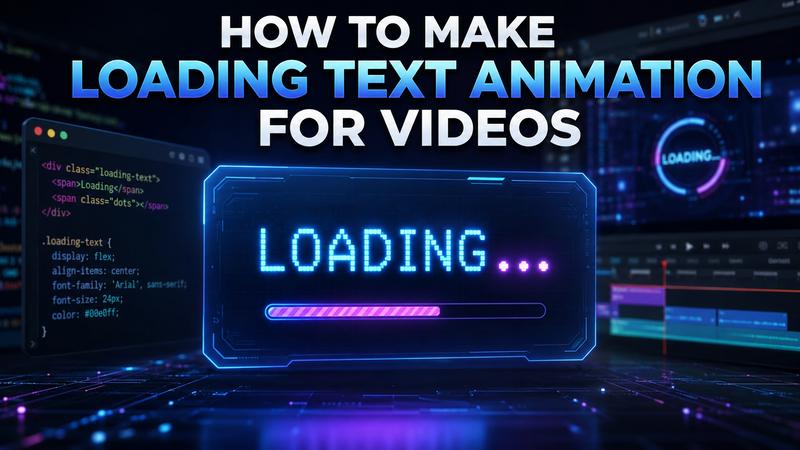
Have you ever clicked on a video only to be met with a blank screen for a few seconds? It’s a frustrating experience that often leads viewers to drop off before your content even begins. Every second counts in the digital storytelling world. This is where a text loading animation becomes your best friend. Instead of a boring, static screen, an engaging loader tells your audience that something great is coming.
You can create a loading text animation in several ways. Web developers can build one using HTML and CSS, while video creators can use animation presets or AI tools to achieve faster results. This article explores everything from technical CSS methods to effortless AI powered tools like HitPaw Edimakor.
What Is a Loading Text Animation?
A loading text animation is a visual effect used in videos and web interfaces to indicate that content is being processed or loaded, or is about to appear. Unlike a static "Loading..." message, an animation uses movement, color shifts, or structural changes to signal active progress. It serves two purposes: providing feedback to the user and maintaining the media's aesthetic flow.
In videos, loading animations can also be used creatively. They can introduce a scene, create suspense, fill a short transition, or make an interface-style video look more realistic.
Popular Types of Loading Text Animations:
Here are some popular types of loading text animations:
- The Classic "Bouncing" Dots: The most recognizable form. The word "Loading" is followed by three dots that bounce or change opacity in sequence. It is simple, clean, and universally understood. Imagine an image of the word "Loading..." where each dot is at a different height, creating a wave effect.
- The Typewriter Effect: The text appears one character at a time, as if being typed by an invisible hand. This is perfect for tech-themed videos or storytelling that calls for a "system terminal" look. Imagine an image showing "L-o-a-d-i-n-g" with a blinking cursor at the end.
- The Progress Bar Overlay: Text is placed inside or above a bar that fills up. As the bar moves, the text might change color or glow to indicate energy and completion. Imagine a neon blue bar, half-filled, with the word "Processing" centered inside.
- The Blur-In/Fade-In Reveal: Letters start as blurry shapes and slowly come into focus. This creates a soft, cinematic feel that works well for lifestyle vlogs and artistic edits. Imagine an image where the letters are semi-transparent and slightly out of focus, transitioning into sharp white text.
- The CSS Text Box Load-in: A sophisticated effect where a colored box slides across the text area, "revealing" the text behind it. This is a staple of modern web design and sleek motion graphics. Imagine an image of a red rectangle sliding to the right, leaving the white text "WELCOME" visible behind it.
How to Create a CSS Text Box Load in Animation
If you are a web developer or someone who likes total control over every pixel, using text animation CSS is the way to go. This method allows you to create lightweight, scalable animations that look crisp on any screen. The "Box Load-in" is particularly popular because it feels modern and premium.
1 Step by Step Guide for CSS Animation
Step 1: Define the HTML Structure
You need a container to act as the "box" and a span or div for the text. The container is essential because it defines the boundary of the animation.
<div class="loader-container">
<div class="text-box">Loading...</div>
</div>
Step 2: Set the Initial Styles
Hide the text using overflow: hidden and set the box width to zero. You should also set white-space: nowrap to prevent the text from wrapping as the width expands, which would ruin the "reveal" effect.
Step 3: Understanding Keyframes and Timing
Use @keyframes to define the transition. You will animate the box's width from 0% to 100%. To make it look professional, use the cubic-bezier timing function. Unlike a standard linear movement, cubic-bezier allows you to control the acceleration and deceleration, making the motion feel more organic and "bouncy."
Step 4: Adding the "Cursor" Effect
To mimic a real loading terminal, add a border-right to the text box. By animating the border color between transparent and a solid color, you create a blinking cursor that moves along with the text as it reveals itself.
2 Detailed CSS Properties to Consider:
- Animation-Fill-Mode: Use forwards if you want the text to stay visible after the animation ends.
- Animation-Iteration-Count: For loaders, this is almost always set to infinite.
- Animation-Delay: If you have multiple lines of text, use a delay to stagger their appearance for a more complex look.
3 Example Code
.loader-container {
display: flex;
justify-content: center;
align-items: center;
height: 100px;
}
.text-box {
font-family: 'Courier New', Courier, monospace;
font-size: 2rem;
font-weight: 700;
color: #2ecc71;
width: 0;
white-space: nowrap;
overflow: hidden;
border-right: 4px solid #2ecc71;
/ The magic happens here: 3s duration, steps for typing, infinite loop /
animation:
typing 4s steps(20, end) infinite,
blink-caret 0.75s step-end infinite;
}
@keyframes typing {
0% { width: 0; }
30%, 70% { width: 100%; }
100% { width: 0; }
}
@keyframes blink-caret {
from, to { border-color: transparent; }
50% { border-color: #2ecc71; }
}
How to Create Loading Text Animation Without Coding
While CSS is great for developers, most video creators need a faster, more visual approach. Manually keyframing text in complex software like After Effects can take hours. This is why many pros are turning to all-in-one AI tools.
HitPaw Edimakor is an AI powered video editor designed to handle the heavy lifting of animation for you. It eliminates the need for coding by providing a rich library of pre-set animations and AI generators that can create loading text in seconds. Whether you need a simple loader text for a YouTube transition or a stylized 3D animation for a brand promo, Edimakor makes it accessible to everyone, regardless of technical skill.
Key Features:
- AI Text-to-Video : Generate entire scenes based on a single prompt.
- Huge Effect Library : Hundreds of preset text animations (typing, glitch, bounce).
- AI Image to Video: Convert static logos or text images into dynamic video assets.
- Multi-Track Editing: Overlay loading animations onto your main footage with ease.
- Customization: Fine tune movement, filters, speed, and WordArt styles.
- Multi-Platform Export: Optimize your loader for TikTok, Instagram, or YouTube with one click.
- Intuitive Timeline : Easily layer text over videos with precise timing control.
Method 1: Add Animated Text with HitPaw Edimakor
This method is best for creators with a specific vision who want to use Edimakor’s vast preset library to bring it to life quickly.
Applicable Scenarios: Use this for YouTube intros, "Coming Soon" screens, or adding dynamic subtitles to social media clips where you want the text to pop.
Step 1: Add your loading text
Open HitPaw Edimakor and import your video background or start with a blank canvas. Go to the "Text" tab and choose a font. " Type your desired word, such as "Loading...".



Step 2: Apply text animation effects
With the text selected, go to the "Animation" panel. Select an animation application that you desire and apply it to the text. You can adjust the speed slider to make the animation faster or slower depending on the vibe of your video.
Step 3: Export Video
Preview your animation in the timeline. Once satisfied, click the "Export" button. Choose your resolution (up to 4K) and format. Edimakor even lets you export as a text-loading GIF if you need it for a website or email.
Method 2: Turn Image into Text Loading Animation
Sometimes you have a specific brand logo or a custom-designed "Loading" icon that you want to animate. Edimakor’s AI tools can bring these static assets to life.
Step 1: Upload your loading image
Open the Reference to Video section and upload a static image of your text or a related graphic.
Step 2: Enter a prompt
Describe the movement you want. The more specific your prompt is, the easier it is to guide the desired animation.
Step 3: Generate and export
Hit "generate." The AI will animate the image based on your instructions. Preview the animation and refine your prompt if needed. Once satisfied, "export" the finished animation in your preferred format.
Method 3: Generate from Text Prompts (AI Text-to-Video)
If you don't even have a background video yet, you can use the AI generator to create a complete loading scene from scratch.
Step 1: Access text to video generator.
Open Edimakor on your computer and go to “AI Toolbox” from the main menu. Choose the “Text to Video” option to generate an animation from a written description.
Step 2: Enter a prompt.
Describe the loading animation you want to create in the prompt box. Include details about the text, movement, background, visual style, and overall mood. You can then select an animation style.
Step 3: Generate and export.
After entering your prompt and selecting the duration, and resolution, click “Generate.” Edimakor will process your description and create the animated video. Preview the animation and refine the prompt if needed. Once satisfied, make any final edits, then click “Export” to save.
CSS vs. HitPaw Edimakor: Which Method Is Better?
Both methods can produce useful results. The right choice depends on what you are creating.
| Feature | CSS Animation | HitPaw Edimakor |
|---|---|---|
| Best for | Web developers & UI/UX designers | YouTubers, Content Creators & Marketers |
| Coding skills | Required (HTML/CSS) | None (Drag-and-drop) |
| Customization | Infinite (via code) | High (Presets + AI adjustments) |
| Creation speed | Slow (Manual writing/testing) | Ultra-fast (AI-generated) |
| Animation styles | Linear & Keyframe-based | 3D, AI, Glitch, Cinematic presets |
| Export options | Code/Browser-based | MP4, MOV, GIF, Social Media formats |
CSS Animation is the superior choice for developers. Because it is rendered by the browser, it is extremely lightweight, responsive, and easy to update. You can change a single line of code to update the color of a loading animation across an entire website. However, CSS is limited by the browser engine's capabilities and needs an understanding of logic, timing, and syntax.
HitPaw Edimakor, on the other hand, is built for the visual storyteller. It offers a level of cinematic depth such as 3D lighting, motion blur, and AI generated textures that is nearly impossible to achieve with pure CSS. For content creators, the ability to export a high-definition video file for use across multiple platforms is the primary advantage.
FAQs About Text Loading Animation
A1: Yes. In HitPaw Edimakor, you can export your text animation as a MOV file with an alpha channel or as a transparent GIF. If you are using CSS, the background of your container simply needs to be set to transparent or rgba(0,0,0,0).
A2: Generally, loading animations should loop every 2 to 4 seconds. If it’s for a video transition, it should match the pause duration, usually no more than 5 seconds, to prevent viewer boredom.
A3: Monospaced fonts (like Courier or Roboto Mono) work best for "Typewriter" or "Coding" styles. For modern videos, bold Sans-Serif fonts like Montserrat or Helvetica offer the best readability in motion.
Conclusion
Loading text animations are more than just fillers. They are essential tools for maintaining viewer engagement and adding a professional polish to your videos. Whether you prefer the granular control of CSS coding or the high-speed efficiency of AI powered tools, the key is to choose a style that complements your content.
If you want to save time while achieving better results without the steep learning curve, HitPaw Edimakor is the winner. Its combination of AI generation and a vast asset library makes it the perfect companion for any modern creator. Ready to elevate your videos? Give HitPaw Edimakor a try today and turn your static text into dynamic masterpieces!
Leave a Comment
Create your review for HitPaw articles