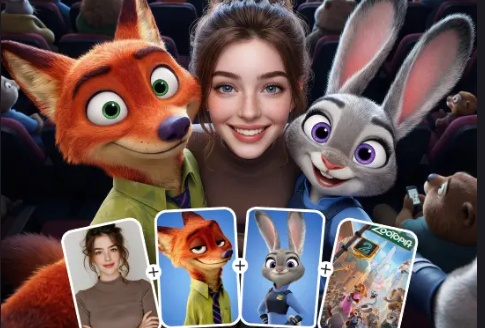
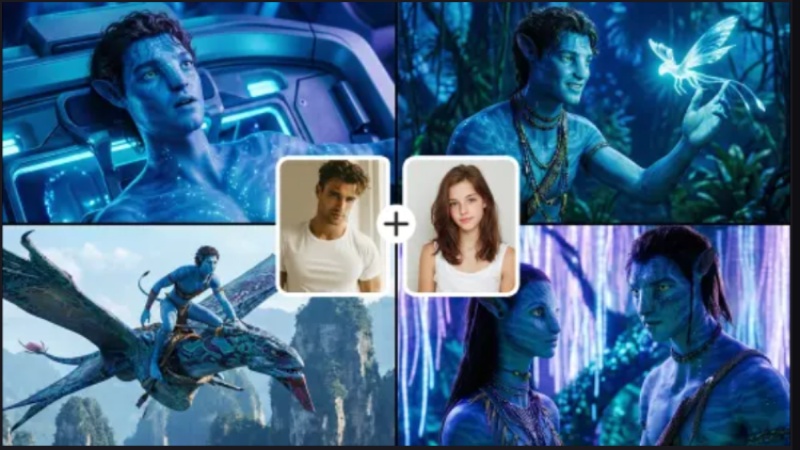
Not everyone has access to professional shoots or ideal settings, but AI wedding photos capture moments that endure a lifetime. Couples can now swiftly, economically, and creatively turn ordinary photos into magnificent wedding memories thanks to AI wedding photo technology.

Part 1: How to Create AI Wedding Photos and Videos for a Couple
Here are the steps to use Edimakor, a perfect ai wedding photo generator to turn your images into AI wedding photos:
Turn Images into AI Wedding Photos
AI reference images allow the tool to preserve facial features while upgrading outfits, background, and atmosphere. Let us create AI wedding photos using Edimakor Reference image tool:
Step 1: Launch Edimakor and navigate to the toolbox. Choose the AI Reference Image tool to start creating AI wedding photos.


Step 2: Select a clear, well-lit photo of the couple. This will serve as the base for your AI-generated wedding portrait.
Step 3: Next, write your prompt in the prompt box. If you don't have a prompt, then use the Prompt Generator to create a detailed AI wedding photo prompt.
Step 4: Choose the aspect ratio, resolution, and number of outputs. You can also try different wedding outfits, backgrounds, or lighting styles for variety.
Step 5: Click Generate to create your AI wedding photo. Preview the result, make adjustments if needed, and export the final image in high definition for sharing or printing
Turn Images into AI Wedding Videos
Static photos are beautiful, but videos feel alive. AI wedding videos add motion, expressions, and cinematic transitions.
Step 1: Launch Edimakor and navigate to the toolbox. Select Image-to-Video to start converting photos into animated wedding videos.
Step 2: Select the previously generated wedding photos as the base. You can upload multiple images for a slideshow-style video.
Step 3: Use the prompt generator or manually enter prompts describing movements, background animations, or cinematic effects.
Step 4: Set video duration, resolution, aspect ratio, and optionally enable background music or audio narration.
Step 5: Click Generate to process the video. Preview it carefully, make edits if needed, and export the final AI wedding video for social media, personal use, or keepsakes.
Part 2: How to Get an AI Wedding Photo Editing Prompt
AI doesn’t guess, it follows instructions. The quality of your AI wedding photos depends heavily on the prompt you provide. A detailed prompt helps the AI understand outfits, lighting, emotions, poses, and backgrounds, producing far more realistic results.
Prompt Example
Transform this couple into a realistic wedding portrait, bride in a white bridal gown with veil, groom in a black tuxedo, emotional expressions, soft golden lighting, floral wedding stage, cinematic depth, ultra-realistic.
Create an AI Wedding Photo Prompt with Edimakor
Here are the steps to use Edimakor prompt generator to create AI wedding photos for couple:
Step 1: Access the Edimakor Prompt Generator
Open Edimakor and navigate to the toolbox. Select any AI tool you want to work with to access the Prompt Generator feature.
Step 2: Open the Prompt Box
Once the tool is open, locate the prompt box where you can enter your ideas. Just below the box, you will see a Prompt Generator button. Tap it to begin. You can choose to generate prompts from either text or an image.
Step 3: Generate a Detailed Prompt
-
Image Option:
Upload an image, and Edimakor will automatically create a detailed prompt describing the uploaded picture.
-
Text Option
: Enter a simple idea or concept, and Edimakor will expand it into a complete, detailed AI prompt ready for generating images or videos.
Part 3: How to Make an AI Wedding Album | Slideshow Maker
An AI wedding album brings all your moments together, engagement, wedding day, family shots, and celebrations, in one cinematic slideshow. Let us explore the steps to use Edimakor, an AI wedding photo editor, to make an AI wedding album:
Step 1: Launch Edimakor and Head to Templates
On your device, use the Edimakor app. Go to Templates > Video Templates from the main dashboard. This will direct you to the interface where you may choose from a number of pre-made video templates.
Step 2: Choose and Download a Wedding Slideshow Template
Look through the catalog for wedding slideshow templates. To download a template to your device after you have found one you like, click the tiny download symbol in the lower-right corner.
Step 3: Apply the Template and Add Your Images
Once the template has been downloaded, click the Apply option. To change the placeholder clips, simply drag and drop your wedding photographs or videos into the appropriate sections of the template. To complete the modification, click Replace in the confirmation window that appears.
Step 4: Preview and Export the Finished Wedding Album Video
To make sure everything looks flawless, play through the slideshow. After you are pleased, click Export, pick a location on your device to store your finished AI wedding album movie, and select the format and quality you want.
Part 4: How to Change a Wedding Photo/Video's Background
AI background tools allow you to switch locations without reshooting—beaches, royal palaces, gardens, or luxury halls
Step 1: Import Your Wedding Photo or Video
To access the editing workspace, launch HitPaw Edimakor and select New Project. To start editing, import your wedding photo or video and drag it onto the timeline.
Step 2: Remove the Existing Background
Depending on your footage, Edimakor provides two simple methods for removing backdrops.
On the timeline, choose the media clip. Open the Image section and toggle Remove BG from the panel on the right. Edimakor will quickly identify and eliminate the backdrop. To achieve the clearest outcome, alter the edges using the sliders on the right.
Now, you get a photo without a background. You can also remove the background from a video in the same way.
Step 3: Change the Wedding Background
Open the Background tab in the right panel and turn on Background choices to add a new background. Select from pre-made images or built-in solid colors. Click the Plus option to import a custom image from your computer to utilize your own wedding background.
Step 4: Export the Final Video
To make sure everything looks flawless, preview the altered image or video. Click Export in the upper-right corner if you are happy. After choosing your desired format and resolution, export the finished wedding image or video to your device with the modified background.
A Final Word
AI wedding photos are no longer a novelty; rather, they are a useful and imaginative option for couples who wish to create lovely memories without having to pay for pricey photo shoots. AI opens up wedding storytelling to everyone, from individual images to entire albums and movies. One unique AI tool for wedding images, movies, albums, and background editing is HitPaw Edimakor (Video Editor) .
Leave a Comment
Create your review for HitPaw articles