With the rapid advancement of AI technology, video production has become easy for anyone, even non-experts. In particular, the GROK 4, which debuted in 2025, has become a hot topic in the AI video generation field. GROK 4 can create high-quality videos with just a few lines of text, without the need for complex editing programs. Because it's available for free, it's widely used in Korea. This article will explain exactly what GROK 4 is and how to create generative AI videos, making it easy for even beginners to follow along.
Part 1. What is the Hottest New Grok 4?
GROK 4 is the latest AI model released by Elon Musk's xAI in July 2025. GROK AI is a multimodal AI that goes beyond simple text generation to encompass image analysis, real-time data search, and even video generation. In particular, GROK4 is considered the world's most intelligent AI model, demonstrating outstanding performance in diverse fields such as mathematics, science, and coding. While currently limited, it's free to use, and its Grok Imagine feature allows you to generate images and short videos using only text, making it a great test-drive for those new to AI video generation.

Part 2. A Glance at Grok4's Core Features
Now that we've covered what Grok is, this part will delve into Grok4's core features. If you're looking for a free AI video creation program, Grok4 is a good option. Let's take a look at its features first.
Key Features
- Powerful reasoning capabilities that solve even complex problems
- Get the latest information instantly with real-time web search
- Outstanding memory that remembers long conversations from beginning to end
- Grok Imagine, which converts text into 6-second videos based on the Aurora AI engine
- A versatile AI that understands and processes text, images, and voices
Advantages
- Free, but limited
- Fast creation speed that completes in seconds
- Background music and Videos with automatically included sound effects
Cons
- Free version has limited usage
- Video length is limited to 6 seconds
- Some advanced features are only available to paid subscribers
Part 3. How to Create AI Videos with Grok 4
In this part, we'll walk you through the steps of creating AI videos using Grok 4. GROK 4's AI video generation feature is simpler than you might think, so follow along.
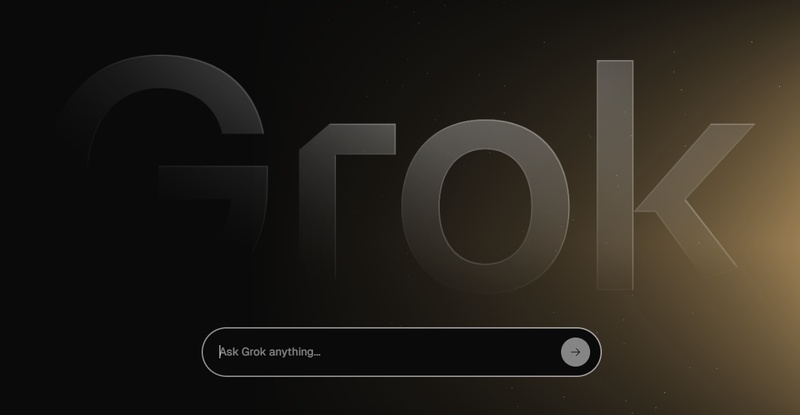
- First, go to grok.com or x.com, log in with your X (formerly Twitter) account, and click the "Imagination" tab on the left. This is where you can begin all of GROK AI's video generation AI tasks.
-
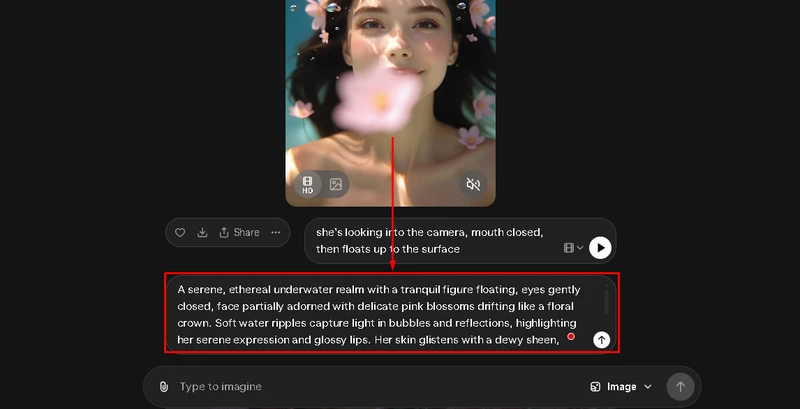
Enter a detailed description of your desired image in the text input field. For example, if you provide specific information like "Cat playing piano on the moon, realistic style, night sky background," the generative AI will create a more accurate image, and a high-quality image that serves as the basis for AI video generation will be completed in seconds.
-
Click the "Create Video" button at the bottom of the generated image, and the Aurora engine will automatically add motion and sound to the image. Check out GROK 4's AI video generation engine, which creates a 6-second AI video with background music and sound effects.
-
Once the free AI video creation process is complete, you can preview it by playing it right away. If you like the video, click the download button to save it. If you don't like it, edit the prompt and try generating it again.
Part 4. Recommended GROK 4 Alternatives|Create High-Quality Videos Easily with Edimakor
While GROK 4's video creation features are excellent, there are a few drawbacks when using it. The video length is limited to 6 seconds, the free version has limited usage, and there are no editing features. If you want to create videos without these limitations, HitPaw Edimakor try Edimakor. Veo3 , Sora2 Sora2 is an all-in-one program that supports generative AI video creation, from video creation to editing. Its full Korean support makes it easy to use, and you can try AI video creation for free with free credits when you sign up.
Key Features
- Completed with just a prompt AI Text to Video Converter
- Automatic subtitle generation and translation in over 130 languages
- Provides a variety of templates and professional-level video editing features
- One-stop processing from voice synthesis to audio editing
- Advanced AI features for converting images to videos
Popular High-Quality AI Video Creator Alternative to Grok 4's Imagine
Now, we'll walk you through how to create professional-level AI videos using Edimakor, step by step. It offers even more features than GROK AI, so follow along step by step.
Step 1: Download Edimakor from the official HitPaw website. For Windows and Mac It is supported and the installation process is simple, so just click the link below to download.


Step 2: You can use the AI video creation function by clicking ‘Media’ & ‘AI Video’ & ‘Create Text Video’ in the top editing menu. Click through each step to make sure you are connected to the corresponding function.
Once you've chosen a model, it's time to write a prompt. The prompt should be as detailed as possible about how you want to generate the video. You can refer to the example image, or you can use the prompt generator and prompt tag features below.
Step 3: As mentioned earlier, Edimakor offers a variety of video generation AI models. Support includes Sora2 and Veo3, which are hot topics in the video generation field these days, as well as Hailuo, Vidu, Wan, and Edimakor's own AI models. Choose the model you need.
Step 4: Once you've completed the prompt for AI video creation, select the video length. Edimakor can create videos of 5 or 8 seconds in length and supports resolutions up to 1080p. You can also create videos by integrating video and audio. Enable the audio creation feature and click the "Create" button.
Step 5: Once Edimakor's AI generates a video, you can check it in the "My Creations" section. Click on the video to preview it and see if it was created correctly. Watch the video from start to finish. You can also drag the video to the timeline to edit and export it, so you can take advantage of various editing features not supported by GROK AI.
Step 7: Step: Once all editing is complete, click "Export" in the upper right corner to save the file. Edimakor supports saving to your computer and uploading to social media. Select the appropriate option and click "Export" to save the video.
Conclusion
As we've seen in this article, Grok4 allows you to create videos for free using just text, making it a great choice for those new to AI video creation. However, Grok4 has clear limitations: it only supports video creation and doesn't offer editing features. If you want to handle everything from video creation to editing in one go, consider using HitPaw Edimakor, which supports Korean and offers all-in-one functionality. Edimakor is a video editing program that, like Grok4, allows you to create videos using text and images. It's a great program for everyone, from beginners to experts, so give it a try.
Leave a Comment
Create your review for HitPaw articles