These days, making videos has become really easy. In the past, it was difficult to create high-quality videos without professional equipment and skills, but now thanks to AI tools like Nano banana and Google VEO3, anyone can easily create movie-like AI videos. Of course, for beginners, it might feel overwhelming to figure out where to start. In this article, we will detail everything about the perfect combination of video production AI, Nano banana and Google VEO3 so that even beginners can easily follow along.
Part 1. What is Nano banana + VEO3
1. What is Nano banana
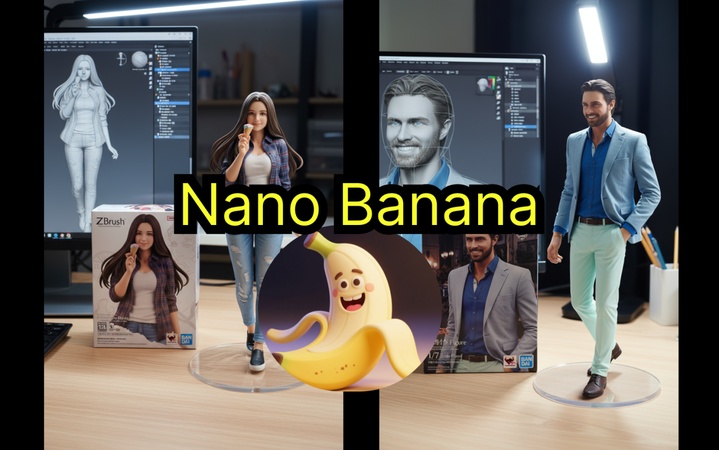
Nano banana is a next-generation image generation AI model developed by Google DeepMind, officially known as Gemini 2.5 Flash Image. Its biggest advantage is its ability to maintain consistency between characters and scenes with astonishing accuracy, allowing you to get the desired results just by giving simple commands in natural language like "Change the background to the beach." It's great for creating figure images or photo cards, and when combined with Google VEO3, you can achieve the best synergy, so be sure to use them together.

2. What is Google VEO3
Google VEO3 is also the latest video production AI from Google DeepMind, providing powerful functionality to create 8-second high-definition videos using text or images. Google VEO3 not only creates videos but also automatically generates dialogue, music, and sound effects that fit the scene, which sets it apart from other programs. Its lip-sync quality is excellent, ensuring that the character's mouth movements are perfectly synchronized with the dialogue, and it supports high resolution, allowing you to create high-quality videos all at once.
3. Results of the Nano banana + VEO3 combination
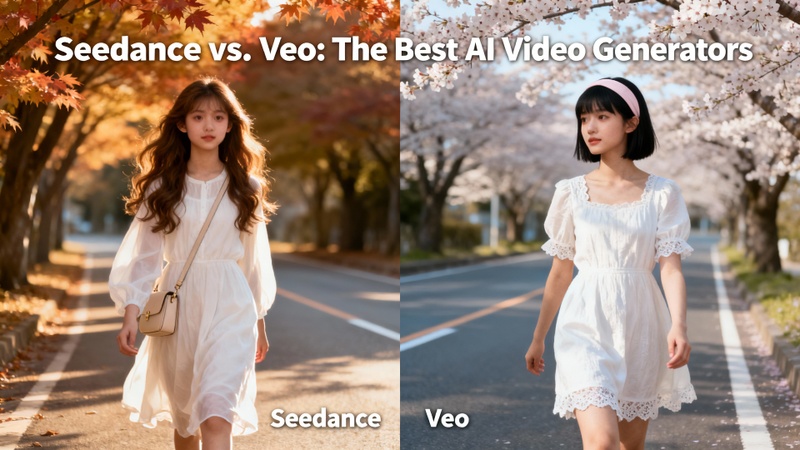
With the two programs mentioned above, namely generating perfect images with Nano banana and then turning them into videos with Google VEO3, you can create surprisingly natural videos. The combination of Nano banana's character consistency and Google VEO3's natural movements and audio generation capabilities allows for the easy creation of high-quality videos without complex technical jargon. As a result, these tools are actively used in various fields such as webtoon production, advertising videos, and educational content, enabling individual creators to produce professional-level videos, making this sweet combination popular among many users.
Part 2. Preparation for high-quality AI video production with Nano banana + VEO3
Before you start creating AI videos using Nano banana and Google VEO3, there are a few preparations needed. By checking these steps in advance, you can make the AI video creation process much smoother, so let's prepare them one by one.
1. Check your account or subscription plan
To use Nano banana and Google VEO3, you need a Google account, and for Google VEO3, you may need to subscribe to the Google AI Pro or Ultra plan, so please check your subscription plan before starting the actual AI video production work. It's also a good idea to verify your Google account login information beforehand to make the process much easier.
2. Plan your content and prepare reference materials
Before starting to create AI videos, specifically plan what kind of video you want to make. For example, if you have a clear concept like "a teenage girl walking in the forest" or "an aerial shot of a futuristic city in 2040," it will be much easier to write prompts for Nano banana and Google VEO3. If you want a specific style or atmosphere, preparing reference images in advance can help you achieve more accurate results. In the next part, I will detail how to actually create AI videos based on all these preparations.
Part 3. How to create super simple AI videos with Nano banana + VEO3 - Edimakor
If the subscription fee for Google VEO3 seems burdensome or if you are looking for a program with perfect Korean support, try using HitPaw Edimakor . Edimakor is an all-in-one program that allows you to use the latest video production AI technologies, including the Nano banana model, without the burden of a separate paid subscription and complex settings to create high-quality AI videos. Especially since it fully supports Korean prompts and offers a free trial, even those who are trying AI video creation for the first time can start without pressure.
Here's the video tutorial for using Nano Banana Pro in Edimakor:
Here's the video tutorial for using Veo 3 in Edimakor:


Key Features
- Various image generation features including the Nano banana AI
- model to create images Intuitive interface that allows for AI video creation using only text prompts Functions to generate and edit high-quality videos with
- Google VEO3 support
- Perfect support for Korean prompts, enabling easy AI video production for beginners
- AI tools that can handle everything from image creation to video editing in one go
- Ability to start creating AI videos without pressure using the free trial feature
How to Generate Images Using Nano banana
Now, let's take a detailed look at how to generate images using Nano banana with Edimakor. I will guide you step by step so that even first-time users can easily follow along, so take your time.
Step 1: First, download HitPaw Edimakor from the official website. It supports both Windows and Mac, so choose the version that matches your computer environment. The installation process is simple and will be completed in a few minutes.
Step 2: After launching Edimakor, click on 'New Project' on the main screen. This is the first step in video production AI, which involves creating images, so please follow along closely.
Step 3: Once the main editing interface of Edimakor is open, select 'Media' > 'AI Image' > 'Image Generation'. Edimakor provides the image generation feature of Nanobanana, so it's capable of generating images of the same quality. Just like generating images with Nano banana, write the prompt for the image you want to create in the 'Prompt' field. If you have a reference image, go to 'Reference Image' at the top to upload it and proceed in the same way.
Step 4: Next, select the desired quantity of images to generate and click the 'Generate' button. Edimakor will generate images using the Nano banana AI model, so please wait a moment.
Step 5: Once Nano banana generates the images, you can get the generated images in the 'My Creations' section on the left and right-click the snapshot to locate it. Preview the generated images and move them to the timeline. To save the file, click the 'Export' button at the top, and the file will be saved.
Step 6: If a settings window appears like the example image, select the save location and settings, and then click the 'Export' button once more to save the file. This image will be used as the starting frame in the next step, which involves creating AI videos with Google VEO3, so please double-check the save location. Once saved, you are now ready to fully utilize the video production AI features.
How to generate super simple AI videos with VEO3
Next, let's look at how to convert the images created with Nano banana into videos using Google VEO3.
Step 1: On the main screen of Edimakor, select 'Toolbox', then click on the 'Image to Video' option in the 'AI Video' menu. This feature helps you create high-quality AI videos using the Google VEO3 model with images generated by Nano banana, so let's explore this in more detail in the next step.
Step 2: Edimakor supports various AI video generation models including Google VEO3, but for this tutorial, we will focus on creating AI videos with Nano banana and Google VEO3, so select 'Google VEO3 Fast' as the model.
Step 3: The next step is to upload the reference image that you created with Nano banana. Then comes the crucial prompt input step, which plays an important role in determining the quality of the AI video creation. Be as detailed as possible in writing the prompt for the movements or scenes you want. If writing the prompt is difficult, you can use the 'Prompt Generator' feature below, so feel free to utilize that. After setting the duration, resolution, and aspect ratio in the settings menu, click the 'Generate' button. The time it takes to generate will vary depending on the complexity of the video, so please wait a moment.
Step 4: You can locate the file location of the generated file in the 'My Creations' category on the left section, so once the AI video production is complete, preview the created video. Edimakor offers timeline editing features, so move the generated file to the timeline. You can add subtitles, music, and effects to the generated video, or perform further editing like trimming or adding specific parts.
Step 5: Once the video editing is complete, click the 'Export' button in the upper right corner to save the file. Edimakor supports high-resolution file formats, so if you are considering uploading to YouTube or social media, set the format and resolution before clicking the 'Export' button again to finalize the file save.
Part 4. Tips and precautions for AI video production with Nano banana + VEO3
To properly create AI videos in the style of Nano banana and Google VEO3, it's good to be aware of a few precautions and tips. By utilizing these tips, you can enhance the quality of your AI video production, so make sure to check them one by one.
1. Tips for writing prompts and maintaining character consistency
The clearer and more specific your prompts are, the better your videos will turn out. Instead of saying "a pretty girl," it's important to describe in detail like "a woman in her early twenties, with long brown hair, wearing a white dress, with a smiling expression and soft natural light." To maximize the strengths of Nano banana's character consistency, define all the characteristics of the character when generating the first image, and then use this image as a reference throughout the AI video production.
2. Practical tips for video production
Google VEO3 is optimized for generating 8-second videos, so if you need longer videos, it's recommended to create several 8-second clips and connect them using Edimakor's editing features. Remember that focusing on a clear single scene or action rather than cramming too many elements into one video is key to enhancing the quality of AI video creation.
3. Compliance with copyright and usage guidelines
If you plan to use the content created with Nano banana and Google VEO3 commercially, be sure to check the terms of use for each platform. Especially if the reference images used in AI video production are copyrighted characters, it could pose a problem, so please use images you have created yourself or ones that do not have copyright issues.
Conclusion
Combining Nano banana and Google VEO3 for AI video creation is no longer just the domain of experts. By properly combining Nano banana's perfect character consistency maintenance function with Google VEO3's video generation capability, even beginners can create movie-like high-quality videos. However, using each platform separately can be complex and costly, so consider using HitPaw Edimakor to handle everything from image generation to Google VEO3-style video production in one go. Edimakor offers perfect Korean support and a free trial, allowing you to start without pressure, providing all the features of video production AI from image creation to video editing and subtitle addition, saving you time and costs while enabling you to create professional-level videos.
Leave a Comment
Create your review for HitPaw articles