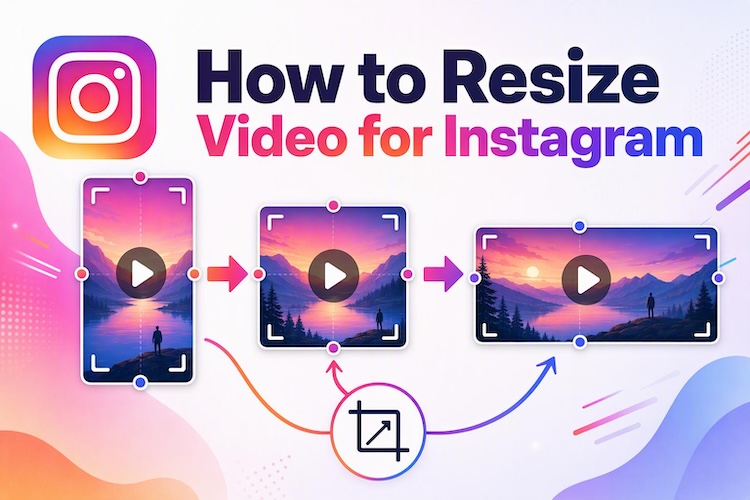
You spend an hour editing a video, upload it to Instagram, and find that part of it is cut off or black bars appear around it. This often happens when the video doesn't match Instagram's format. The solution is to resize the video for Instagram before posting.
Resizing a video is easier than you might think. This guide explains the recommended video sizes, aspect ratios, and tools you can use to resize or convert videos on mobile and desktop.
First, let's look at the video sizes that work best on Instagram. Then, we'll cover simple ways to resize your videos using a phone or computer.
What Is the Best Instagram Video Size?
The best Instagram video size depends on where you post. A Reel needs one size. A Feed post needs another. If your video doesn't match, Instagram will crop it or add bars. That’s why it helps to choose a size before you start editing. A few minutes of planning can save you from redoing the whole video.
Instagram Video Aspect Ratio Explained
Instagram video aspect ratio shows how wide your video is compared to how tall it is. It is written as two numbers, like 9:16. The first number is the width. The second number is the height. A 9:16 video is tall, like a phone screen. A 16:9 video is wide, like a TV. Because each Instagram placement prefers a different shape, the best ratio depends on your video.
How to Choose the Right Video Size
Start with where you want to post. Then pick the ratio that fits that spot. Use this table to help you decide.
| Placement | Best Aspect Ratio | Best Size |
|---|---|---|
| Instagram Reels | 9:16 | 1080 x 1920 px |
| Instagram Stories | 9:16 | 1080 x 1920 px |
| Instagram Feed | 4:5 | 1080 x 1350 px |
| Widescreen video | 16:9 | 1920 x 1080 px |
Instagram Stories and Reels work on vertical-format videos. The image needs to be in 9:16 format. Instagram feed works best with a 4:5 ratio, as it fills the entire screen. Widescreen video ratios are fine, but they'll look very small on mobile, so don't use them unless necessary.
How to Resize Videos for Instagram on Mobile
Your phone lets you make small changes. You can adjust the video and post it within minutes, even when away from your desk. Here’s how it works.
Step 1: Use a Mobile Video Editor
Download a free app like InShot or Splice. Both are easy to use. Open the app and start a new project. Then pick the video from your gallery.
Step 2: Adjust and Export the Video
Next, find the button labeled Canvas or Ratio and choose the Instagram video size you need. For a Reel, that’s 9:16. Your video will now sit inside a tall frame. Zoom in and fill the frame. You can also drag the video to move it. If you want, add a blur or color to the space.
Step 3: Check the Final Instagram Format
When you like how it looks, tap Save. Choose the highest quality your phone allows. Check that nothing is cut off. If all looks good, upload it on Instagram. This is the final step to convert a video for Instagram on your phone.

How to Resize a Video for Instagram on Desktop
A computer provides full control. The screen is bigger, so you can see details more easily. If you post often, a desktop editor speeds things up. HitPaw Edimakor is a good choice. It’s simple and packs many tools in one place.
1 Why Use Edimakor as a Video Resizer for Instagram?
Edimakor has a few features that help with Instagram videos.
- Ratio Adjustment: Pick 9:16, 1:1, or 16:9 in a single click. You do not have to guess.
- Auto Subtitle: Edimakor writes captions for you. This helps because many people scroll with the sound off.
- Reel Video Maker: You can create short, fun clips made for Reels. It saves you time.
- High-Quality Export: Your video stays sharp after you save it. It looks good on any phone.


2 How to Resize Videos for Instagram on Edimakor
Check out how to use this best video resizer for Instagram. The process takes five quick steps.
Step 1: Import Your Video
Open Edimakor and start a new project. Click Import and choose the video from your computer. Then drag it onto the timeline so it’s ready for editing.
Step 2: Set the Instagram Aspect Ratio
Look for the ratio option in the preview window and click it. Choose your desired size. Pick the 9:16 Instagram Reel format for Reels or a Story. For a Feed post, pick 4:5. The frame will change right away.
Step 3: Adjust the Video Frame
Now your video may not fill the frame. That is normal. Drag the corners to zoom in. Don't pull it too far. Stretching makes people look odd.
Step 4: Enhance Your Video (Optional)
Add auto subtitles so viewers can follow along. You can also add music, filters, or text. These small touches make your video feel polished.
Step 5: Export Your Instagram Video
When you've got the desired results, click Export. Set the resolution to 1080p or higher, and choose MP4 format. When the file finishes saving, it’s ready to upload.
Tips for Converting Videos for Instagram
Even the best tools can’t catch every mistake. These three tips cover the most common issues.
Keep Important Content in Frame
Always keep faces, text, and key objects near the center. Instagram covers parts of the screen with buttons and captions. People can't see key content at the edges.
Avoid Stretching the Footage
Never pull a video to fit a new size. This makes people look wide or thin. Zoom in or add a blurred background instead. Both keep the video looking natural.
Maintain Video Quality
Start with the best video you have. Export at 1080p or higher. Also, don't save the same video repeatedly. Each save can slightly lower the quality.
FAQs
A1: Use 1080 x 1920 pixels (9:16 ratio), since it fills the whole phone screen and keeps your Reel looking clean on all edges.
A2: Change the ratio, then keep the full video inside the frame. Then fill the space with a blur or a color. Your video stays complete, and nothing gets cut off.
A3: Yes, you can. Switch the ratio to 9:16, then zoom in on the main part of the video or place it in the middle with a blurred background.
A4: It can, but only if you export at a low setting. Save at 1080p or higher, and the video will stay sharp.
Conclusion
Now you know how to resize video for Instagram. First, pick the right size for your post. Reels and Stories use 9:16, and Feed posts use 4:5. Then, use a phone app for edits, or use a desktop tool for more control. Keep your key content near the center and export in high quality. With Edimakor , you can adjust your video to fit Instagram’s format in just a few clicks, making it ready to share without the extra editing hassle.
Leave a Comment
Create your review for HitPaw articles