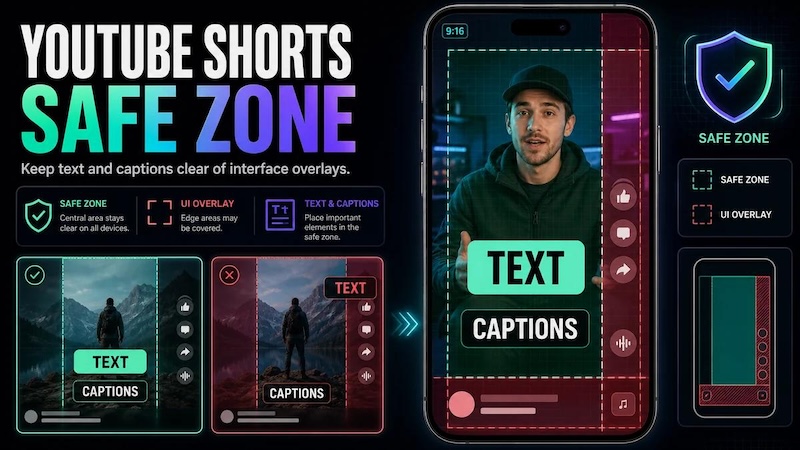
YouTube Shorts have become a popular way to share quick, engaging videos with a large audience. However, creating a great Short is not only about recording or editing high-quality footage. Properly positioning text, captions, logos, and calls to action is equally important. YouTube’s interface can cover content placed too close to certain areas of the screen, making important information difficult to see. This is where the YouTube Shorts safe zone becomes important. In this guide, we’ll explain what the safe zone is, where to place your text and captions, and how to position CTAs so they remain clearly visible.
Part 1: What is the YouTube Shorts Safe Zone?

The YouTube Shorts safe zones is the area of vertical video where you should place important elements such as text, captions, logos, and calls to action. Keeping these elements within the safe zone helps ensure they remain visible when viewers watch your Short on different mobile devices.
YouTube Shorts use a vertical 9:16 format, but parts of the screen can be occupied by YouTube’s interface, including buttons, descriptions, profile information, and other controls. If you place important text or graphics too close to the edges, these elements may become difficult to read. For this reason, creators should keep essential information in the YouTube Shorts safe zone.
Part 2: YouTube Shorts Dimensions and Aspect Ratio
The optimal size for YouTube Shorts is 1080 x 1920 pixels. The standard YouTube Shorts ratio is 9:16, which is the vertical format designed for mobile viewing. Here’s a quick-reference chart with everything you need to know:
| Setting | Recommendation |
|---|---|
| YouTube Shorts Aspect Ratio | Vertical 9:16 |
| YouTube Shorts Dimensions | 1080 width, 1920 height |
| YouTube Shorts Format | 1080p minimum |
| YouTube Shorts Resolution | MP4 recommended |
| YouTube Shorts Thumbnail Size | 1280 x 720 pixels |
Part 3: YouTube Shorts Safe Zone: Where Should You Place Your Content?
Once you have a complete idea of YouTube Shorts dimensions and aspect ratio, the next step is understanding where to place important elements within your videos. The safe zone YouTube Shorts helps you position text, captions, logos, and CTAs in areas where they are less likely to be covered by YouTube’s interface.
Here are the complete YouTube Shorts safe zone dimensions:
- Total Canvas: 1080 x 1920 pixels
- Aspect Ratio: 9:16
- Recommended Safe Area: 1080 pixels (Full width is generally safe, but keep text 50px from edges.)
- Safe Height: Approximately 1350 pixels (Centered)
These are the safe zone guidelines for YouTube Shorts that creators should keep in mind when adding text, captions, logos, and CTAs. Users should also know about the danger zones, which are the areas where important content may be covered by YouTube’s interface elements.
Here are the danger zones of YouTube Shorts:
- Bottom 450 Pixels: Reserved for captions, channel name, and video titles.
- Right 150 Pixels: Reserved for Like, Dislike, Comment, and Share buttons.
- Top 150 Pixels: Often obscured by system status bars on some devices.
Part 4: YouTube Shorts Safe Zone Best Practices
Following the YouTube Shorts safe zone guideline can help creators keep important content visible and easy to understand. Whether you are adding captions, headlines, logos, or CTAs, proper placement can make your video look cleaner and more professional. Here are some best practices to follow:
- Begin With a 9:16 Source Frame: YouTube Shorts are built around vertical viewing. Using a 9:16 preview gives you the most realistic starting point for subtitles, hooks, and CTA placement.
- Avoid the Danger Zones: Keep essential text and graphics away from the top, bottom, and side areas where YouTube’s interface may appear. Placing important information too close to these areas can ruin your video.
- Keep Important Information in Center: The safest place for subtitles and headline text is the central portion of the frame, not the outer edge where UI overlays are more likely to clash with the creative.
- Place CTAs Strategically: Position calls to action where viewers can see them without overlapping YouTube’s button or other interface elements.
Part 5: Common YouTube Safe Zone Mistakes
Even after understanding the YouTube Shorts safe zone overlay, creators can make simple placement mistakes that affect how their videos look. Here are some common mistakes to avoid:
- Placing Text Too Close to the Edges: Make sure that important information is not positioned directly against the top, bottom, or side edges of the video.
- Adding Captions Too Low: Captions placed near the bottom can overlap with YouTube’s interface and become difficult to read.
- Putting CTAs in the Danger Zone: Avoid placing “Subscribe,” “Comment,” or “Follow” messages where YouTube’s buttons may cover them.
- Using a Thumbnail That Clashes: A thumbnail may look attractive on its own but feel inconsistent when viewed alongside your channel banner and profile image.
- Not Previewing Before Uploading: Always watch the completed Short in a vertical mobile format to identify elements that may be hidden or poorly positioned.
Part 6: Best Tool for Creating YouTube Shorts: HitPaw Edimakor
YouTube is one of the most popular streaming platforms, and creating engaging Shorts can easily boost your channel. However, creating high-quality Shorts requires more than simply recording a vertical video. Creators also need to edit their footage, add captions, insert text and CTAs, adjust the video format, and ensure that important elements stay within the safe zone.
This is where HitPaw Edimakor can be useful. It is an AI-powered video editing tool that provides a range of features for creating and editing videos. The standout feature of this tool is that it offers a YouTube Safe Zone Template, allowing users to visualize the areas where they should place text, captions, logos, and CTAs. Another amazing feature of this tool is that it offers an easy-to-use interface, which is ideal for non-tech and beginner users — no editing experience or professional help required.


Key Features of HitPaw Edimakor
- Safe Zone Templates: HitPaw Edimakor offers safe zone templates for multiple social media platforms, including YouTube, TikTok, Instagram, X, LinkedIn, and more. This helps enable creators to position text, captions, logos, and CTAs correctly for each platform.
- AI Video Editing: The program's main purpose is video editing, enabling users to customize videos for YouTube Shorts easily. Users can adjust the video resolution, aspect ratio, and other settings to prepare their content for different platforms. They can also trim and split clips, add transitions, apply effects, and more.
- Wide Range of AI Tools: HitPaw Edimakor isn’t limited to video editing. It offers a variety of AI tools, each with unique features and capabilities. The program includes AI tools, such as Text-to-Video, Image-to-Video, AI Video Enhancer, AI Video Editor, High-Quality Downloads, and much more.
- Text-to-Video: The program enables users to create high-quality YouTube Shorts with a simple text prompt — no editing experience or professional help required. Simply choose the text-to-video tool, enter the text prompt, select the video settings, and click on the “Generate” button.
- Easy-to-Use: One of the best parts of HitPaw Edimakor is that it offers a simple and intuitive interface, which is ideal for non-tech and beginner users. The tools and editing options are organized straightforwardly, making it easier to find the feature needed to create YouTube Shorts.
Step-by-Step Guide:
If you want to create YouTube Shorts in the safe zone, HitPaw Edimakor is the best option. It offers an easy-to-use interface, allowing users to create videos in the safe zone without editing experience. Here is how to do it:
Step 1: Go to the HitPaw Edimakor official site and download the latest version of the program on your PC. Launch it and click on the “New Project” option from the main interface. Click “Import” and upload your YouTube Short. Next, select Players > Tourmore > Safe Zones.
Step 2: After selecting the safe zones option. A list of platforms will appear, such as YouTube, TikTok, Instagram, X, and more. Click on the “YouTube” option because we want to create content for YouTube Shorts.
Step 3: HitPaw Edimakor will then display a YouTube safe zone template over your video, giving you a clear visual guide. Now, you can follow this template and design your YouTube video accordingly. Once done, click on the “Export” button to download the video in MP4 format.
Part 7: FAQs Related to YouTube Shorts Safe Zone
A1: The YouTube Shorts safe zone is the central area of a 1080 × 1920 video where key content remains visible without being covered by titles, captions, or interface buttons.
A2: You can use a YouTube safe zone template to guide your video layout. HitPaw Edimakor provides templates for YouTube Shorts, Instagram, TikTok, X, and other platforms.
Final Thoughts
The purpose of the YouTube Shorts safe zone is not to satisfy magical measurements. It's to maintain the integrity of the message when it appears on the platform interface. Using the correct 9:16 format, leaving enough space around the edges, and previewing the final video can help prevent important elements from being covered by YouTube’s interface. However, if you want to create YouTube Shorts using safe zone templates, we recommend using HitPaw Edimakor.
Leave a Comment
Create your review for HitPaw articles