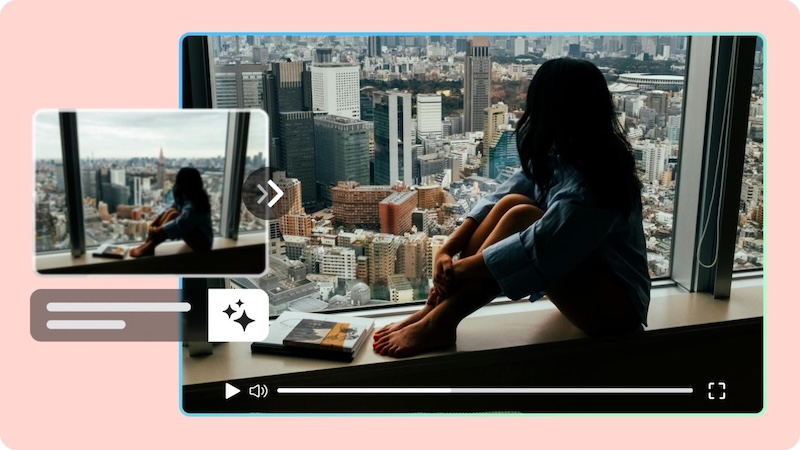
Zooming in on a video can help highlight important details, direct viewers’ attention, and make your content more engaging. Whether you are editing a YouTube video, social media reel, tutorial, or vlog, a well-placed zoom effect can add a professional touch to your video. However, zooming too much can also reduce video quality and make your footage look blurry. Today, in this guide, we’ll show you how can you zoom in on a video without sacrificing the original quality. Plus, we will also introduce one of the best video editors in 2026 that enables you to add zoom-in effects to video with ease.
Part 1: Why Zooming in on Videos is Important
Zooming in on videos plays a vital role in improving visual quality and viewer engagement. It allows you to focus on specific objects, people, or details that might otherwise be difficult for viewers to notice. Here are some key reasons why adding a zoom effect to your videos can be beneficial:
- Highlights Important Details: Zooming in on the video ensures that viewers focus on key elements that matter most, whether it’s a product feature, a critical action in a tutorial, or subtle facial expressions in storytelling.
- Enhances the Flow of Storytelling: Storytelling is always associated with leading the viewer’s attention. Zooming helps achieve this by emphasizing moments or objects that are central to the narrative.
- Makes Videos More Engaging: Adding a zoom-in on a video can make your footage feel more dynamic and interesting. It helps break up static shots, maintain viewers’attention, and add movement to otherwise simple scenes.
- Improves Clarity in Tutorials: Close-up zooms are essential for instructional content. They allow viewers to see small components, intricate techniques, or step-by-step procedures clearly.
Part 2: Step-by-Step Guide: How to Zoom in on Video Online
How to zoom in on a video? Zooming in on a video requires the right editing tool and a few simple steps. An online video editor makes this process easy because you can upload your footage, apply a zoom effect, adjust its duration, and export the finished video without installing complicated software. Here is how to do it.
Step 1: Choose an Online Video Editor
Start by selecting an online video editing tool that supports zoom effects. Look for a tool with an easy-to-use interface, high-quality export options, and a free version.
Step 2: Upload Your Video
Once you have found the right tool, open it and upload the video you want to edit. After the video has been uploaded, add it to the timeline so you can begin the video editing.

Step 3: Apply Zoom-in Video Effect
Move the playhead to the part of the video where you want the zoom effect to start. Click on “Effects” and search for “Zoom.” Multiple Zoom effects will appear on your screen, such as Ins Zoom, Zoom Focus, Dot Zoom, and more. Drag the desired effect to the timeline and place it on your video clip.
Step 4: Preview Your Video
Play the edited section several times to check how the zoom looks. Make the adjustments, and once you are satisfied with the result, click on the “Export” button. Choose the correct resolution and format, then hit the “Download” button.
For this guide, we’ve used CapCut Video Editor. However, if you want more professional results, we don’t recommend relying on this video editor alone. CapCut offers limited Zoom-in effects, which can limit your creative control.
Part 3: Best Video Editor to Create Zoom-in Effects in 2026
Looking for the best AI video editor to create smooth and professional zoom-in effects? Look no further! HitPaw Edimakor is a powerful video editing solution that makes it easy to add dynamic zoom effects to your footage. The program offers multiple zoom-in on video effects, such as Ins Zoom, Zoom Out, Narrow Focus, Cut Zoom, Heart Zoom, and more. These effects allow you to add different styles of movement to your footage and highlight important elements without requiring advanced editing skills. The best part of HitPaw Edimakor is that it offers an intuitive interface, which is best for non-tech and beginner users. Apart from video editing, HitPaw Edimakor offers powerful AI-powered features that can simplify many time-consuming tasks, such as text-to-video, text-to-speech, AI voice changer, AI video enhancer, and more.
Key Features of HitPaw Edimakor
- Zoom-in Video: HitPaw Edimakor enables users to add zoom-in effects to their videos with just a few clicks — all without sacrificing the original quality. You can adjust the zoom level, duration, and position.
- Multiple Zoom-in Effects: One of the standout features of HitPaw Edimakor is that it offers a wide range of Zoom-in effects, such as Heart Focus, Ins Zoom, Out of Body, Zoom Focus, Arrow Focus, Cut Zoom, Dotted Zoom, Zoom Shadow, and more.
- Advanced Video Editing: The program offers a wide range of advanced video editing tools. Users can trim, split, crop, rotate, and merge clips, as well as adjust video speed and apply transitions.
- Compatibility: HitPaw Edimakor works seamlessly with multiple devices, including Windows and macOS. It is compatible with all Windows versions, such as Vista, XP, 7, 8, 8.1, 10, and 11.
- Beginner-Friendly Interface: One of the standout features of this tool is that it offers an intuitive interface, which is best for non-tech and beginner users. With this tool, users can add zoom-in effects on videos without editing experience or professional help.


Step-by-Step Guide:
Follow the instructions below to learn how to zoom in on a video using HitPaw Edimakor in 2026:
Step 1: Launch HitPaw Edimakor
Navigate to the HitPaw Edimakor official site and download the latest version of the program on your PC. Install it on your PC, launch it, and select the “New Project” option from the main interface.
Step 2: Upload Your Video
Click on the “Import” button and select the video you want to edit. Users can upload videos in multiple formats, including MP4, AVI, and MOV. Drag and drop the video into the timeline to start editing.
Step 3: Add Zoom-in Effect
Select the “Effects” option available on the toolbar and search for zoom-in effects. Multiple options will appear, allowing you to select the effect that best suits your video. Drag and drop your preferred effect onto the video clip.
Step 4: Preview and Download
Once you have applied the zoom-in effect, preview the entire video to make sure the effect looks smooth and focuses on the right area. When you’re satisfied with the final edit, click the “Export” button to save your video in the desired format and resolution.
Final Thoughts
As mentioned earlier, zoom-in effects can make your video more engaging and professional-looking. With the right video editing tool, you can easily apply smooth zoom-in effects without requiring advanced editing skills. If you want our recommendation, we suggest using HitPaw Edimakor. The program offers an easy-to-use interface and a wide collection of zoom-in video effects. Plus, its editing features allow you to enhance your video with transitions, text, filters, and audio.
Leave a Comment
Create your review for HitPaw articles