Short dramas are becoming a popular way to tell stories online. AI makes this format easier to produce without a large filming team. You can develop characters, create scenes, generate dialogue, and assemble videos using AI tools. This guide explains how to make an AI microdrama with an easy-to-use microdrama maker. You will learn how to turn a simple idea into a complete, engaging short drama.
What Is AI Microdrama?
An AI microdrama is a short, story-driven video created with artificial intelligence. It usually focuses on one central conflict and delivers a complete story or episode quickly. Some creators publish standalone dramas, while others build longer stories through connected episodes.
Common genres include romance, thriller, fantasy, comedy, and suspense. Each episode needs a clear direction because viewers have limited time. A strong opening introduces an interesting situation immediately. The story then develops through short scenes and focused dialogue.
Cliffhangers also play an important role. An unexpected discovery, unanswered question, or sudden conflict can encourage viewers to watch another episode. AI-generated micro dramas make this format more accessible to creators without traditional production resources.
What Do You Need to Make an AI Microdrama?
Before opening an AI video tool, prepare a few basic story elements. These materials help you generate more consistent scenes and reduce unnecessary revisions.
A Story Idea With a Strong Hook
Start with one interesting situation. For example, a woman receives a message from someone who disappeared years ago. This creates immediate curiosity and gives the story a clear direction. Avoid introducing too many characters or conflicts. A focused premise is easier to develop into a short episode.
A Script With Clear Scenes and Dialogue
Turn your idea into a short script. Divide the story into scenes, and give each scene one purpose. Include character actions, dialogue, and important visual details. A useful script contains an opening hook, a developing conflict, a turning point, and an ending. Keep dialogue natural and avoid unnecessary explanations.
Characters and Visual References
Prepare descriptions for your main characters. Include their approximate age, hairstyle, clothing, facial features, and personality. Reference images can also help maintain a consistent appearance across scenes. Decide on the locations, props, and overall visual style. These details give your AI-generated story a recognizable look.
An AI Video Creation Tool
You need a tool that can support several production stages. Useful capabilities include script development, character generation, scene creation, voiceovers, subtitles, and video editing. A good microdrama making tools can eliminate tedious app-switching, and let solo creators make serialized stories easily.
How to Make a Microdrama With AI Step by Step
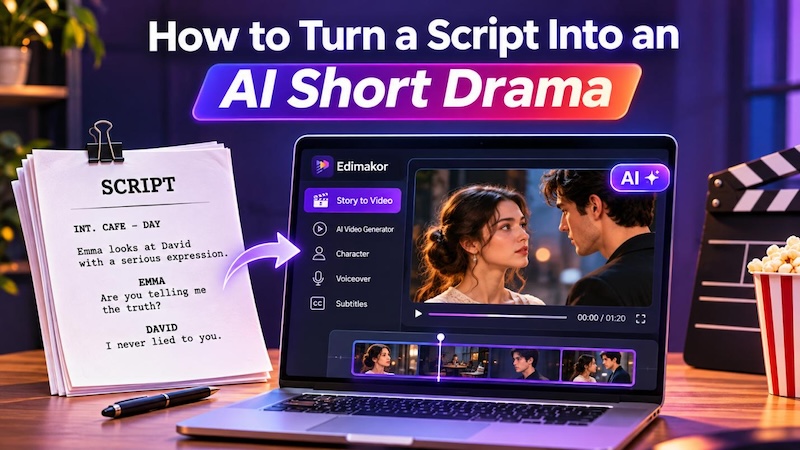
HitPaw Edimakor brings these capabilities into a story-focused workflow. Its an easy-to-use AI Microdrama Maker helps turn a story concept into a structured video. You can develop the script, generate characters, customize scenes, and create video clips within the same workflow.


Step 1: Turn Your Idea Into a Microdrama Outline
Open HitPaw Edimakor and enter the “AI Video Generator”. Find the “Story to Video” feature and select the “Micro-drama” category. Choose a suitable theme from the available options. Describe your story idea in the prompt area.

Step 2: Create Characters, Storyboards, and Props
Select a visual style, then adjust the available settings, such as video length, aspect ratio, target audience, and language. Click "Create Script” to generate the script. Review the suggested story before moving forward.
Once the script is ready, move to character creation and click “Create Character”. Edimakor can generate character images together, saving time when your story has several roles. You can also create props and scenes at the same time.
If you have characters from an earlier project, use “My Character” to reuse them. This is particularly helpful when producing multiple episodes with the same cast.
Step 3: Generate Videos From Individual Scenes
After preparing the storyboard, turn its images into video clips. Select a scene and review its generated visual. Make changes to the scene description if the composition does not match your script.
Click Next to go further. Each scene appears automatically in the sidebar, where you can select and modify it. Select a scene and review the generated prompt. Make changes to the description if the visual does not match your script. Click to generate the image and video clip.
Repeat this process for the remaining scenes. Check character appearance, movement, and background details. Generating clips separately gives you more control over the pacing and visual continuity of your AI drama video.
Step 4: Add Dialogue, Voiceovers, and Subtitles
Visuals alone cannot carry every dramatic moment. Dialogue and narration help viewers understand character relationships and emotional changes. Use Edimakor's voice options to assign suitable voices to characters or narration. You can explore different tones and accents.
You can also edit subtitle text and assign lines to individual characters. Open the subtitle panel at the top. Choose a subtitle style that remains readable against your scenes.
Step 5: Add Music and Export Your Microdrama
Background music helps establish the mood of each scene. Click the "Music" icon at the top, then choose a track. Preview the complete storyboard before generating the final footage. When everything looks right, select “Export” to render the scenes.
Tips for Making a More Engaging AI Microdrama
A polished video needs more than attractive AI visuals. These practices can make your story easier to follow and more enjoyable.
- Start with an immediate hook: Introduce a mystery, surprise, or conflict in the opening seconds.
- Give every scene one purpose: Avoid combining unrelated actions in one scene.
- Use meaningful dialogue: Let conversations reveal relationships and character motivations.
- Build toward a turning point: Give viewers a reason to keep watching.
- End with unresolved tension: Leave a question or conflict for the next episode.
- Review every generated scene: Correct visual errors, awkward movement, and inconsistent characters before exporting.
You can also use recurring visual details to connect episodes. Consistent clothing, locations, and character descriptions make a series feel more cohesive.
FAQs
A1: Use detailed character descriptions and reference images. Reuse saved characters when creating connected episodes. In Edimakor, the My Character feature helps bring existing characters into new projects.
A2: Yes. Beginners can start with a simple story and use AI tools for script development, character creation, and scene generation. Edimakor's guided Story to Video workflow helps reduce the amount of manual production work.
A3: Yes. Edimakor supports creators who already have a script. You can use your existing story as the starting point, configure the video settings, and continue with character and scene generation.
A4: There is no fixed duration. Keep an episode long enough to establish its conflict and deliver a meaningful development. Shorter episodes often work well when the story continues through a series.
Conclusion
Learning how to make an AI microdrama does not require a traditional film production setup. You need a focused idea, a clear script, and a tool that supports the creative process. HitPaw Edimakor helps connect story development, character creation, scene generation, voiceovers, and editing. Its AI Microdrama Generator gives creators a practical starting point for producing short, engaging dramas easily.
Leave a Comment
Create your review for HitPaw articles