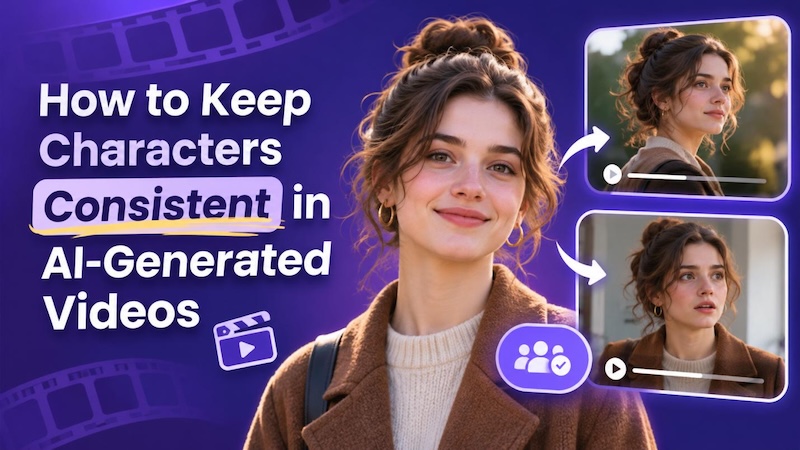
Do you notice that in every scene, an AI-generated character looks different? Like the face, hairstyle, or even clothing will be totally different. This will confuse the viewers of your video. It is important to keep your characters consistent throughout your videos.
Stop struggling with changing faces in your AI videos. Learn proven methods to keep characters consistent across every scene for a better viewing experience.
Why Do Characters Look Different Between Scenes?
Sometimes, an AI video generator fails to maintain all the character's features when creating a new scene. Even with the same prompt, you might get a completely different generated character. There are several reasons for that.
1 The Nature of Diffusion Models
AI creates a fresh image each time when a user builds up a scene. Even though you can keep a same prompt, there will always be something new in your image. The face, hairstyle, clothing, and even figure of the person may not be the same as in the previous image created.
2 Lack of Spatial Awareness
Sometimes the appearance of the character changes depending on the angle from which the camera is positioned. AI has to create a face and body of a character in the new angle. Lighting and distance can affect how the image will be produced as well.
3 Prompt Misinterpretation
The text prompt may fail to give enough information for the AI. For example, a prompt such as "young woman with brown hair" has many variables that can change each time.
4 Character Identity Confusion
When videos have multiple characters, there can be even more issues. The AI may get confused about the faces, clothing, or other traits of the characters. This usually happens if the prompt fails to identify the character in the scene.
Common Methods to Keep Characters Consistent
There are several ways to keep characters consistent in AI videos . You can use reference images, fixed descriptions, and saved character assets. Each method helps the AI follow the same character design.
Use Character Reference Images
A reference image will give the AI tool a template to draw inspiration from while creating the character. The image will help in maintaining features like the face, hairstyle, clothing, and body structure.
Select one clear image of your character and use it while generating new scenes. This way, you will be giving the AI tool a visual cue rather than written directions.
Create Multiple Character Views
Sometimes, a single image cannot convey all the features of the character. You can create images of the character that display it from various angles.
These images will assist the AI tool to form a complete idea about the character. These pictures prove very useful when your video includes close-up shots, body shots, or camera movements.
Keep Character Descriptions Consistent
Write one description for each of your characters. The description may include things like face shape, hair color and style, dress code, and age of the character.
Use the same description for all the scenes of the character. You can vary the actions and expressions of the character.
Reuse Character Assets Often
Once you create a character, save the image and use it again in your next scenes. This saves time and helps you avoid creating a new version of the same person.
Some AI tools also let you save characters in an asset library. You can select the saved character when working on another scene.
A Practical Workflow for Consistent Characters Across Scenes
Recreating the same character repeatedly can take time. HitPaw Edimakor makes this process easier with its Avatar and Story to Video features.
You can create a character, save the design, and reuse it in your AI videos. Edimakor also generates three-view character images in Story to Video Mode to help guide scene creation.
Edimakor offers several features that help you work with the same characters across scenes.
- Generate characters with reference images: Use an image to guide the character's appearance.
- Save and reuse character assets: Keep your created characters in the library and use them again.
- Generate three-view character references: Create front, side, and back views automatically in Story to Video Generator.
- Control character appearances in individual scenes: Use the Modify option to select the right character for each scene.


Here is how to create and use consistent AI characters in Edimakor.
Step 1: Create a Character With an Avatar
First, download and install HitPaw Edimakor software. Open it, then look for the Avatar feature.

Provide a prompt of the character you wish to create. Provide the features such as the face, hairstyle, age, clothing and others. It is also possible to provide a reference image to guide the character generation process.
Step 2: Refine Your Character’s Appearance
After getting the desired results, save the character to the My Character tab. The saved character can be used for future projects. You can edit it every time, chaging its clothes, hairstyle while keeping the face.
Step 3: Use Your Character in AI-Generated Videos
Now you can bring your character into a video. Open the Talking Photo feature and choose the character you just generated. Paste the script and add a voice.Click Generate to create a talking-head video with accurate lip-sync.
Want to make a story video with consistent characters?
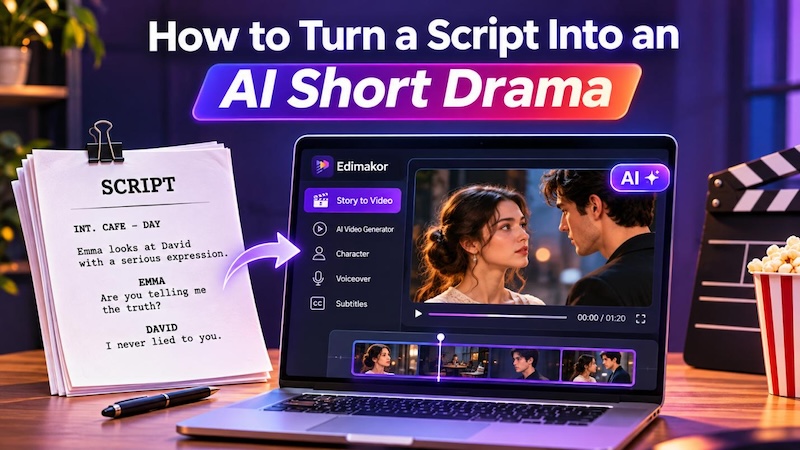
Use Edimakor’s AI Video Generator. You can generate AI microdramas , story videos, kids’ cartoon videos easily. The three-view character drawings can guide the story scenes and keep the character consistent.
For a more detailed guide, check out our article on How to Make Episodic AI Videos Series .
FAQs
A1: Yes. Front, side, and back views give the AI more information about a character's appearance. They can help keep the face, hair, and body shape closer across different camera angles.
A2: Start with a clear reference image. Keep the same character description, save the finished character, and reuse that asset in new scenes. Check each result before moving to the next scene.
A3: They can, but results vary between tools and models. Reference images, saved character assets, and clear prompts can help reduce changes between clips.
A4: The AI can generate a new version of the face each time it creates a scene. The outcome can also be altered by different prompts, camera angles, and lighting.
A5: Yes. Edimakor lets you reuse saved character assets and make changes to your scenes. You can also select a different character through the Modify option when working on individual scenes.
Conclusion
Keeping the same character across scenes takes clear references and careful planning. Use fixed character descriptions, create three-view images, and save your character assets for later use. HitPaw Edimakor brings these steps together with its Avatar and Story to Video tools. Create your characters, reuse them, and choose the right one for each scene.
Leave a Comment
Create your review for HitPaw articles