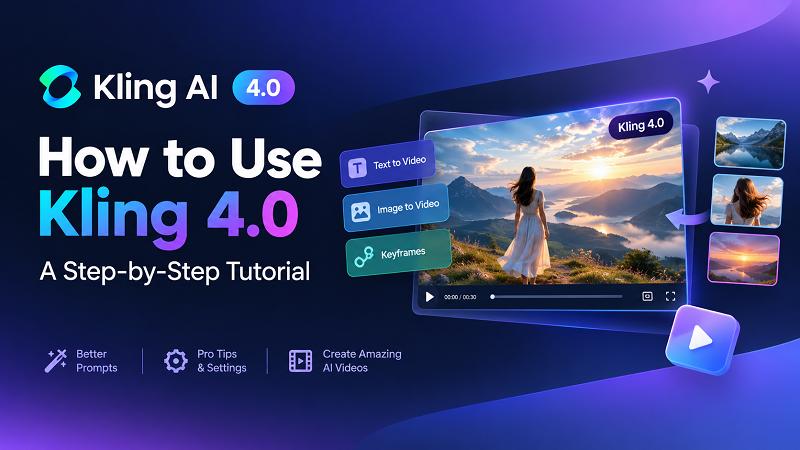
2026 has seen an inclination towards applications that helps in video creation and editing. Kling 4.0 is one such tool that works on next generation native multimodal. Kling 4.0 AI video generator allows to create videos from images, text prompts, and even visuals. This tool helps to generate steady motion videos with enhanced consistency across multiple references. In this guide, learn how to use Kling 4.0 and create videos like a pro.
Create Your First Kling 4.0 Video from Text
Kling 4.0 AI video generator has a user-friendly interface that makes it a perfect tool if you are creating your first video from text. To create a Kling AI text to video you need to check out Kling 4.0 tutorial online or follow these four simple steps.
Step 1: Sign in
Open the website of official Kling AI 4.0. Sign in at Kling.AI and click on the video generation tool. Here selects the text-to-video option.
Step 2: Write a prompt
Write a clear and well-defined prompt that clearly states the subject, setup, actions, camera movement, scenes, mood, lighting, and visual styles. You can also add references.

Step 3: Customize video settings
It is time to choose the customized settings to create a unique video visualizing your ideas. You can choose audio sound, voiceovers, aspect ratio, video duration, and resolution.
Step 4: Generate the video
Click on generate video. Check out the video preview, if you are not satisfied with the result then edit the prompt and re-generate the video. Once you get your desired video export it in your desired resolution and format.
Animate an Image with Kling 4.0
Wondering if Kling 4.0 is equipped to transform your images into animated videos? Well, you will be amazed that with these simple steps you can use the Kling AI image to video feature to animate your images and that too with merely a few clicks.
Step 1: Sign in
Open the Kling AI website and sign in to get access to its features.
Step 2: Upload your image
Click on the plus sign, and upload your image. Now write a clear and detailed prompt defining the desired actions, camera movement, lighting, and visuals.
Step 3: Choose video settings
Select the video settings to define the video resolution, and duration.
Step 4: Generate video
Now you can generate the video, preview to results to make desired changes (if any) and download the video in your preferred format and resolution. You can share your animated video on social media platforms.
 You may also like:
Use Omni Reference and Keyframes for More Control
Kling 4.0 comes with an exceptional feature of Omni reference and Keyframes. Omni references help users to guide the tool what should appear in the video, while the keyframes gives a foundation to change visuals with each scene over time. When used simultaneously, these features enhance character consistency, create seamless videos, and preserve the important details.
To use Omni reference, you need to follow these simple steps and enjoy amazing consistency and steadiness in your videos.
- Sign in to Kling AI and open the video-generation model.
- Select the Omni reference or reference option.
- Upload a clear and well-lit image that clearly showcases all visual details of your intended subject/character.
- Write a clear prompt explaining what you want in the video.
- Generate the video, review the details and enjoy the character consistency like never before.
To use keyframes in your videos, these steps will be handy:
- Sign in to Kling AI and select keyframes flow
- Upload the starting frame for your video.
- Add frames for various sections of video that chronologically show important actions and flow of scenes.
- Add a frame for ending showcasing a final scene
- Write a well-described prompt explaining the flow between various frames.
- Select the desired parameters (resolution, duration etc.), and generate the video.
Try Kling 4.0 Online with Edimakor AI
Looking for an easy way to access Kling 4.0 online? Edimakor AI is an all-in-one online AI creative platform that brings together 10+ AI models for image and video generation. In addition to Kling 4.0, you can explore models such as Seedance, Wan, and other AI video models to create different visual styles and effects. With multiple generation tools in one place, Edimakor AI makes it easy to experiment with different models, turn images into videos, and bring creative ideas to life without installing desktop software.
Key Features of Edimakor AI
- 10+ AI Video Models: Explore multiple AI models, including Kling 4.0, Seedance, and Wan, to experiment with different video generation styles and capabilities.
- Text-to-Video & Image-to-Video: Create videos from text prompts or transform reference images into dynamic video clips.
- Advanced AI Video Generation: Generate cinematic scenes with realistic motion, dynamic camera movements, and creative visual effects using supported models.
- Flexible Generation Settings: Customize video duration, resolution, and aspect ratio according to your creative needs and available model options.
- Online and Easy to Use: Access AI generation tools directly in your browser without downloading or installing additional software.
Step 1: Find Kling 4.0 on Edimakor AI
Visit the Edimakor AI website and log in to your account. On the Home page, find the Kling 4.0 model card under Generate AI Video and click it to get started.
Try It Online
Step 2: Upload an Image and Enter Your Prompt
Upload your reference image and enter a prompt describing how you want the image to move. Include details about character actions, camera movements, and scene changes to guide the AI generation. Adjust the video duration using the slider and select your preferred resolution from the available options.
Step 3: Generate and View Your Video
Click the Generate button and wait for the video to finish processing. Once completed, navigate to My Creations from the left sidebar to find and preview your generated video.
FAQs About Using Kling 4.0
A1: Yes, Kling 4.0 allows users to upload both AI-generated images/clips and self-shot images/clips. Users can arrange the uploaded clips or visuals in their preferred order. Kling 4.0 combine the visuals from both sources and create the desired flow in the video.
A2: Not necessarily, the word count of prompts does not matter. Rather the explanation in the prompts is what matters the most. It is important to describe your video requirements and flow in clear detail. You can generate the desired video if you are able to convey your core message concisely but accurately.
A3: For resolution, Kling 4.0 offers 720 p, 1080 p and 4K. As for video duration, this tool allows to generate videos from 3 to 30 seconds whereas the default duration is 10 seconds. As far as aspect ratio is considered, Kling 4.0 offers 21:9, 16:9, 1:1, 9:16, auto and default.
Conclusion
Kling 4.0 AI video generator is an AI tool that uses special features including reference images and keyframes to create steady and consistent videos with a professional appeal. This guide discusses step-by-step procedure on how to use Kling 4.0 to create videos as a beginner using its multiple features. Kling 4.0 in undoubtedly a good choice but if you need an alternative tool that allows to create, edit, insert audio, add translation, and add subtitles within a single workplace then you must give Edimakor AI a shot. Try it now and create amazing videos with its exceptional features.


Leave a Comment
Create your review for HitPaw articles