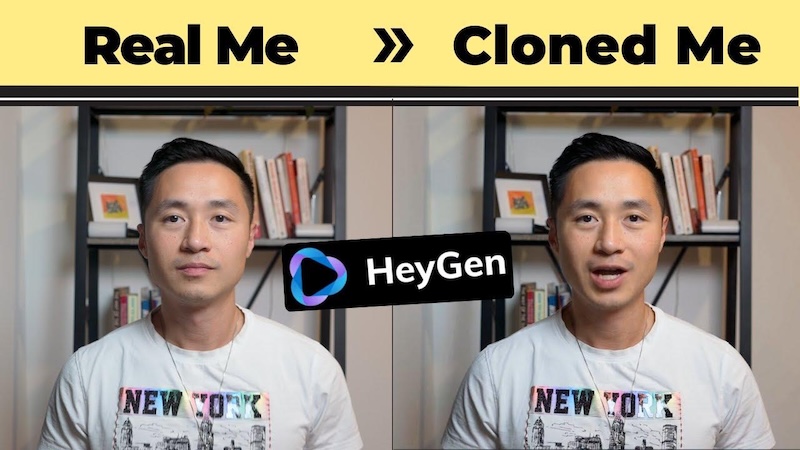
HeyGen Digital Twin lets users create AI avatars that look and sound like real people. Users can record a short video, create a digital version of themselves, and use it to produce videos without filming every new script. This tool can help marketers, teachers, business owners, and social media creators make video content with less recording time. It also supports multilingual video creation, which helps users reach people who speak different languages. In this HeyGen Digital Twin review, we will explain its main features, creation process, pricing, advantages, and limitations. We will also compare it with HitPaw Edimakor AI Avatar to help you choose the right tool for your needs.
Part 1: What Is HeyGen Digital Twin?
HeyGen Digital Twin is an AI-generated version of a real person that can appear in videos and speak a written script. It can reproduce important details of the person's appearance, voice, facial expressions, and speaking movements. Unlike a standard AI avatar, which usually comes from a ready-made character library, a digital twin represents a specific person. For example, a business owner can create an avatar that looks and sounds like them. They can then use it to present company updates, explain products, or record training videos. HeyGen uses AI to match the avatar's mouth movements and expressions with its speech. Users can enter a script and generate a video without recording themselves each time.
Who can benefit from HeyGen Digital Twin?
- Content creators: Produce videos for YouTube, TikTok, and other social media platforms.
- Business owners: Create product presentations and company announcements.
- Teachers: Prepare lessons and educational videos.
- Marketing teams: Make promotional videos for different audiences.
- Training teams: Create employee training materials and instructional videos.
The tool can save recording time, but users should review every video before publishing it.
Part 2: What Can You Do with a HeyGen Digital Twin?
HeyGen Digital Twin offers several uses for personal and business video production.
1 Create Videos Without Recording Every Time
After creating a digital twin, users can enter a new script and generate another video. They do not need to arrange a new recording session for every update. This approach can help people who publish videos regularly.
2 Produce Multilingual Content
HeyGen supports AI voice generation and video translation in multiple languages. Users can prepare videos for audiences who speak different languages without recording every version themselves. However, they should check translations and pronunciation before publishing.
3 Maintain Consistent Branding
Businesses can use the same digital presenter across product demonstrations, company announcements, and training videos. A consistent presenter helps viewers recognize the brand across different types of content.
4 Create Personalized Presentations
Teachers, trainers, and business owners can use a digital twin to present information. They can prepare scripts for tutorials, product explanations, and internal presentations.
5 Save Video Production Time
Traditional video production often requires repeated filming, lighting adjustments, and voice recording. A digital twin can reduce these tasks when users need similar videos regularly.
Part 3: How to Create a Digital Twin in HeyGen
Follow these steps to create your own digital twin.
Step 1: Create a HeyGen Account
Visit the official HeyGen website and create an account. Sign in and open the Avatars section.

Step 2: Select New Avatar
Open the avatar creation options and select the option for creating a personal or custom video avatar. The exact menu names may change as HeyGen updates its interface. Follow the instructions for recording or uploading the required footage.
Step 3: Record or Upload Footage
Record a video that clearly shows your face and natural movements. Follow HeyGen's current recording instructions and use a camera that produces clear footage.
For better results:
- Record in a quiet room.
- Use soft, even lighting.
- Keep the camera at eye level.
- Look toward the camera while speaking.
- Keep your face clearly visible.
- Avoid sudden movements and distracting backgrounds.
- Speak naturally and clearly.
Good source footage helps the system capture your appearance and expressions.
Step 4: Complete Identity Consent
HeyGen may require a consent recording to verify that the person agrees to create the avatar. Follow the on-screen instructions and complete the verification process. Use footage of yourself or another person who has given the required permission. Never create a digital twin of someone without their consent.
Step 5: Generate Your Digital Twin
Submit the recording and wait for HeyGen to process it. Processing time can vary depending on the avatar type and other factors. Once the avatar becomes available, preview it and check its appearance, facial movements, and voice.
Step 6: Create a Video
Open the video editor and select your digital twin. Enter your script, choose the available voice settings, and adjust the background or other video options. Generate the video and review the result. Check pronunciation, lip movements, and visual details before exporting it.
Part 4: HeyGen Digital Twin Features Worth Exploring
Here are the main features that make HeyGen useful for AI video creation.
- Personalized Appearance: Creates an avatar based on your appearance so you can present information without filming each video.
- Voice Cloning: Uses a cloned voice for narration, subject to the available plan and voice features.
- Facial Expressions and Gestures: Adds facial movements and speaking gestures to make the avatar appear more natural.
- Multiple Avatar Looks: Supports different avatar looks, helping users prepare videos for different settings.
- Background Customization: Lets users change video backgrounds to suit presentations, lessons, or promotional content.
- Multilingual Video Creation: Helps users create videos in different languages through AI speech and translation tools.
These features can support regular video production, although the results depend on the selected avatar, source footage, and generation settings.
Part 5: HeyGen Digital Twin Cost: How Much Does It Cost?
HeyGen offers free and paid plans. The free plan lets users test AI video creation, while paid plans provide more credits, longer videos, and additional features. The following table lists the advertised monthly prices and selected features. Check the official HeyGen pricing page before purchasing because plan details can change.
| Plan | Monthly Price | Key Features |
|---|---|---|
| Free | $0 | 3 videos per month, videos up to 1 minute, watermarked exports |
| Creator | $29 | 600 credits, 1080p export, custom video avatar |
| Pro | $49 | 1,000 credits, 4K export, higher usage limits |
| Business | $149 | 1,500 credits, team features, longer videos |
Prices are in US dollars and reflect the listed monthly starting prices. Taxes, annual billing, and regional availability may affect the final cost.
What Does the HeyGen Digital Twin Free Plan Include?
The free plan provides access to basic AI video creation. It includes three videos per month, with a maximum length of one minute per video. It also includes access to ready-made presenters and a limited custom video avatar option. However, free exports include HeyGen branding, and some features have usage restrictions. The free plan works well for testing the service before paying.
Which HeyGen Paid Plan Should You Choose?
Creator plan: At $29 per month, this plan suits individual creators who need regular video production, 1080p exports, and their own custom avatar.
Pro plan: At $49 per month, this plan suits users who need 4K exports, more credits, and longer videos.
Business plan: At $149 per month, this plan supports teams that need shared workspaces, brand tools, and business video features.
How Do HeyGen Credits Work?
HeyGen uses credits for supported AI features. The number of credits required depends on the feature and generation method. For example, avatar video generation and video translation may use credits differently. Users should check the credit requirements before producing many videos. If they reach their plan limit, they may need a higher plan or an available credit option.
What About Additional Digital Twin Slots?
HeyGen offers additional custom video avatar slots as paid add-ons. Its published help information lists extra video avatar slots at $29 per month or $288 per year. Included slots and add-on availability may vary by account, region, and subscription. Check your account's avatar settings before buying an additional slot.
Part 6: HitPaw Edimakor AI Avatar — An Alternative to HeyGen Digital Twin
HitPaw Edimakor AI Avatar offers another way to create talking avatar videos. It supports ready-made avatars, custom avatar options, AI voice generation, voice cloning, and automatic lip-sync. Users can enter text or provide audio and generate a video in which the avatar speaks the selected content. Edimakor also includes video editing tools, which help users adjust their videos after generation. These features can be useful for social media posts, tutorials, business presentations, and marketing videos. Unlike a workflow focused mainly on a personal digital twin, Edimakor supports several avatar creation methods. Users can select an existing avatar, upload an image, or explore AI-generated character options.


Key Features of HitPaw Edimakor AI Avatar
- AI Avatar Selection: Choose from available AI avatars or use supported custom avatar options to create videos for tutorials, presentations, and social media.
- Voice Upload and Recording: Upload an existing audio file or record your voice directly to add narration to your AI avatar videos.
- AI Voice Cloning: Create a voice clone from a suitable recording or uploaded audio to produce personalized narration for your video content.
- Text-to-Speech : Convert written scripts into spoken audio using AI-generated voices for presentations, product demonstrations, and educational videos.
- Automatic Lip-Sync: Match the avatar's mouth movements with the selected audio to create talking videos that look more natural.
- Video Editing Tools: Edit generated videos by adjusting subtitles, audio, and other visual elements to prepare content for different platforms.
How to Create an AI Avatar Video Using HitPaw Edimakor
Step 1: Open HitPaw Edimakor and select the AI Avatar tool to start creating your presenter-style video.
Step 2: Choose your preferred method for adding a voice to your AI avatar video.
Step 3: Select an available voice, or use the Voice Clone feature to create a personalized AI voice for your video.
Step 4: Choose an AI avatar that matches your content, or customize the avatar according to your video requirements.
Step 5: Generate your AI avatar video and let Edimakor synchronize the avatar’s lip movements with the selected voice.
Part 7: HeyGen Digital Twin Review — Pros and Cons
Before choosing HeyGen, consider its main advantages and limitations.
Pros
- Creates personalized avatars based on a real person's appearance.
- Supports voice cloning and AI-generated speech.
- Offers multilingual video creation.
- Reduces the need for repeated recording sessions.
- Provides different plans for individuals and businesses.
Cons
- Advanced features require a paid plan or additional credits.
- Video generation has plan-based limits.
- High-quality results require suitable source footage.
- Consent and identity verification may add steps to the setup process.
- AI-generated expressions and speech may not always look or sound natural.
Overall, HeyGen can work well for people who need a personal digital presenter and regularly produce videos.
Part 8: HeyGen Digital Twin vs. HitPaw Edimakor AI Avatar
Both tools support AI avatar video creation, but their workflows serve slightly different needs.
| Feature | HeyGen Digital Twin | HitPaw Edimakor AI Avatar |
|---|---|---|
| Custom avatars | Yes | Yes, through supported custom avatar options |
| Voice cloning | Yes | Yes |
| AI voice generation | Yes | Yes |
| Lip-sync videos | Yes | Yes |
| Avatar customization | Personal avatar and available looks | Ready-made, uploaded, and AI-generated avatar options |
| Video editing | AI video editor | Built-in video editor |
| Main use | Personalized digital presenters | AI avatar videos and general content creation |
| Best suited for | Business presenters, educators, and creators | Creators who want avatars with video editing tools |
1 Which Tool Is Better for Beginners?
HeyGen is a suitable choice for beginners who want to create a personal digital twin and generate videos from scripts. Its avatar workflow can help users create repeated presentations without filming each time. HitPaw Edimakor may suit beginners who want to experiment with different avatars, voices, and lip-sync videos. Its editing tools can also help users make further changes after generating a video.
2 Which Tool Offers Better Voice Customization?
Both tools support voice cloning and AI-generated speech. HeyGen connects its voice features with its digital presenter workflow, while Edimakor lets users work with voice recordings, cloned voices, and text-to-speech within its video creation process. The better option depends on the voice quality, language, and controls you need. Test a short video before committing to a paid plan.
3 Which Tool Is Better for Businesses?
HeyGen may suit businesses that regularly create branded presentations, training videos, and multilingual content using the same presenter. Edimakor may suit creators and small teams that want to combine avatar generation with additional video editing. Compare the current plans and test the features you expect to use most.
FAQs about HeyGen Digital Twin
A1: HeyGen Digital Twin is an AI-generated version of a real person. It can appear in videos and speak scripts using a digital representation of the person's appearance and voice.
A2: Create an account, open the avatar creation section, provide the required recording, complete consent verification, and wait for the avatar to process. You can then select it and generate videos from scripts.
A3: HeyGen lists a free plan, Creator at $29 per month, Pro at $49 per month, and Business at $149 per month. Features, credit limits, and avatar availability vary by plan.
A4: Yes. HeyGen supports Photo Avatars that can animate a still image and generate speech with matching lip movements. However, a Photo Avatar is not the same as a full personal video digital twin.
A5: Yes. HeyGen supports voice cloning, allowing users to create a voice representation from suitable audio. Availability and usage limits depend on the plan and feature.
A6: HeyGen's free plan includes limited custom video avatar access. However, video length, monthly generation limits, watermarks, and other restrictions apply.
A7: A HeyGen digital twin can reproduce facial details, speech, and expressions with realistic results. However, video quality depends on the source recording, voice settings, and generation method.
Conclusion
HeyGen Digital Twin helps users create AI videos with a digital version of themselves. Its custom avatars, voice cloning, multilingual support, and script-based video creation can help marketers, educators, business owners, and social media creators produce content without recording every video manually. However, users should consider subscription costs, credit limits, recording requirements, and consent verification before choosing a plan. The free plan offers a way to test the service, while paid plans provide more room for regular video production. For users who want another option, HitPaw Edimakor AI Avatar offers avatar selection, voice cloning, text-to-speech, lip-sync, and video editing features. Compare both tools and test their output before deciding which one best fits your video creation needs.
Leave a Comment
Create your review for HitPaw articles