An accurate YouTube banner size can take your YouTube channel to the next level. A well-designed banner gives your channel a professional appearance, highlights your brand identity, and helps attract new viewers. However, choosing the right dimensions is essential to ensure your banner looks great on smartphones, tablets, computers, and televisions. Incorrect sizing can cause important text, logos, and visual elements to appear cropped or hidden. In this guide, we’ll find out the recommended YouTube banner size, safe area, and also learn about the best tools to create a high-quality YouTube banner.
Part 1: What is a YouTube Banner?

YouTube banner, also known as channel art, is the large and visually impactful image that stretches across the top of your channel’s homepage. It is one of the first things visitors notice when they open your channel, making it an important part of your overall branding. A well-designed banner can showcase your channel’s personality, highlight your content niche, and give viewers an idea of what to expect from your videos. Creators can use YouTube banners to display their channel name, logo, tagline, or social media branding. For example, content creators can use YouTube banners to advertise their upcoming video, special announcements, or posting schedules. However, creating an effective YouTube banner requires the right dimensions.
Part 2: Recommended YouTube Banner Size for 2026
What is the YouTube channel banner size for all devices? If you’re looking for the right YouTube channel banner size, you’re in the right place. Below, we’ve mentioned the banner dimensions for all devices, including Desktop, Tablet, and Mobile.
1. YouTube Banner Desktop Size
- Recommended Dimensions: 2650 x 1440 pixels
- Minimum Dimension for Uploading: 2048 x 1152 pixels with an aspect ratio of 16:9
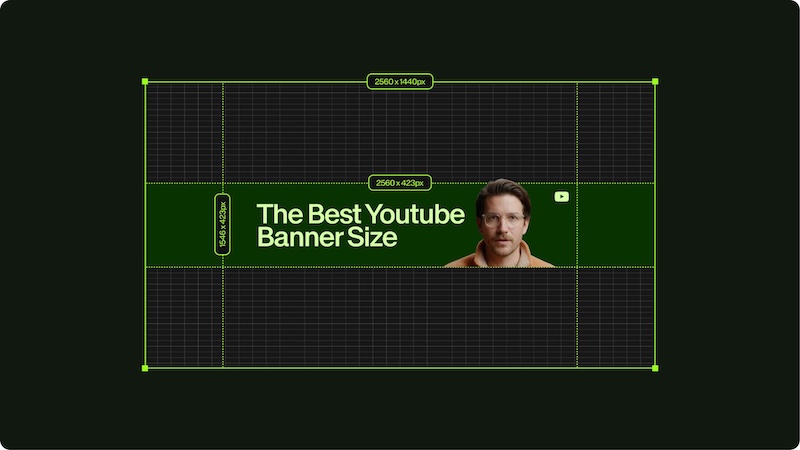
- Minimum Dimension Safe Area for Text and Logo: 1235 x 338 pixels.
- Maximum File Size: 6MB.
2. YouTube Banner Size for Tablet
- Recommended Dimensions: 2650 x 1440 pixels
- Minimum Dimension for Uploading: 2048 x 1152 pixels with an aspect ratio of 16:9
- Minimum Dimension Safe Area for Text and Logo: Keep important elements within the central safe area of 1546 x 423 pixels.
- Maximum File Size: 6MB.
3. YouTube Banner Size for Mobile
- Recommended Dimensions: 2650 x 1440 pixels
- Minimum Dimension for Uploading: 2048 x 1152 pixels with an aspect ratio of 16:9
- Minimum Dimension Safe Area for Text and Logo: Keep important elements within the central safe area of 1546 x 423 pixels.
- Maximum File Size: 6MB.
Part 3: Tips to Create a Good YouTube Banner in 2026
A good YouTube banner should show what your channel is about while keeping the design simple and easy to notice. It should reflect your brand identity, attract viewers, and create a strong first impression. Here are some useful tips to help you create an engaging YouTube banner in 2026:
1 Always Use Correct Banner Dimensions
If you want your YouTube banner to stand out, using the recommended dimensions is essential. Above, we’ve mentioned the YouTube banner size for all devices. For the best results, create your banner at 2560 x 1440 pixels with a 16:9 aspect ratio. This helps maintain image quality and ensures that your channel art displays across different screen sizes.
2 Use AI to Create Engaging Banners
In 2026, AI has changed everything. If you want to create an engaging YouTube banner, AI can help you generate creative designs without requiring professional graphic design skills. For example, you can use AI to create gaming-themed backgrounds, travel landscapes, educational graphics, or minimalist designs for business channels.
3 Edit Your YouTube Banner
Once you have created an engaging YouTube banner using AI, the next step is to edit and customize it according to your channel’s branding. You can use an AI editor like Edimakor AI to adjust colors, resize images, add your channel name, and include a short tagline. Make sure the text is easy to read, and the design matches your content niche.
4 Export Banner in High Quality
After you have finished editing your YouTube banner, make sure to export it in high quality, such as 1080p or 720p. Choose a suitable image format, like JPG, JPEG, or PNG, to maintain visual clarity and ensure compatibility with YouTube.
Part 4: How Do You Change Your YouTube Banner?
How to change a YouTube banner? It is a question that comes to every YouTuber's mind when creating a channel or updating its appearance. Fortunately, YouTube makes it easy to upload or change your channel art in just a few steps. Here is how to do it:
-
Open YouTube and log in to your channel. Click on the “Profile Icon” and select the “Your Channel” option from the drop-down menu.
-
Next, click on the “Customize Channel” option. Then, select the “Branding” and choose “Banner Image.”
- Select the “Change” option and upload the banner you have created. Make sure the YouTube banner is in a supported format, such as JPG, PNG, JPEG, and more.
-
Once the banner is uploaded, preview how it appears on different devices, including desktop, tablets, and mobile phones. Adjust the image if required.
- Finally, click on the “Publish” button to save your changes. Within seconds, YouTube will update your channel banner.
Tips:
Before uploading your banner, ensure that it follows YouTube’s recommended dimensions of 2560 x 1440 pixels and does not exceed the maximum file size of 6 MB.
Part 5: Best Tool to Create a YouTube Banner for All Devices
If you want to take your YouTube channel to the next level, creating professional-looking YouTube banners is essential. To create high-quality and engaging banners without editing experience, we recommend using Edimakor AI. It is an all-in-one AI tool that enables users to create engaging images with a single text prompt — no editing skills or professional help required. With this AI Video Editor, users can easily convert their text into visually appealing images that match their channel’s theme and branding. Whether you run a gaming channel, travel vlog, educational platform, or entertainment channel, Edimakor AI can help you explore creative design. Once your banner is ready, the Edimakor AI editor ensures that everything fits in the safe zone.
Create NowKey Features of Edimakor AI
- Text-to-Image: Edimakor AI enables users to create engaging YouTube banners with simple text prompts. Users don’t have to hire a professional graphic designer to develop creative banner concepts. Simply describe the desired design, style, colors, and theme, and the AI can generate visuals based on the prompt.
- AI Image Editing: With this tool, users can edit AI-generated images to better match their channel’s branding. Users can add text prompts, logos, filters, effects, and more. They can also adjust visual elements, experiment with different styles, and refine the background to create a more polished appearance.
- Multiple AI Models: One of the standout features of this tool is that it offers a wide range of AI models, each with unique features and capabilities. AI models available on this program are Nano Banana Pro, Stable Diffusion, Flux, Midjourney, Seedream, and more.
- High-Quality Visuals: The best part of Edimakor AI is that it enables users to download YouTube banners in high quality, such as 4K. Plus, users can export images in YouTube-compatible formats, such as JPG, PNG, and JPEG.
- Intuitive Interface: Edimakor AI offers an easy-to-use interface, which is ideal for non-tech and beginner users. Users can create and customize YouTube banners without requiring professional design skills. Best for content creators, marketers, businesses, and educators.
Step-by-Step Guide:
Creating high-quality YouTube banners with Edimakor AI is simple. Follow the instructions below to learn how to do it:
Step 1: Open your web browser and go to the Edimakor AI official site. Log in with your free account and choose the “Text-to-Image” feature from the left panel. Select the desired AI model, such as Nano Banana Pro, Flux, or Midjourney.
Step 2: Enter your YouTube banner prompt design in the prompt box. Describe the type of banner you want to create, including your channel’s niche and background style. Next, select the aspect ratio, output number, and resolution.
Step 3: Finally, click on the “Generate” button to begin the image creation process. Once the image generation is complete, go to “My Creation” and select your image. Preview the results, and if satisfied, click on the “Download” button.
Final Thoughts
Professional YouTube channels make sure that they have everything right, including YouTube banner size. A well-designed banner helps create a strong first impression, communicates the channel’s identity, and makes it easier for viewers to understand its content. What is YouTube banner size? The recommended YouTube banner size is 2560 x 1440 pixels.
Creating a professional-looking banner does not have to be complicated. With an AI-powered tool like Edimakor AI, users can design a professional-looking banner with a simple click — no editing experience required.


Leave a Comment
Create your review for HitPaw articles