GIFs have become the universal language of the internet, one that is
shareable, expressive, and far easier to consume than a full video. But
without the right technique to create one, you end up with a blurry,
oversized file that platforms struggle to load. We see this problem
constantly.
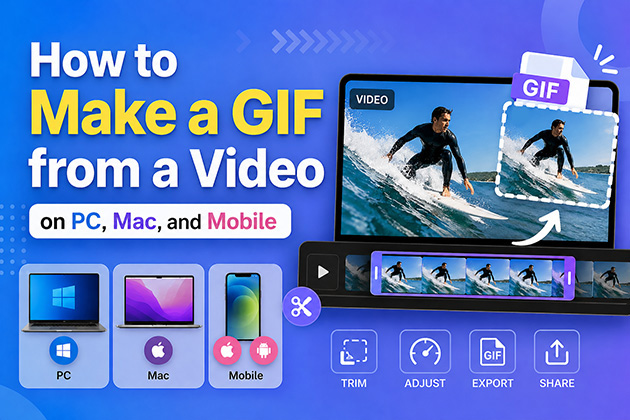
In this best GIF maker guide, we cover everything: how to make a GIF from a video on desktop, online, and mobile, which method actually works for your use case, and exactly what to do to get clean results every time.
Why Turn a Video into a GIF?
Videos can be too long to watch, especially when you only need a specific moment. That’s where GIFs come in. Here’s the reason for turning a video into a GIF:
- GIFs move without a play button: A GIF loops when it loads. That makes it the fastest way to show a reaction, a highlight, or a product feature.
- Work across different platforms: Email, chats, social media, and websites all support GIFs. There’s no need to deal with codes or missing plugins.
- Easy to share: Once created, a GIF is self-contained and can be shared endlessly, without needing to re-edit.
Method 1: Convert Video to GIF in High Quality on PC & Mac (Pro-Level Tool)
Converting video to GIF isn’t difficult if you use professional tools. HitPaw Edimakor stands out as one of the best video to GIF converters. HitPaw Edimakor is an all-in-one AI video editor for PC and Mac, built with powerful AI tools and an intuitive interface. Creating stunning GIFs from videos has never been easier.
Step-by-Step: Creating High-Quality GIFs with HitPaw Edimakor
Here’s how to turn a GIF from a video without losing quality:
Step 1: Download and install HitPaw Edimakor , then launch the program.


Step 2: Click "New Project". Drag the video clip to the timeline. This is where editing takes place.

Step 3: Trim the clip to the part you want. Keep the GIF short. Adjust speed, brightness, crop the frame, or apply effects if needed.
Step 4: (Optional) Add text or stickers to make your GIF more engaging.
Step 5: Click "Export", choose GIF as the format. Set resolution, quality and frame rate in the export panel. Your GIF saves to the computer in seconds.
Method 2: The Quickest Online Video to GIF Converters
Don’t want to download software? Try converting a video to GIF online. Online tools are convenient for quick, one-off tasks.
1 Using Ezgif or GIPHY in Your Browser
Ezgif is a free browser tool built for GIF work. Upload a video, adjust the duration, pick a frame rate, and convert it. Ezgif supports multiple input formats like MP4, WebM, and AVI. There is also a basic editor for cropping and resizing in this video to GIF converter.
GIPHY is one of the most popular platforms for creating and sharing GIFs. It accepts a video upload or a URL. It also includes built-in editing tools. You can download the GIF or share it through GIPHY. It works well for casual content and social media posts.
2 The Pros and Cons of Using Web-Based tools
For a one-off quick conversion, these online tools do the job. For anything more than that, the limitations become a real issue.
Pros:
- No software required.
- Quick turnaround for small files.
- Completely free on both platforms.
Cons:
- File size limits of 100 to 200 MB make it difficult to process HD footage and longer clips.
- Video uploaded to a third-party server raises privacy concerns.
- Output is compressed by default; color accuracy, frame smoothness, and overall sharpness take a hit compared to desktop software.
Method 3: Making GIFs on Mobile (iOS & Android)
iOS and Android devices require a different method than a PC. Make GIFs on your mobile through these simple steps:
On iPhone: Using Shortcuts or Live Photos
iPhone users have two options that require no app download. Here’s how to make a GIF from a video on iPhone:
- The Shortcuts app: Open Shortcuts and search the Gallery for Video to GIF high-quality. Tap it, select a video, choose the clip duration, and it generates a GIF.
- Live Photos: Open a Live Photo. You’ll then need to select either “Loop” or “Bounce” effect. Your Live Photo will now play like a traditional animated GIF.
There are also third-party iOS apps such as ImgPlay , which enable you to perform basic video editing.
On Android: Using Built-in Gallery or Other Apps
If you have a Samsung or certain other Android phones, a GIF creator is built right into the Gallery app. Open a video, tap Edit or Share, then look for "Create GIF". It trims and saves automatically; no extra app needed. No built-in option? GIPHY ’s Android app works well.
One quick tip:
Keep mobile GIFs under 15 seconds. Longer clips produce very large files that most platforms may reject at upload.
Best Ways to Turn Video into GIF (Quick Comparison)
The correct method depends on what you require from the output. Here’s a comparison across different factors:
| Method | Best for | Output Quality | Ease of Use | File Support | Editing Features |
|---|---|---|---|---|---|
| HitPaw Edimakor (PC/Mac) | High-quality GIFs & regular use | ★★★★★ | ★★★★★ | Supports large file sizes | Full editing + AI tools |
| Ezgif (Online) | Quick, one-time conversions | ★★★ | ★★★★ | ~100 MB | Basic: trim and resize only |
| GIPHY (Online) | Social sharing & casual content | ★★★★ | ★★★★ | ~100 MB | Stickers, text, simple editing |
| Mobile Apps | On-the-go creation | ★★★ | ★★★★★ | Device limit applies | Basic editing |
If you are creating GIFs regularly and need clean, sharp output, HitPaw Edimakor is the best choice.
FAQs
A1: Compressed files cause blurry GIFs. To improve quality, export at 720p resolution and around 15 fps.
A2: To meet Discord’s 10 MB file size limit, keep the clip under 5 seconds. Export at 480p resolution and 15–20 fps.
A3: Remove the background. In HitPaw Edimakor, the Background Removal tool can do this automatically. Once the background is removed, just export it as a GIF. Online tools aren't reliable for this; a desktop editor is the most dependable option.
A4: Yes, you can easily turn a screen recording into a GIF. With HitPaw Edimakor, you can record your screen, import the footage directly into the editor, and continue editing. You don't need to switch tools.
Conclusion
There are plenty of ways to turn a video into a GIF. Mobile apps work when you are away from a desk. Online tools handle quick, low-stakes jobs.
But if you need sharp output, support for large files, and full editing control, the best video-to-GIF converter is HitPaw Edimakor . Download now to learn how to make a GIF from a video in minutes.
Leave a Comment
Create your review for HitPaw articles