Scrolling through cinematic AI videos online, you might wonder how creators turn empty streets and forgotten buildings into haunting visuals. Learning how to make AI abandoned video opens the door to creating atmospheric scenes without expensive locations or crews.
With the right prompts, AI tools, and editing techniques, anyone can recreate a realistic abandoned world. The aesthetic that feels cinematic, emotional, and visually striking for social media or storytelling projects. Read this article till the end to learn how to make AI abandoned videos using the right tool.
Part 1. What Are AI Abandoned Videos
AI abandoned videos are AI-generated visuals that depict deserted cities, empty buildings, and forgotten places using text prompts, images, and video synthesis. These videos create cinematic, post-apocalyptic atmospheres, which are ideal for creators learning how to make AI abandoned videos on Facebook.
Key Aspects
- Concept: Focuses on abandoned, urbex, or post-apocalyptic environments created entirely with AI for Facebook-friendly content.
- Visual Style: Features empty streets, decayed buildings, fog, dust, and dramatic lighting that perform well on Facebook videos.
- Creation Method: Uses AI text-to-video, image-to-video, and animation tools optimized for social platforms.
- Common Formats: POV urbex walks, cinematic fly-throughs, Facebook Reels, and short story-based clips.
- Use Cases: Facebook content creation, storytelling videos, reel monetization, and audience engagement.
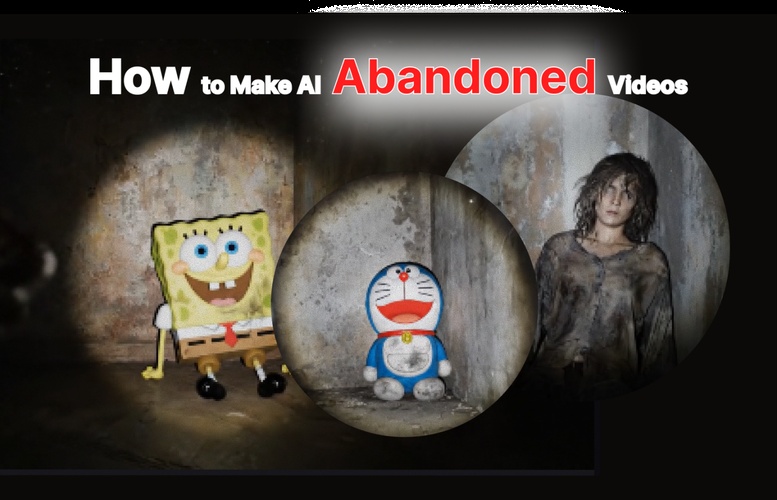
Camera is a real human viewpoint walking slowly in the same location, with grounded motion: subtle vertical footstep bob, gentle side-to-side sway, imperfect handheld movement. Viewer holds a flashlight; the beam reacts naturally with delayed motion, small overcorrections, and uneven scanning. [Subject like SpongeBob] is lying down to lean on the wall with head down like a dirty doll—no blinking, breathing, or movement. Only environmental motion is allowed (floating dust, slight light flicker, minimal loose elements). Environment stays consistent throughout: no set changes, teleporting, or new objects. Photorealistic, found-footage realism, low light, strong shadows, gritty textures, natural imperfections.

Part 2. How to Make Viral AI Abandoned Videos for Social Media
One of the most reliable solutions that lets you generate content from images for your social media posts in HitPaw Edimakor . The tool uses advanced AI to generate images and videos while offering customization options. To learn how to make an AI abandoned video for YouTube or other social media content, read the steps provided next:
Step 1. Acquire Text to Image Feature
To begin, launch Edimakor on your device and choose the Text to Image feature located on the homepage.


Step 2. Input Prompt and Generate
In the following interface, enable the Text to Image section and select AI Image from left. Choose the Image Generation feature and input the text prompt in the designated field. Select the Aspect Ratio and Model and hit the Generate button to execute the process.
Step 3. Preview Generated Image
Once the image is generated, preview it within the tool and drag it to the editing timeline.
Step 4. Opt For Image to Video
Now right-click on the image thumbnail and select the Image to Video from the expanded list.
Step 5. Select Aspect Ratio
Crop the image in the Stitch Mode if you want to remove any unwanted parts from the picture. Once done press the OK button to save the changes.
Step 6. Insert Text Prompt and Generate
Now, input the text prompt for the video according to your choice. When done, press the Generate button to begin the video generation.
Step 7. View Generated Video
After the successful video creation, access the My Creation section from the left. Click the Find Target option to locate video in your device’s storage.
Part 3. How to Make Viral AI Abandoned Video with BrainRot
With HitPaw Edimakor, users can generate content directly from text prompts. Simply describe what you want to see, and this AI-powered tool creates it using advanced AI models. Brainrot is a viral style featuring surreal, absurd, or exaggerated characters and visuals that are chaotic, humorous, and oddly captivating. Follow the steps below to learn how to make an AI abandoned video with a Brainrot character using HitPaw Edimakor :
Step 1. Access Edimakor Reference Image
After launching the tool, access the Toolbox from the left of the homepage and opt for Reference Image function.
Step 2. Import Images and Enter Text Prompt to Generate
Next, input the image and prompt in the designated field after selecting Image Generation from AI Image on left. Once done, press the Generate button to execute the process.
Step 3. Turn Image to AI Abandoned Video
Then, go to “ My Creation” and right-click the result and select “Image To Video”.
Step 4. Edit the Image Size
After clicking the “Image to Video” tap, a window will pop out for editing the size of the image.
Step 5. Put the Same Text Prompt for Making an AI Abandoned Video
Next, input the image and prompt in the designated field after selecting Image Generation from AI Image on left. Once done, press the Generate button to execute the process.
Step 6. Get the Result File or Edit It
Once the generation is done, the result will be saved in “My Creation” as well. Hover on it and tap the two icons. Click “+”, it will be added to the timeline for further edits, and the other is locating the file.
Part 4. How to Make a Viral AI Abandoned Video with a Cartoon Character
Creating a viral AI abandoned video becomes effortless when you combine imaginative characters with powerful AI tools. Using Edimakor's Text-to-Image feature, you can bring a cartoon character into a desolate, cinematic environment. By typing detailed prompts, anyone can produce eye-catching, shareable visuals that stand out on social media platforms. Read the steps provided next to learn how to make an AI abandoned video using Edimakor:
Step 1. Choose Text to Image Feature
Once you have launched the tool on your device, access Toolbox from the left and opt for the Text to Image tab.
Step 2. Enter Text Prompt to Generate
Access the Text to Image section from the top and enable AI Image from the left. Now, choose Image Generation and input the text prompt to press the Generate button.
Step 3. Opt For Image to Video
Once the image is generated, acquire the image My Creation section from the left. Right-click on the thumbnail and choose the Image to Video option.
Step 4. Input Prompt and Generate
Now enter the prompt for video generation and press the Generate button to execute the process.
Step 5. View Video in Device
After the successful generation of the video, drag it to the editing timeline. Access it within your device’s storage by pressing the Find Target option.
To Sum Up
To sum it up, this article provided a detailed guide on how to make an AI abandoned video for your social media platform. By using creative prompts, cinematic settings, and surreal characters like Brainrot, you can craft eye-catching content that stands out. For an easy and powerful experience, HitPaw Edimakor is highly recommended, as its Text-to-Image and Image-to-Video feature allows you to turn simple text into stunning, shareable visuals in just a few steps.
Leave a Comment
Create your review for HitPaw articles