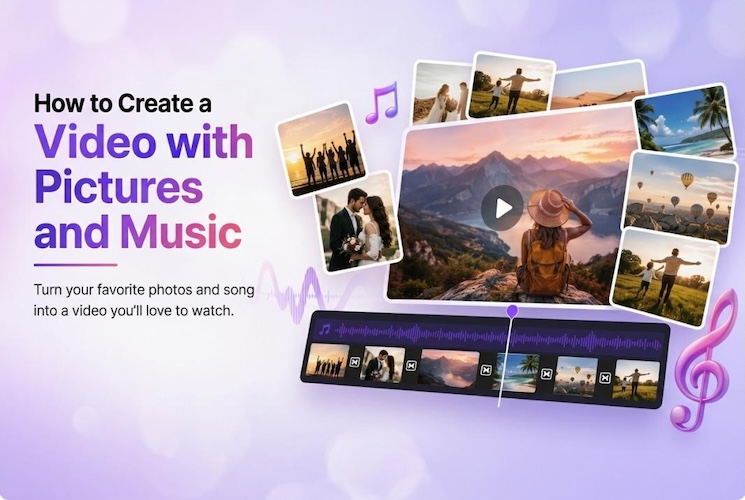
You’ve got a folder full of photos and a song that would be perfect for them, but turning them into a video can feel overwhelming. Maybe you got lost in complicated settings or simply don’t know how to create a video with pictures and music .
This guide covers what kinds of videos you can actually make from pictures and music, plus a full walkthrough for putting one together without ever touching a real editing timeline.
What Videos Can You Make with Pictures and Music?
Pictures and music go together more ways than people usually realize. Below are seven common formats worth knowing, split into two groups: the ones you make for people close to you, and the ones you make for an audience online.
Personal & Event Videos
1. Birthday Slideshow
It combines favorite photos, birthday music, wishes, and memorable dates into a personalized video. Usually for a birthday celebration or gift.
Editing tip: Match photo changes to the beat, and save the best photo for last.
2. Wedding Video
Pulls together engagement shots, prep-day candids, and reception moments into a highlight reel guests can rewatch long after the day itself.
Editing tip: Lead with a wide shot of the couple, then move chronologically through the day.
3. Memorial Video
A tribute built from photos spanning someone's life, usually shown at a service or shared with family who couldn't attend in person.
Editing tip: Keep transitions slow and simple — this isn't the place for flashy effects.
4. Family Video
A collection of everyday moments — holidays, milestones, ordinary weekends — stitched together into something that plays like a home movie.
Editing tip: Group photos by season or year so the video tells a clear timeline.
Social & Creative Videos
5. Travel Vlog
Turns trip photos into a shareable recap, often posted right after getting home while the trip's still fresh.
Editing tip: Order photos by location, not by date taken, so the geography makes sense.
6. Instagram or TikTok Slideshow
A short, punchy photo set timed to a trending song, built for quick engagement rather than a long watch.
Editing tip: Front-load your strongest photo — the first two seconds decide whether people keep scrolling.
7. Music Video with Pictures
Photos edited to match a song's structure, verse to chorus, almost like a lyric video but built from stills instead of clips.
Editing tip: Change photos on key musical hits, like a drum fill or the drop into the chorus.
Make a Music Video onlineHow to Make a Video with Pictures and Music Easily
Once you know what kind of video you're going for, the next problem is actually how to make video with pictures and music. HitPaw Edimakor works as a photo to video editor with music maker — it's aimed at people who want a result that looks intentional.
1 Why Use Edimakor to Make Your Video
There's no shortage of apps out there, which is exactly why so many people end up searching for an ai music video maker online instead of trying to figure out a full editing suite. Here's what makes Edimakor worth that search.
- Ready-made templates: Drop your photos into a pre-built layout instead of designing pacing and transitions from scratch.
- AI Transitions : The tool picks transitions that actually match your music's rhythm instead of applying the same fade to every single cut.
- AI Image-to-Video : Turns still photos into subtle moving shots — a slow pan or zoom — so you get a real image to video with music motion instead of a video that just feels like a static slideshow.
- AI Image Enhancer : Cleans up blurry or low-resolution photos before they go into your timeline, which matters more than people expect once photos are blown up to full screen.
- Dynamic Texts, stickers: Adds captions, dates, or names on top of your photos without needing to open a separate design tool.


2 How to Create a Video with Pictures and Music in Edimakor
Step 1: Import Your Photos
Drag and drop your photo folder straight into the timeline. If a few shots are dark or blurry, run the AI Image Enhancer first, or use AI Image-to-Video to add subtle motion to photos that would otherwise feel flat and static.

Step 2: Arrange Your Photos on the Timeline
Drag photos into the order you want them to appear. This is also the point to trim or zoom out anything that doesn't earn its spot — fewer, stronger photos almost always beat a long slideshow.
Step 3: Add and Sync Your Music
Drop your song onto the audio track and line photo changes up with the beat. No song on hand? Use AI Music Generator to build a backing track that fits your video's mood.
Step 4: Add AI Transitions and Filters
Apply AI Transitions between photos so cuts feel natural instead of abrupt. Color Match can also match the color grading across all your photos, which helps a mixed batch of images look like they belong in the same video.
Step 5: Fine-Tune Your Video
Add text overlays, dates, or stickers wherever they're useful — a name under a portrait, a location tag on a travel shot, whatever fits the video you're making.
Step 6: Export and Share
Export in the format that matches where the video's headed. Vertical for Instagram and TikTok, standard widescreen for YouTube — Edimakor handles the resizing so you're not manually cropping anything.
FAQs
A1. In Edimakor, select the clip between two photos on the timeline and apply one of the AI Transitions — the tool suggests options based on your music's pacing.
A2. Two to four seconds is a safe range for most videos. Faster cuts work for upbeat social clips; slower holds suit wedding or memorial videos.
A3. Use Auto Sync in Edimakor to align photo changes with the beat automatically, or adjust the timing manually if you want more control over specific moments.
A4. Vertical 9:16 works best for both platforms. Edimakor's export presets handle this automatically, so you don't have to calculate dimensions yourself.
Conclusion
Editing experience is not needed to make photos and a song worth watching; it takes the right tool. From creating birthday gifts and assembling a wedding highlight reel to quickly syncing travel photos to Instagram, Edimakor 's templates and AI transitions take care of the nitty-gritty of video editing, giving you more time to choose the perfect footage.
Leave a Comment
Create your review for HitPaw articles