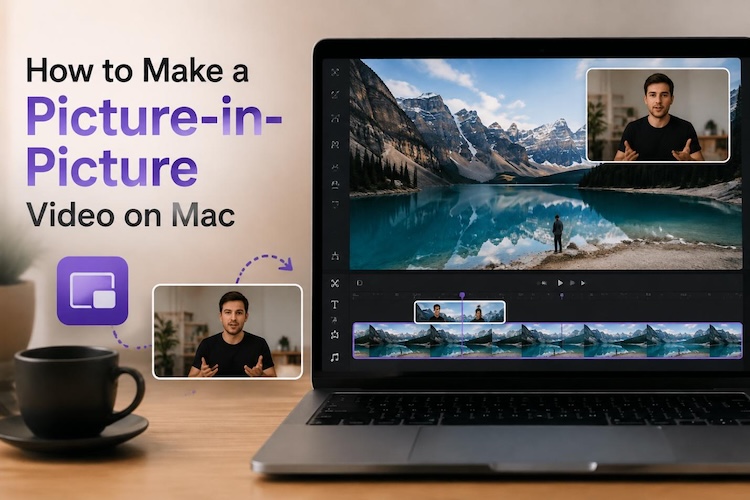
Many Mac users need to display two or more videos on the screen simultaneously. That’s when you need a picture-in-picture (PiP) layout. It makes your content easier to follow and more engaging.
This guide explains how to do picture in picture on Mac using HitPaw Edimakor and iMovie, along with practical examples and editing tips.
Picture-in-Picture Video Examples for Different Content Creators
A picture-in-picture (PiP) video places several videos or images inside another video, allowing viewers to watch multiple visual elements at the same time. This layout is widely used across different types of video content.
1 Reaction and Commentary Videos
Reaction videos typically show the creator’s face in a smaller overlay while the original content plays in the background. This format allows viewers to watch both the reaction and the source material simultaneously, creating a more engaging viewing experience.
Best For:
YouTubers, movie reviewers, sports commentators, livestream reactions, and entertainment creators.
2 Tutorials and Online Courses
Educational videos often combine screen recordings with a webcam overlay so instructors can explain concepts while demonstrating software, presentations, or online lessons. This helps build a stronger connection with viewers and makes instructions easier to follow.
Best For:
Teachers, online course creators, software trainers, business educators, and presentation videos.
3 Gaming and Streaming Content
Gaming creators frequently place a facecam over gameplay footage so audiences can watch both the game and the player’s reactions. This layout adds personality while maintaining full visibility of the gameplay.
Best For:
Twitch streamers, YouTube gamers, esports creators, speedrunners, and livestream content.
4 Product Demonstrations
Businesses often display a presenter alongside close-up product footage or screen recordings. This allows viewers to see detailed product features while listening to explanations at the same time.
Best For:
Ecommerce sellers, product reviewers, marketing teams, software demonstrations, and tutorial creators.
How to Make a Picture-in-Picture Video on Mac in Just a Few Clicks
If you’re looking for a beginner-friendly video editor for PiP on Mac, then HitPaw Edimakor is an excellent choice. Unlike basic editors that only support simple overlay effects, Edimakor offers advanced AI editing tools, making it very easy to create stunning multi-layer videos.
Key Features of Edimakor
- Multi-layer timeline editing for combining several videos, images, and audio tracks.
- AI background removal for creating clean video overlays without a green screen.
- Filters, color adjustments, masks, and visual effects for enhancing PiP videos.
- Built-in audio editing tools for music, voiceovers, and sound effects.
- Powerful AI features including subtitles, AI translation, text-to-speech, image generation, and video enhancement.


Here's how to create picture-in-picture videos on Mac by using:
Step 1: Import Videos
Launch HitPaw Edimakor and create a new project. Import your main video and the second video or image that you want to use as the picture-in-picture overlay.

Drag the primary video onto the main timeline, then place the second media file on a track above it to create the overlay effect.
Step 2: Resize the Overlay Video
Click the overlay video in the preview window and drag its corner handles to resize it. Move the overlay to any area of the screen depending on your preferred layout. You can also fine-tune the overlay’s position using the transform controls.
Step 3: Customize Your Video
Once the overlay is in place, customize your picture-in-picture video. Edimakor also lets you add masks for creative overlay shapes, replace backgrounds using AI background remover, apply filters, and more. These tools make it easy to produce professional videos without advanced editing experience.
Step 4: Preview and Export
Preview the entire project to ensure both videos are synchronized and positioned correctly. Export the finished video in your preferred resolution and aspect ratio for YouTube, Instagram, TikTok, online courses, or presentations.
How to Add Picture-in-Picture Effects on Mac Using iMovie
If you prefer using Apple’s built-in video editor, iMovie picture in picture supports basic overlay editing. It provides a simple way to create PiP videos for basic projects.
Step 1: Import Your Videos
Open iMovie and create a new project. Import your primary video, then drag it onto the timeline.
Step 2: Click Video Overlay Settings
Select the overlay clip and click “Video Overlay Settings” above the preview window. From the overlay options, choose “Picture in Picture” to apply the effect and insert the desired image.
Step 3: Adjust Size and Position
Resize the overlay by dragging its corners in the preview window. Move it to the desired location and adjust fade, border, or shadow settings if needed. Once you’re satisfied, export your completed project.
Final Verdict: Edimakor vs iMovie for Picture-in-Picture Videos
Both applications allow you to create picture-in-picture videos, but they target different users.
| Feature | HitPaw Edimakor | iMovie |
|---|---|---|
| Picture-in-picture editing | ✔ Advanced | ✔ Basic |
| Multiple video layers | ✔ Unlimited creative flexibility | Limited |
| Resize and positioning | ✔ Precise controls | ✔ Basic controls |
| Background removal | ✔ AI-powered | ✘ Not available |
| Filters and effects | ✔ Extensive library | Limited |
| Advanced editing tools | ✔ AI subtitles, TTS, translation, image generation, effects | Basic editing only |
| Best For | Professional creators, YouTubers, educators, marketers | Beginners and casual users |
For users who regularly add picture to video, create reaction videos, or add multiple videos together, Edimakor provides a much more efficient workflow than iMovie.
FAQs
A1: The number depends on the software you use. Edimakor supports multi-layer timeline editing, allowing you to combine several videos, images, and graphics within the same project. iMovie is more limited and works best for simpler picture-in-picture layouts.
A2: Yes. HitPaw Edimakor includes AI background removal, making it easy to remove or replace the background of an overlay video without requiring a green screen.
A3: Yes. You can modify brightness, contrast, saturation, color balance, and apply filters independently to the overlay and background videos, creating a more consistent visual appearance.
A4: For basic projects, iMovie is a good starting point. However, creators who need advanced editing features, AI tools, background removal, or multiple overlay layers will benefit from using HitPaw Edimakor instead.
Conclusion
These are the two ways on how to do picture in picture on Mac. HitPaw Edimakor provides far greater flexibility with multi-layer editing, AI-powered tools, and professional customization options. Try Edimakor on the Mac and simplify your editing workflow.
Leave a Comment
Create your review for HitPaw articles